
How to View Event Statistics and Reports in XCEED Pro
If you need a quick snapshot of how your events are performing (today, this week, or across your whole season), XCEED Pro gives you two places to look: Analytics for company-level insights, and Event Reports for deep, per-event details.
Agenda
Analytics dashboard (company-level view)
Event performance (per-event report, real time)
1. What you can track in XCEED Pro
In XCEED Pro, you can monitor key metrics like:
Tickets sold
Bottle service
Guest list
Passes
Online revenue
Event views
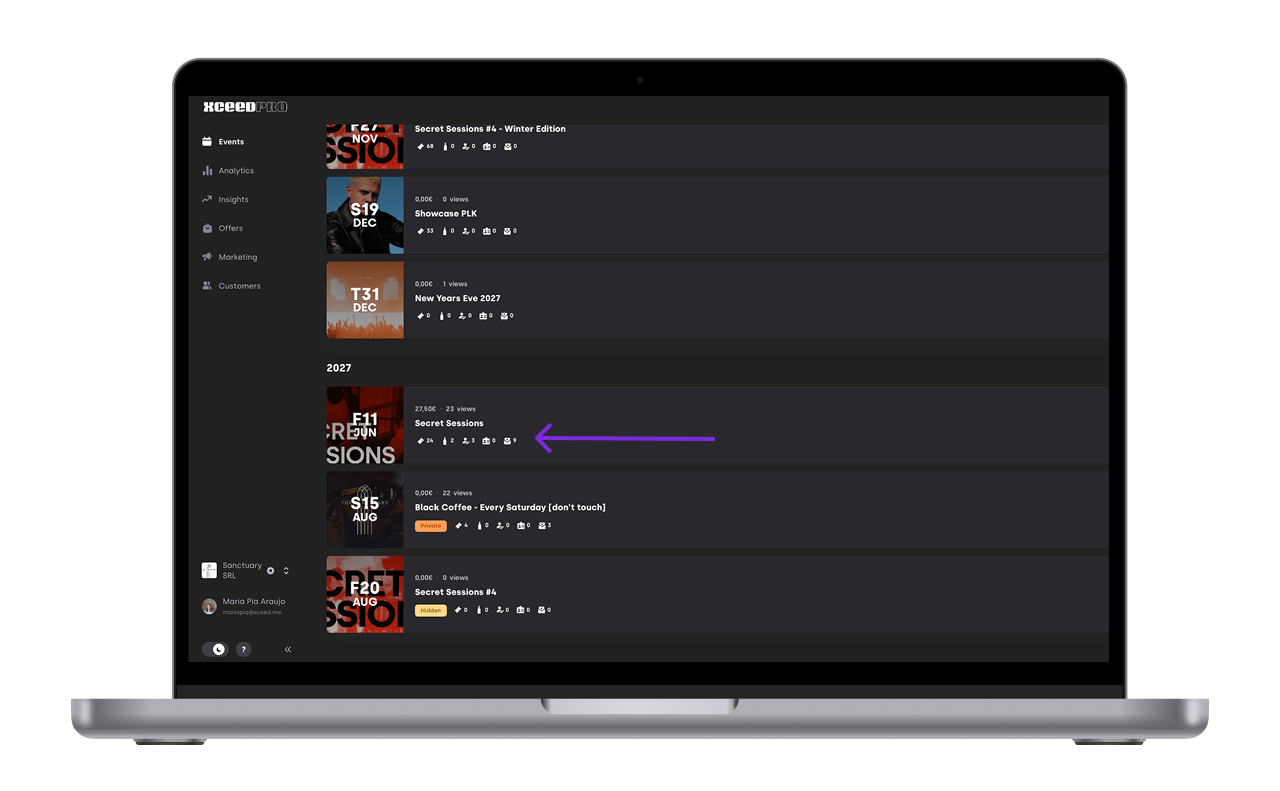

You’ll also see:
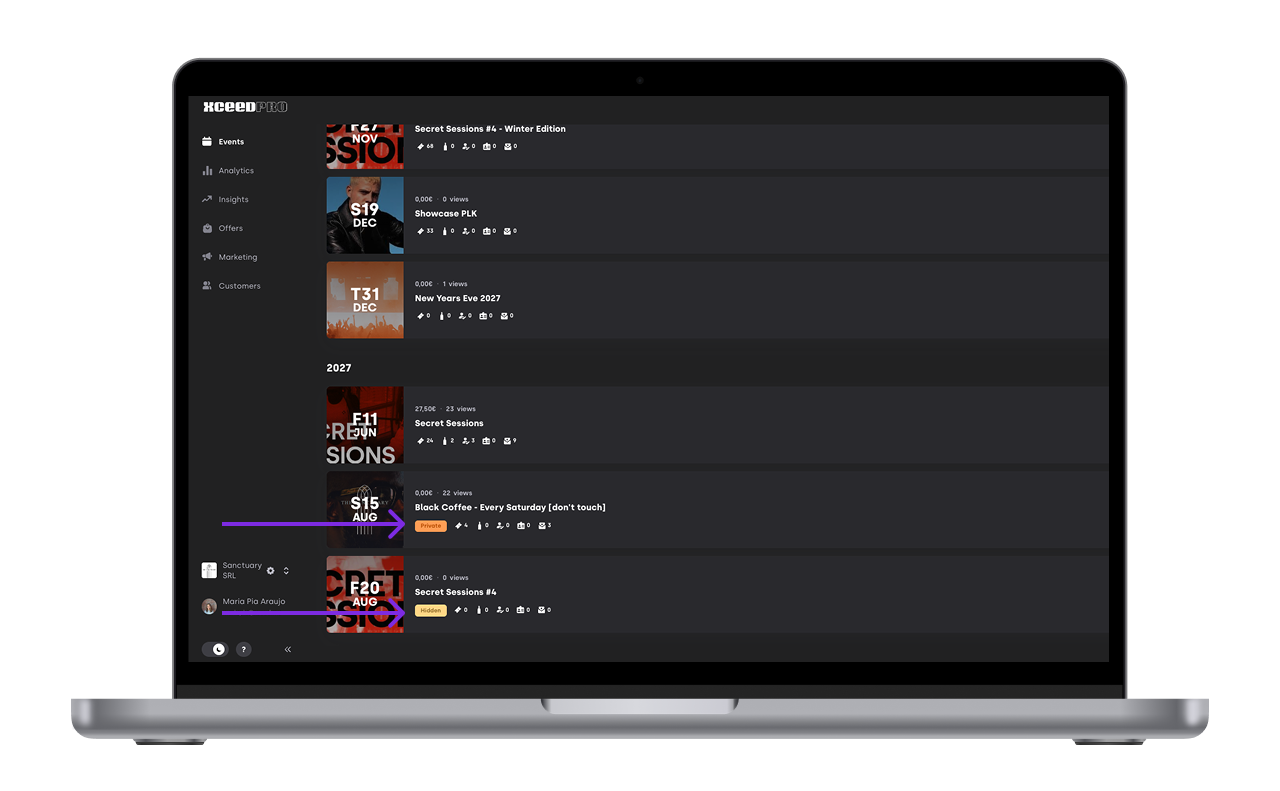
Event status tags (for example: Live, Hidden, Private, Sold out)
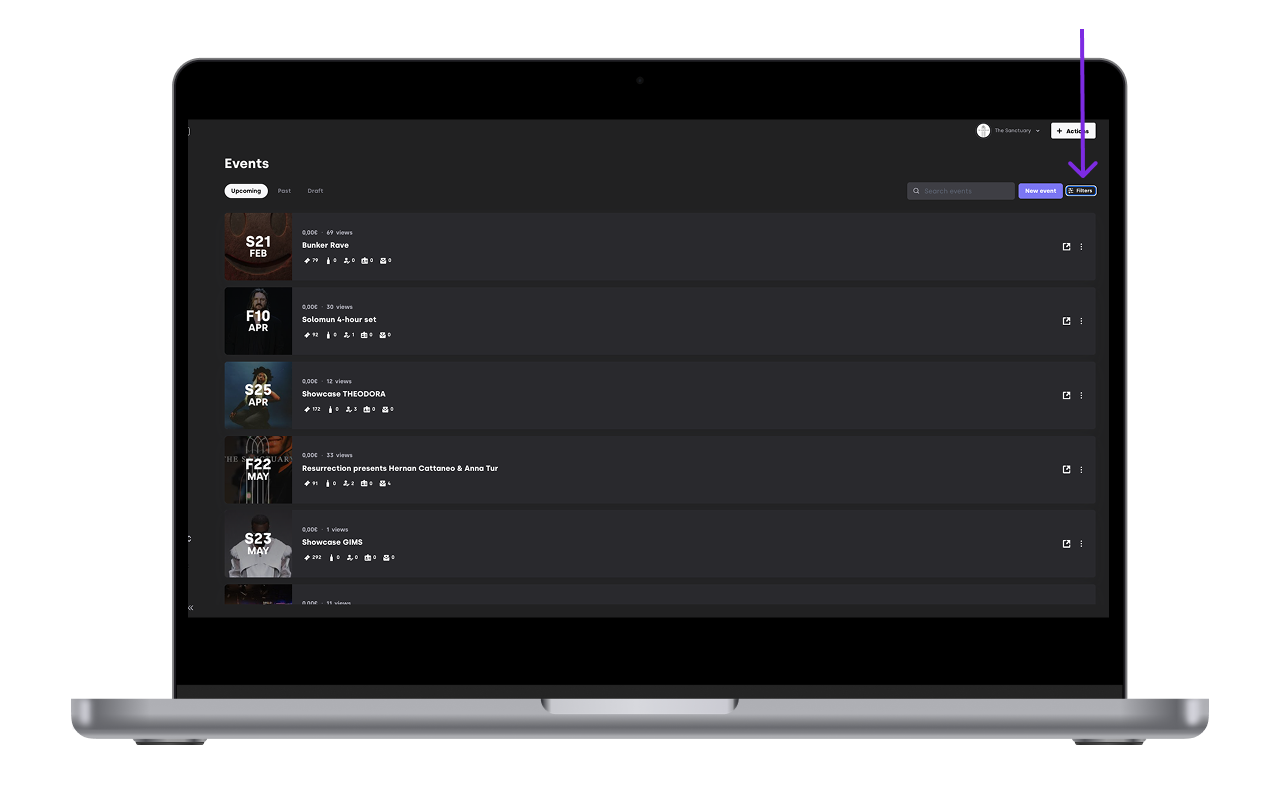
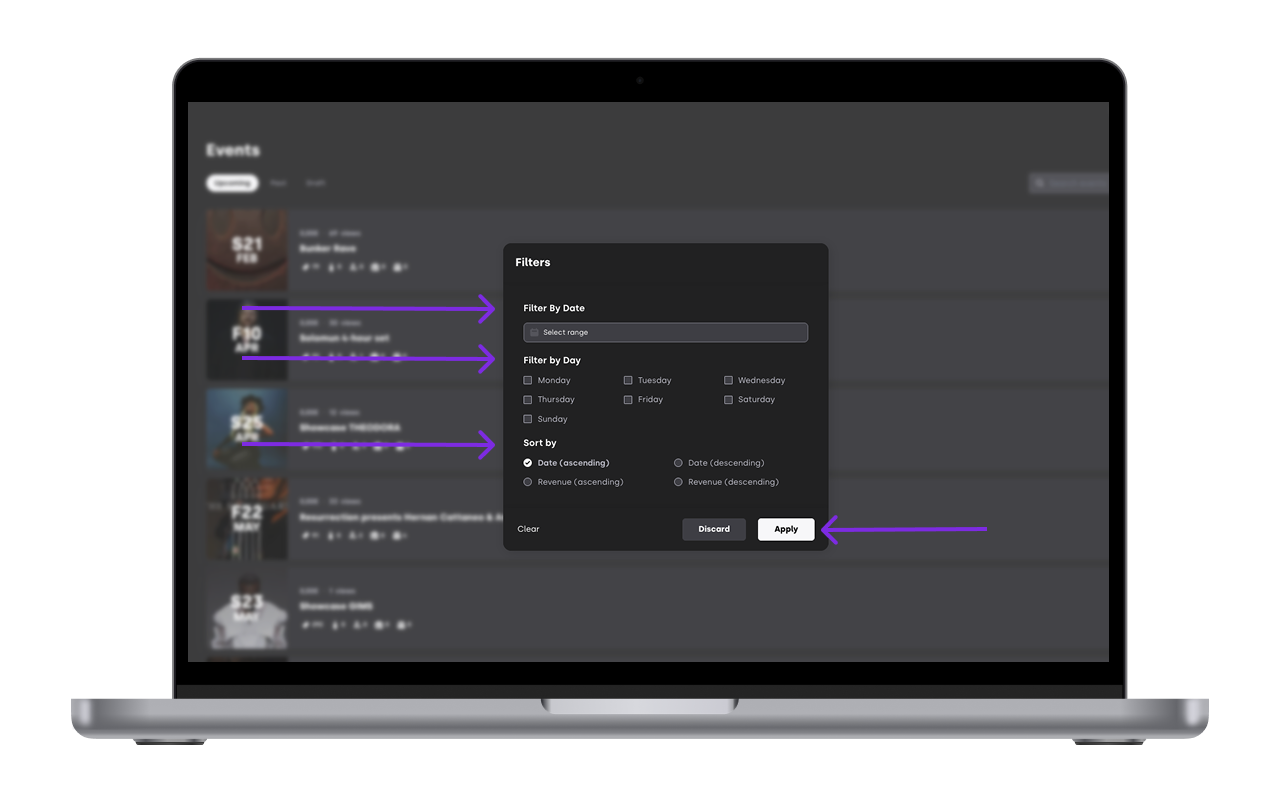
Filters to quickly find events by date, weekday, or revenue.


2. Analytics dashboard (company-level view)
The Analytics dashboard is the best place to understand performance across all your events and venues.
Log in to XCEED Pro
In the left menu, click Analytics
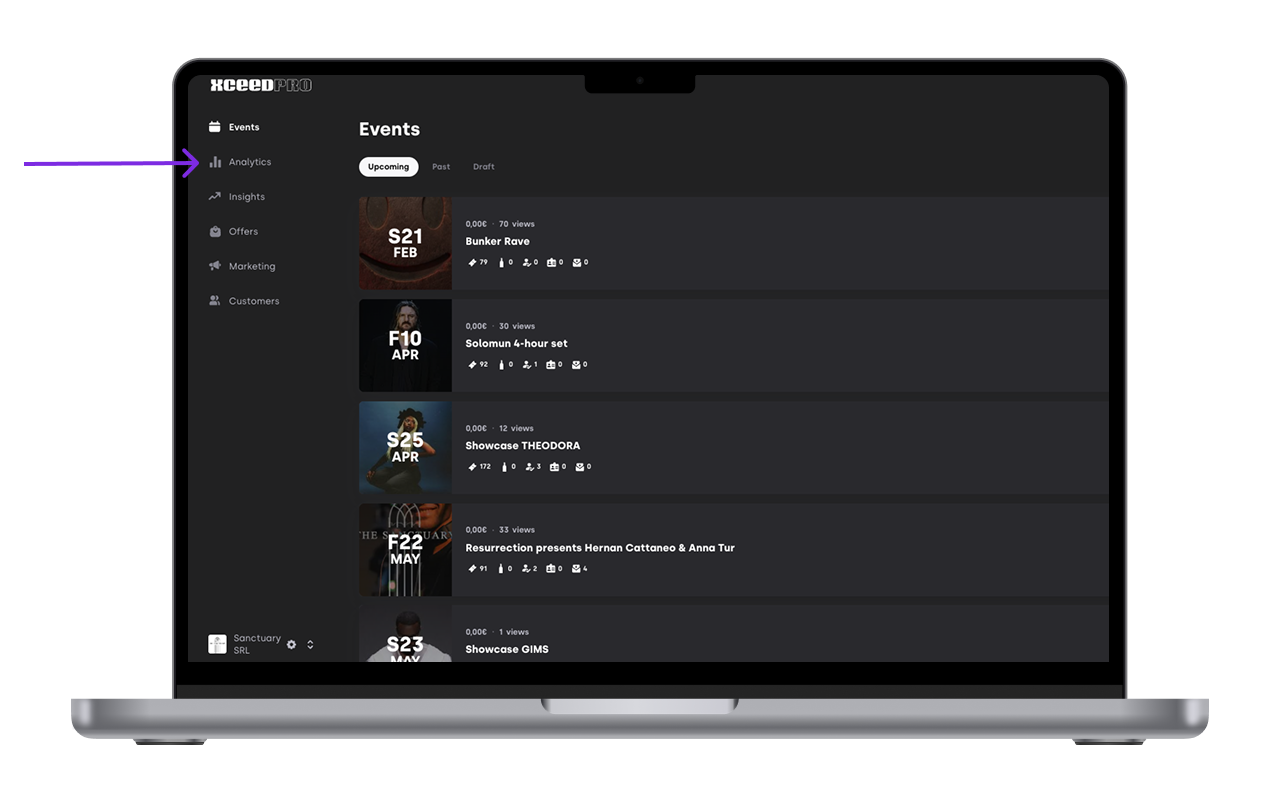

2.1 How to use Analytics filters
Once you’re in Analytics, you can filter your data by:
Date range
Venue (one or multiple)
Type of sales
Currency
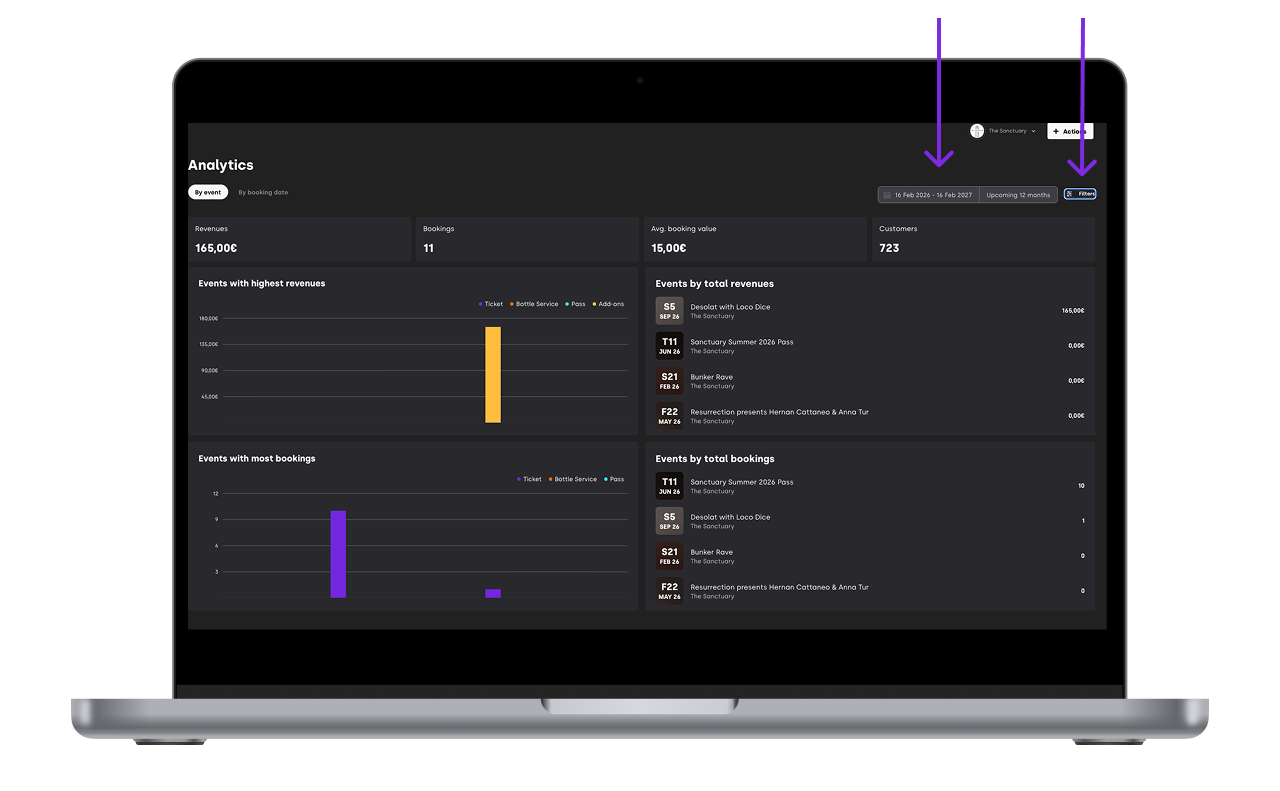

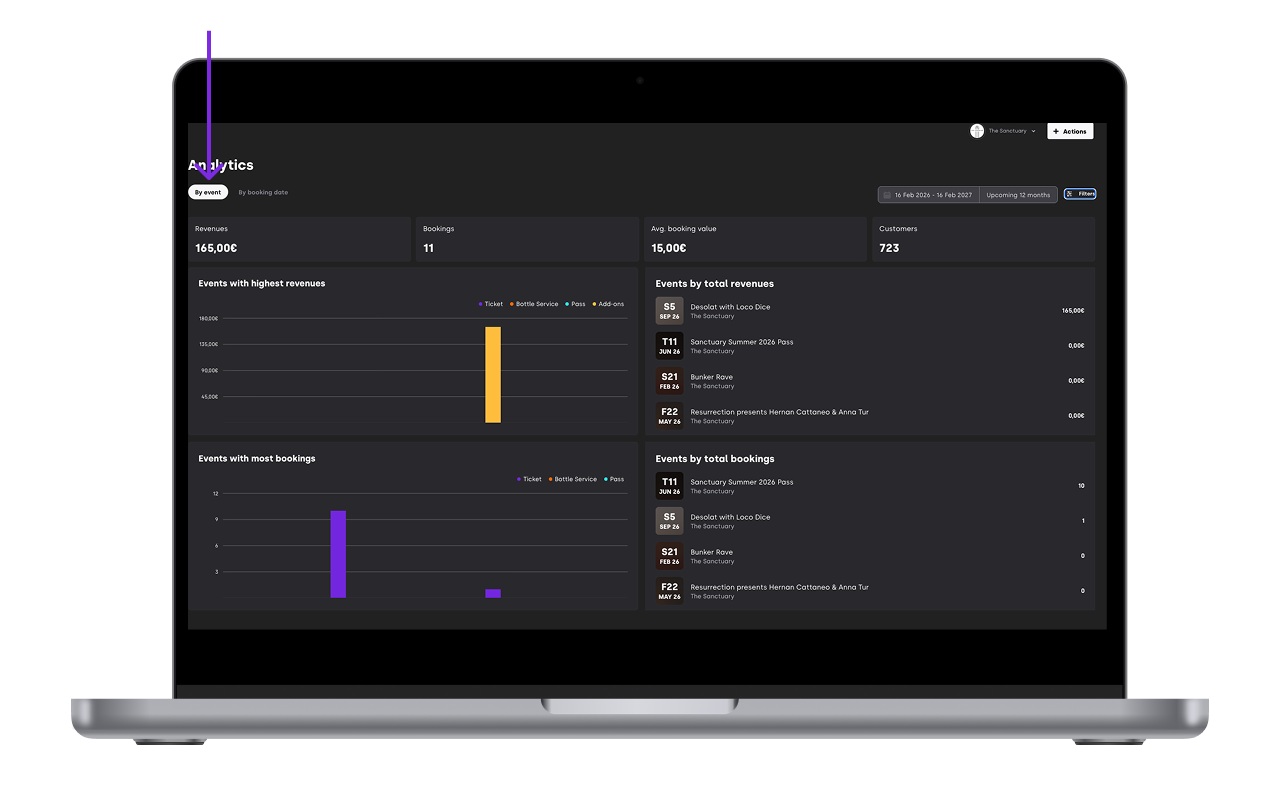
2.2 View mode: By event
Use By event to:
See general event data (like revenue and bookings for the next 365 days)
Identify best-selling events (gross profit and number of bookings), as a list or graph
Filter down by date, venue, sales type, and currency

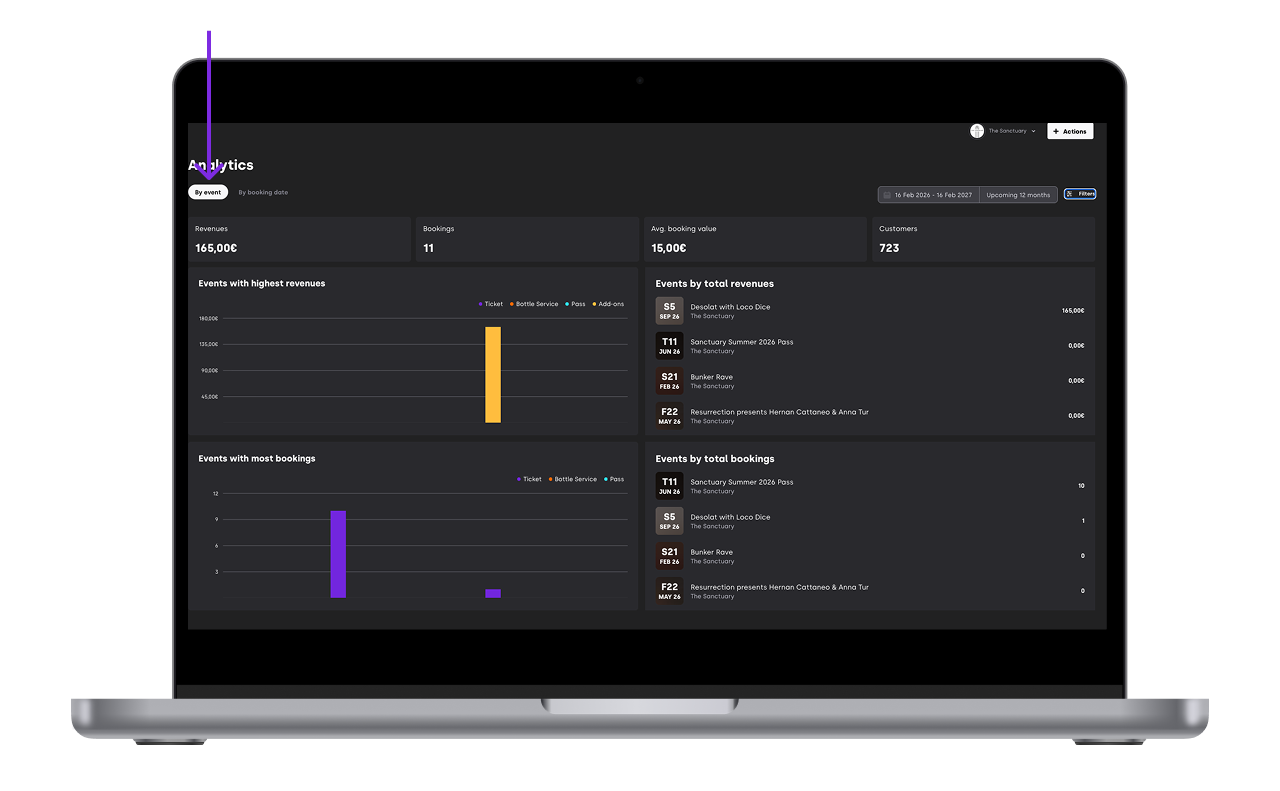
2.3 View mode: By booking date
Use By booking date to:
See which days you sell the most
Spot which events get booked the most by day
Apply the same filters (date range, venue(s), sales type, currency)

3. Event performance (per-event report, real time)
If you want to zoom in on a single event, go to the event’s report to see sales, views, and promoter performance in real time.
3.1 If your event is still running (not finished)
In the event report, you can check:
Number of reservations
Online income generated
Reservation rate compared to event views
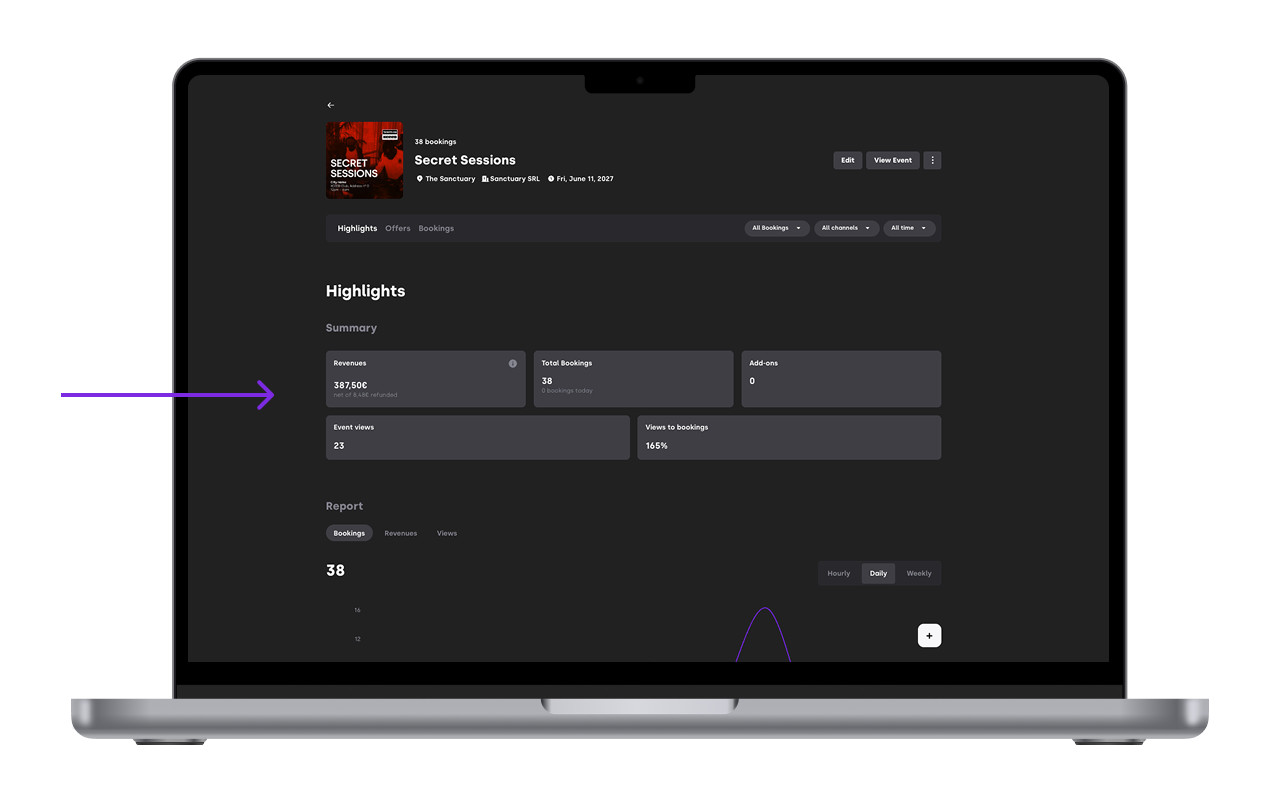
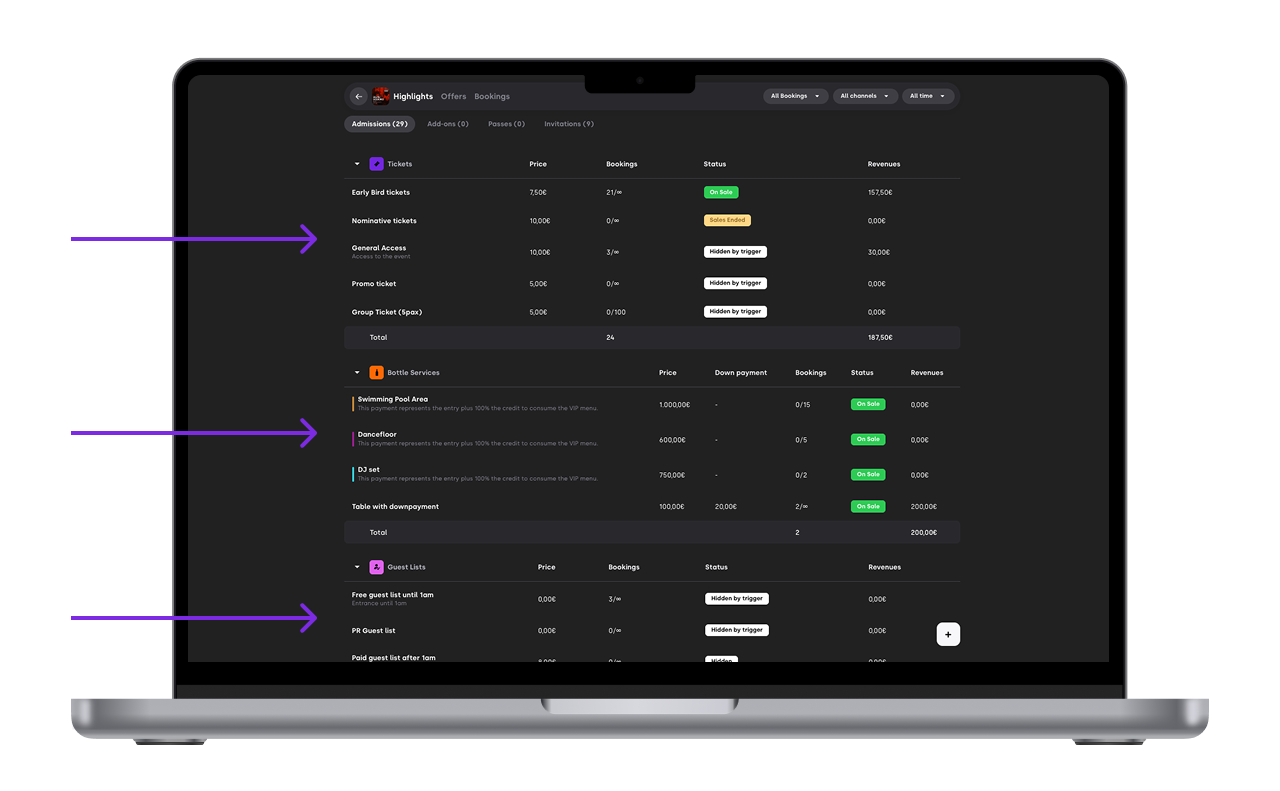
Tickets sold / guest list sign-ups
Availability and other key event info
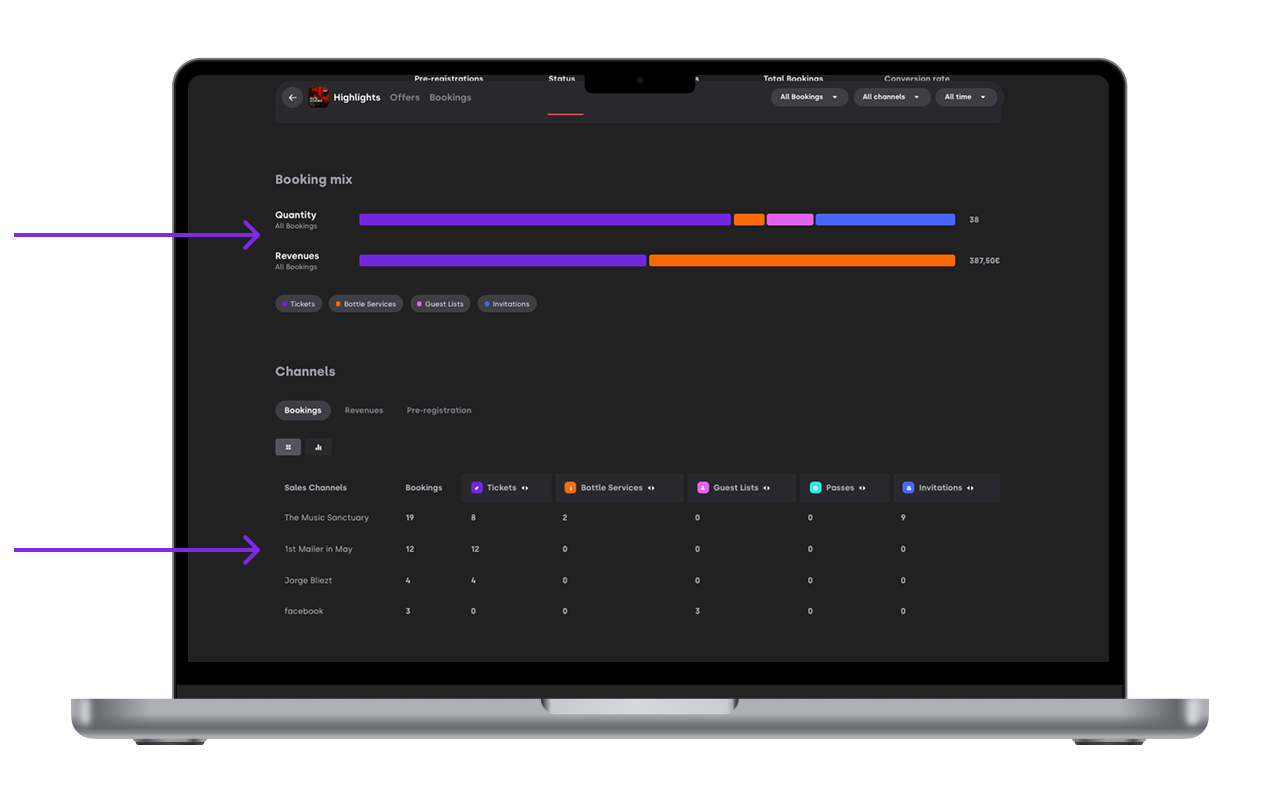
Bookings and visits by promoter
Booking by offer type


More details on the event report here
3.2 If your event is over
Go to Past Events
Open the event
Enter the Event Report
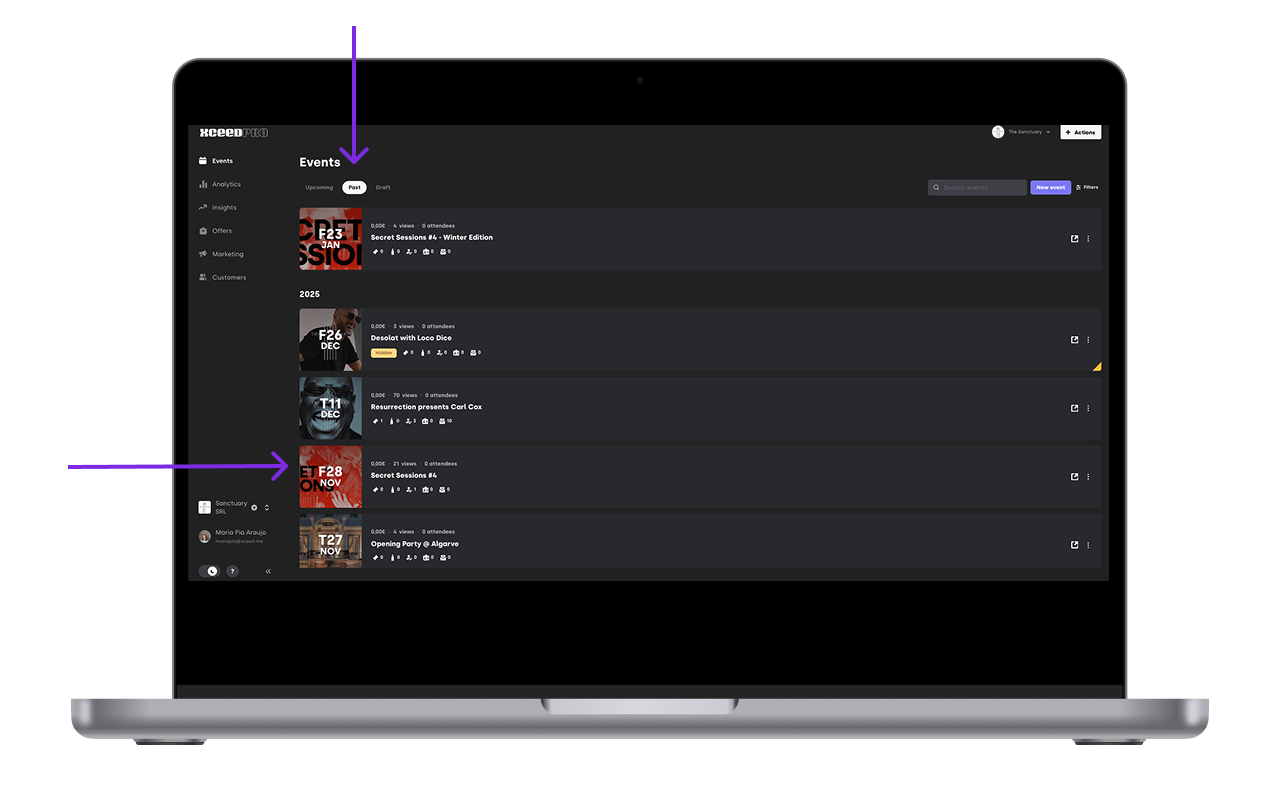

In the report, you’ll see:
Revenue (online or offline depending on your filter)
Attendees (total attendance)
Attendance rate (attendance vs tickets sold + listed people)
Total booking (tickets, guest list, imported tickets)
Event views
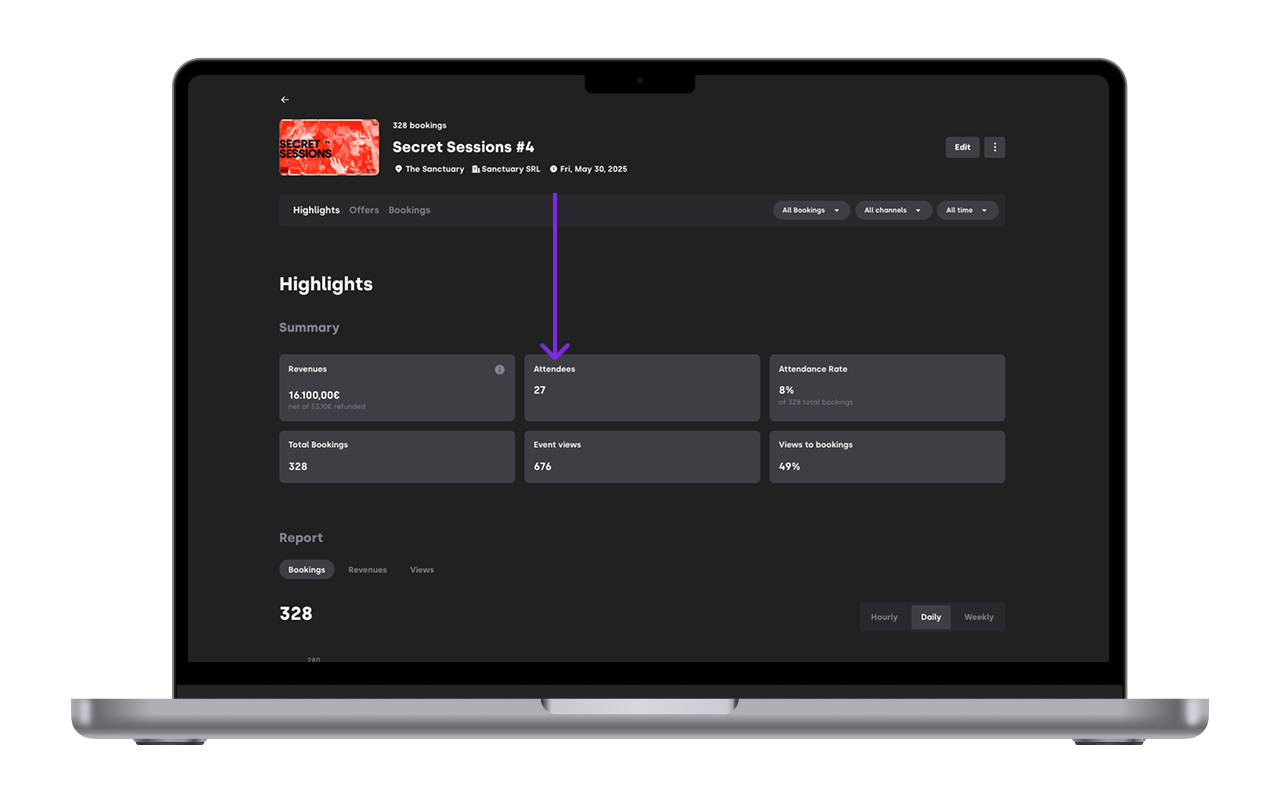

You can also dig deeper into ticket performance, attendance rate per ticket type, online income, promoter impact, and comparison graphs by day/week/hour.
If you have any other questions check our FAQ page or contact support@xceed.me