
How to Resend and Download a Booking
This feature allows you to manage individual bookings and quickly resend or retrieve booking details when needed.
Use this when a customer hasn’t received their confirmation email or asks for their booking again. It’s especially useful for customer support, door management, or last-minute checks on event day. All actions are handled directly from the bookings report.
1. Access the bookings details
Log in to XCEED Pro.
Open the event you are working on
Scroll down to the Booking section
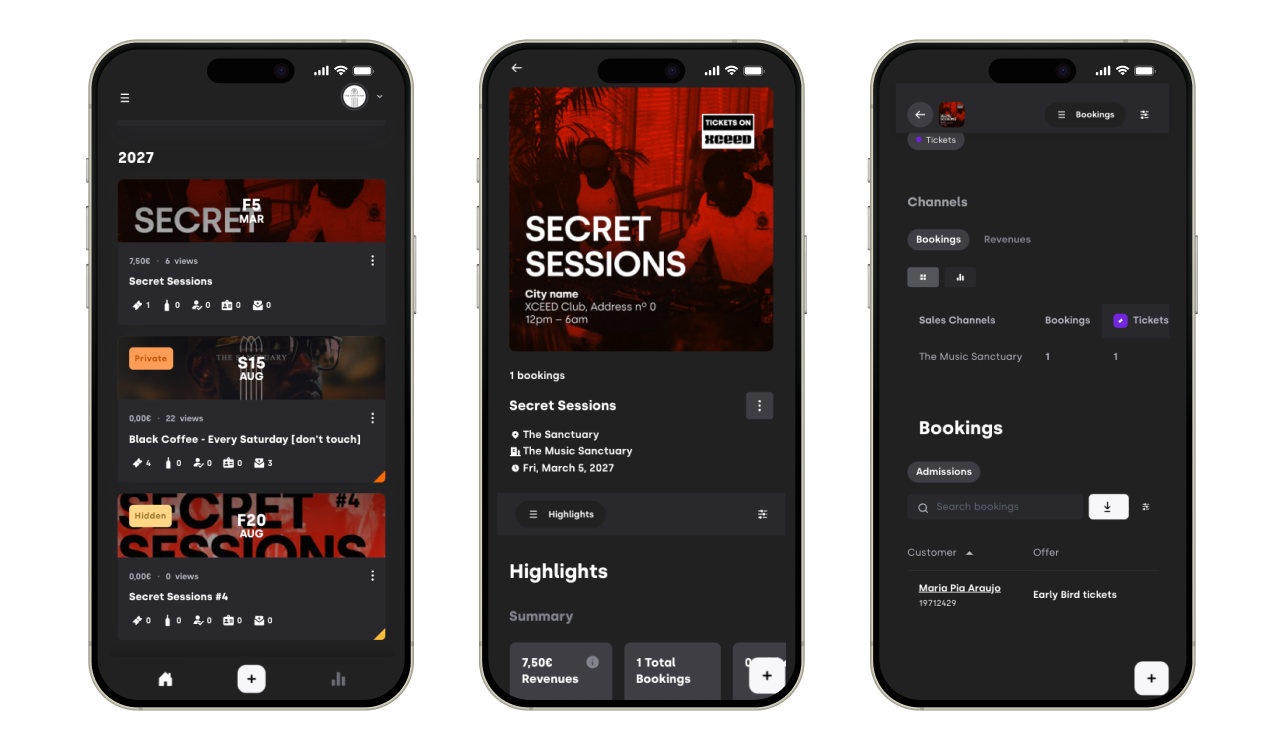
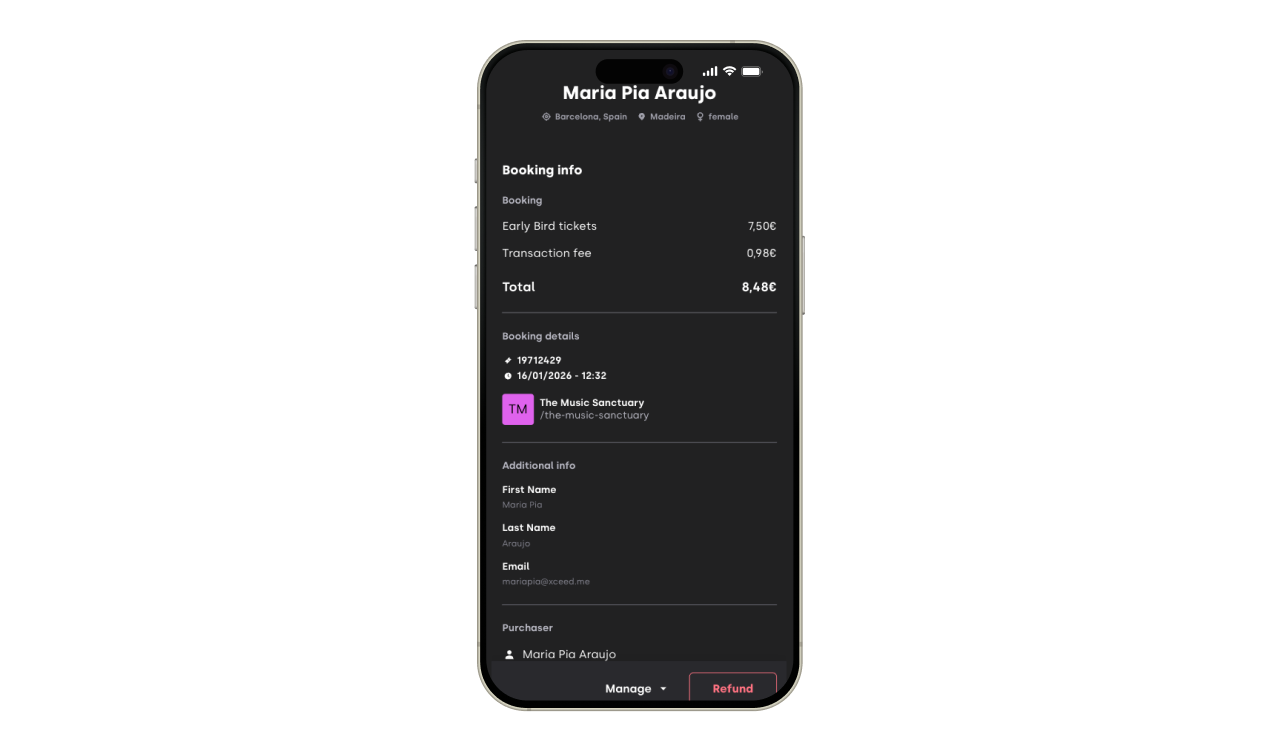
Access the bookings details (channel, booking ID, payment...)


2. Resend a booking confirmation email
If a customer claims they haven’t received their confirmation email:
Find the booking in the report by searching for name, email or booking ID
On the right hand side click on the three dots
Chose the option to Resend Booking
Confirm the email you are resending to is correct and click Resend via email
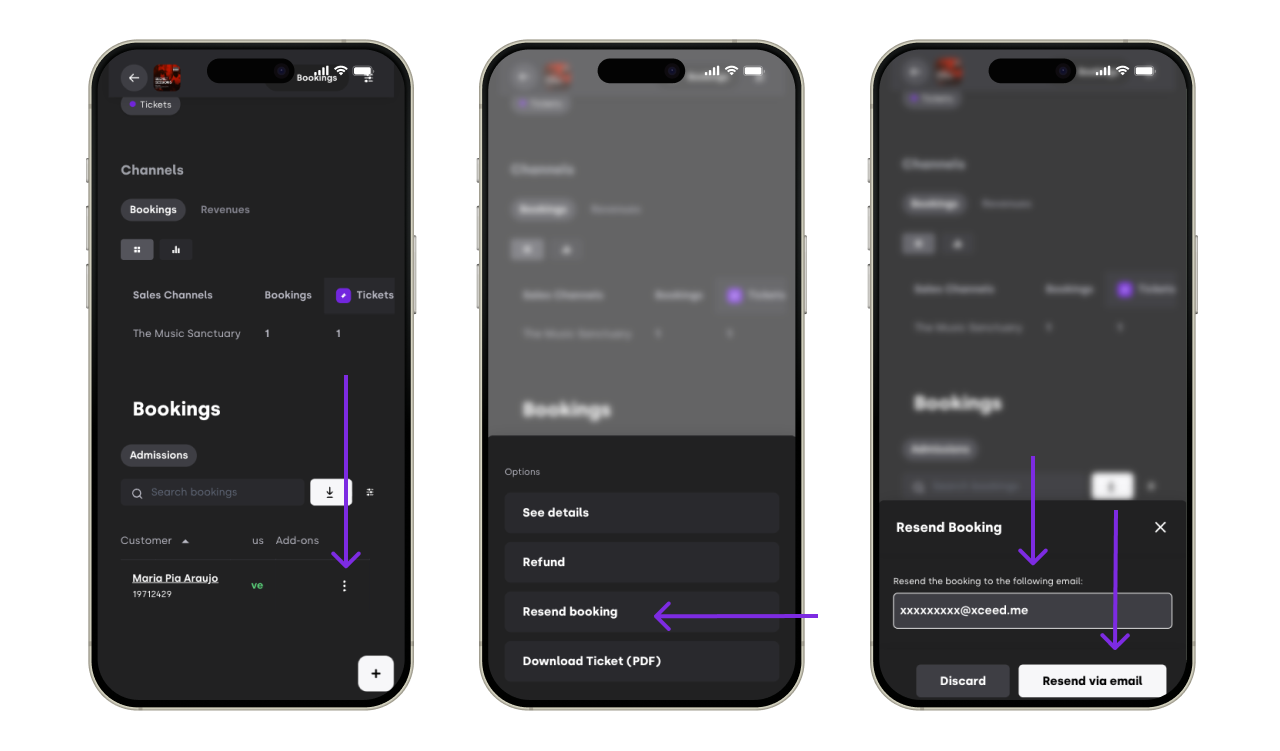

The confirmation email will be sent again to the email address provided.
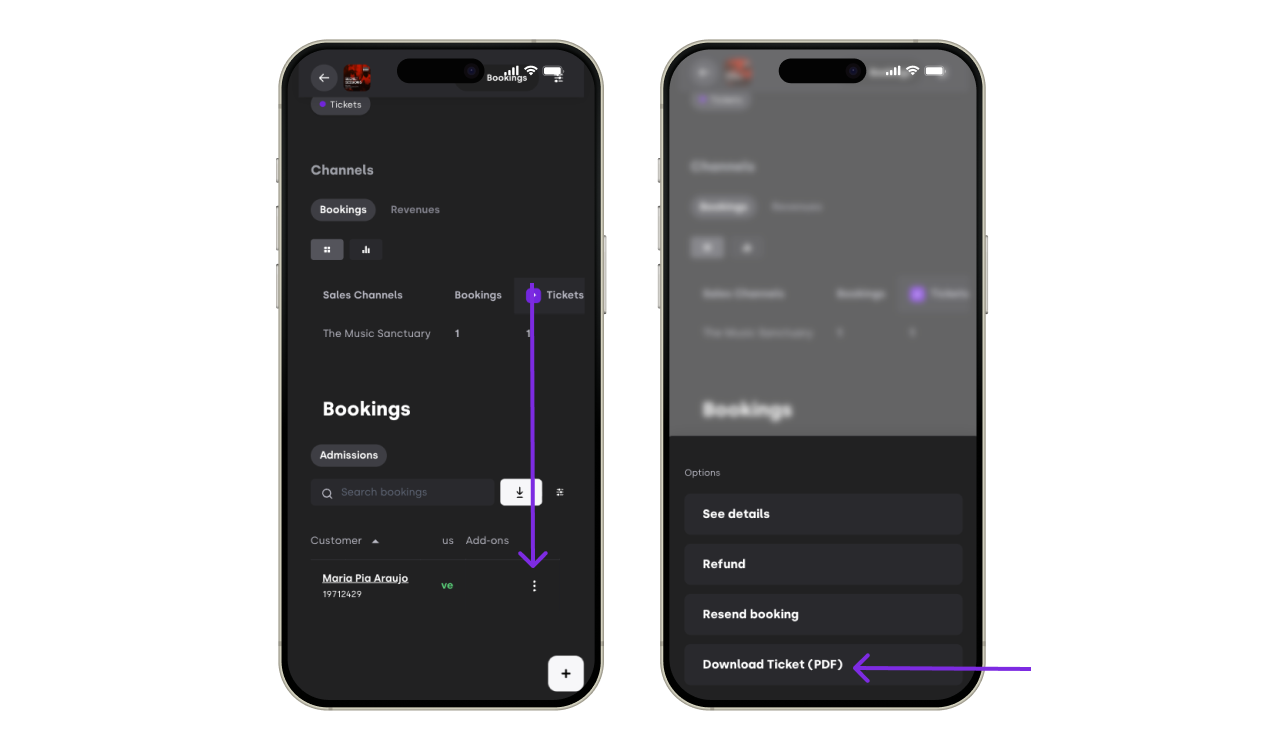
3. Download a booking
You can also download a booking manually and send it to your customers in any way you want
Find the booking in the report by searching for name, email or booking ID
On the right hand side click on the three dots
Chose the option to Download Ticket PDF
A new PDF file will be dowloaded to you laptop or mobile

If you have any other questions check our FAQ page or contact support@xceed.me