
Sell as many Add-Ons as you want with your Admissions
Use add-ons when you want to increase revenue per booking or simplify on-site operations. They’re especially useful for festivals, clubs, and venues offering extras like lockers, welcome drinks, transport, or merchandise. Add-ons are purchased together with admissions.
Now you can sell as many add-ons as you want or need with your addmissions.
1. What add-ons are in XCEED
Add-ons are optional complementary items that buyers can select when purchasing a ticket.
They allow you to:
Sell products or services in advance
Bundle experiences with admissions
Reduce cash handling on-site
2. Create an add-on
Log in to XCEED Pro.
Open the event where you want to offer add-ons on the editing offer tab where it says add-ons.
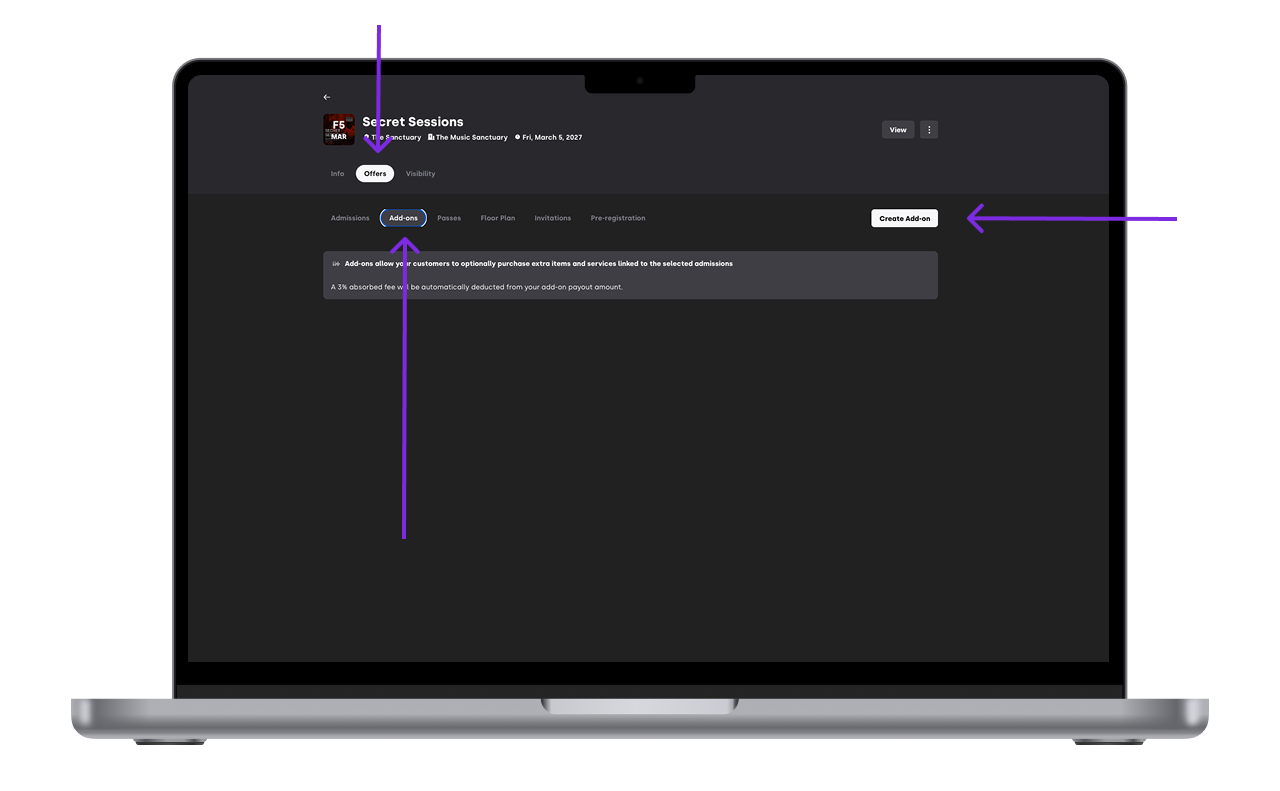
Create a new add-on product.
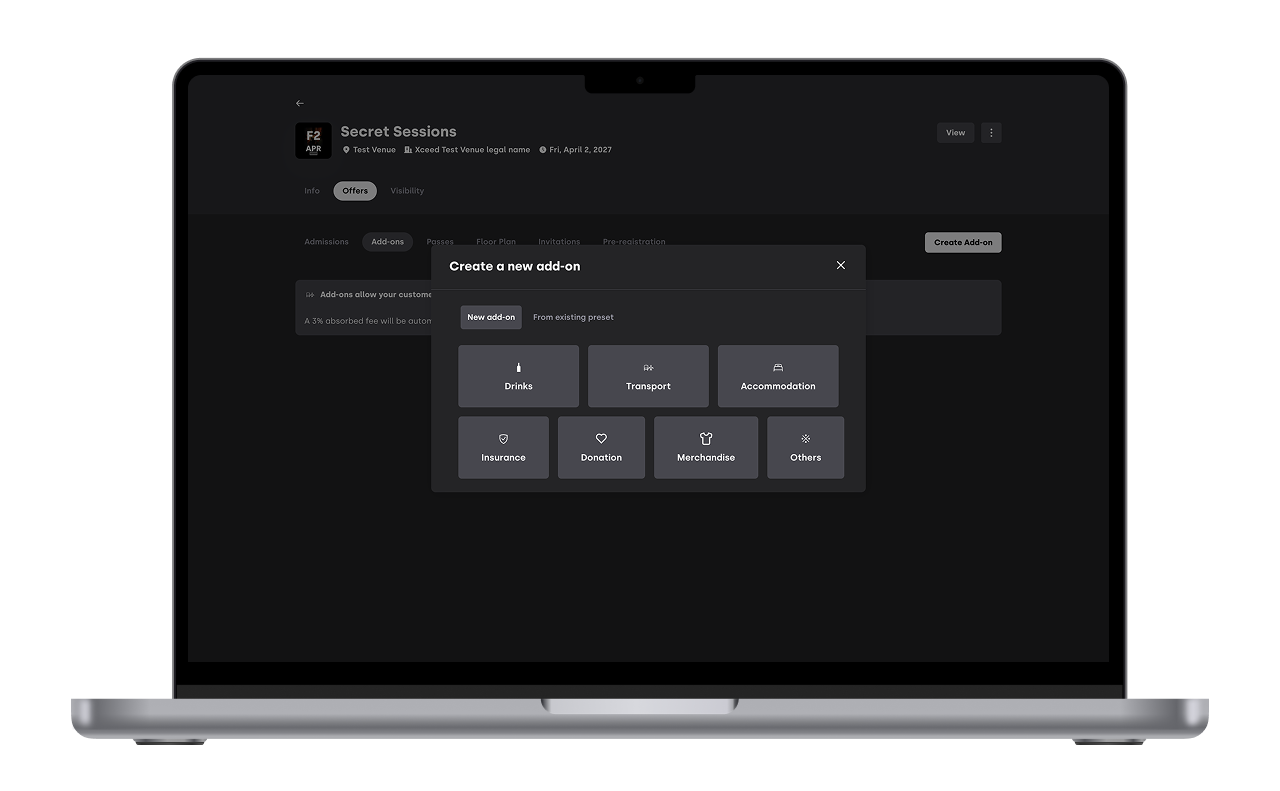
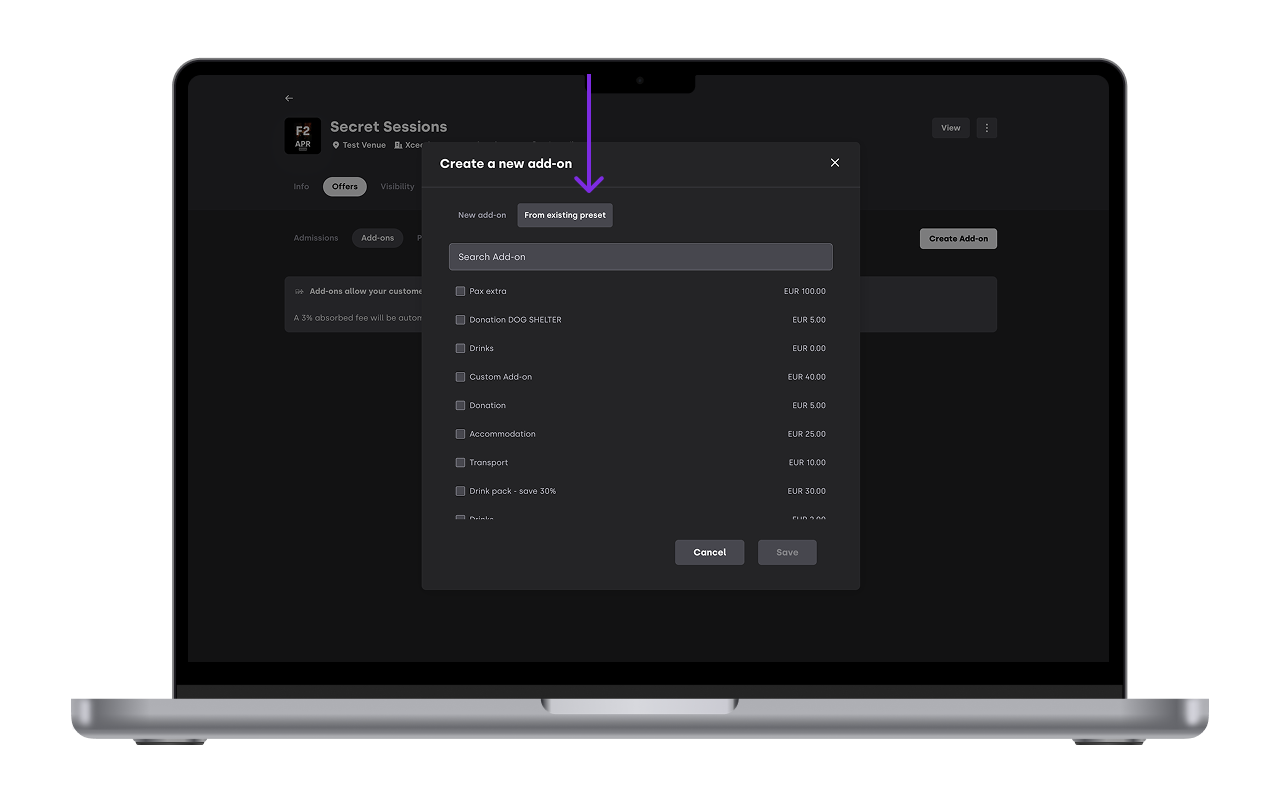
Chose if you are creating an add-on from scratch or form and existing preset. See more how to create presets here
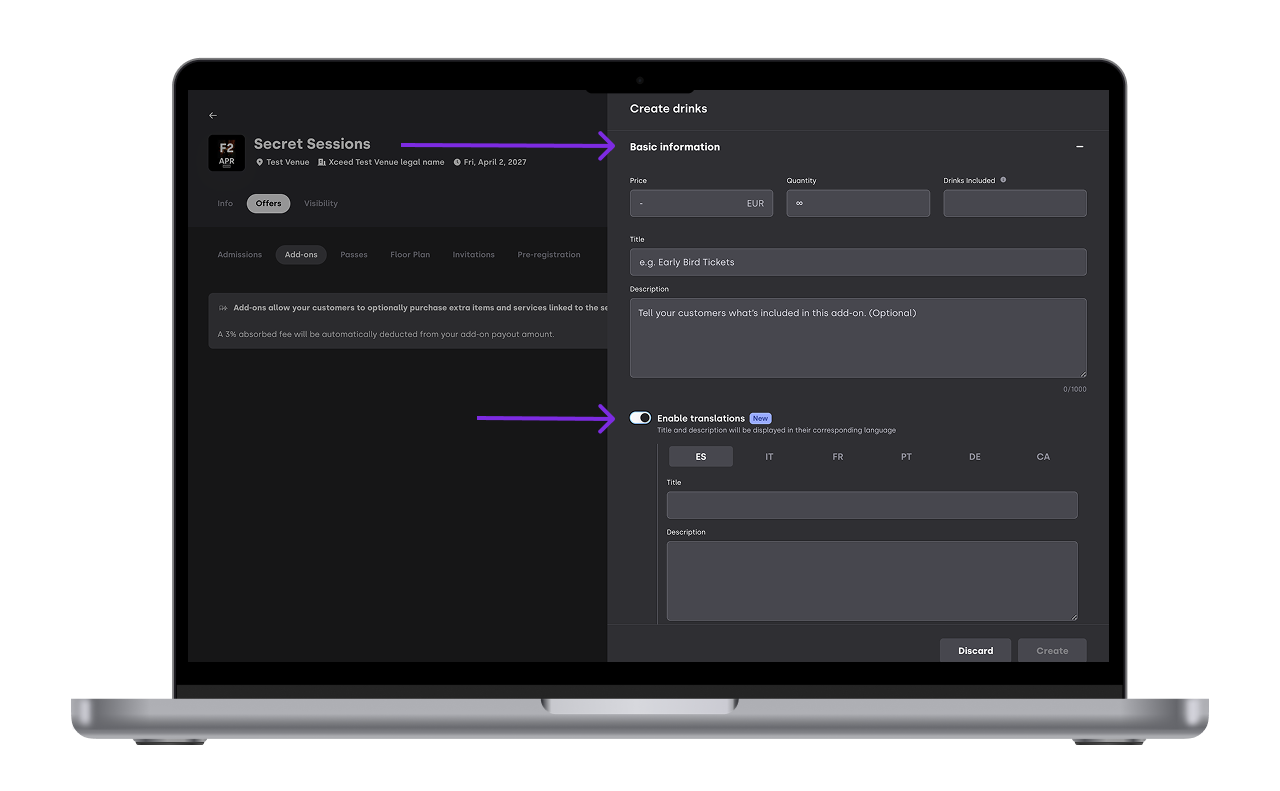
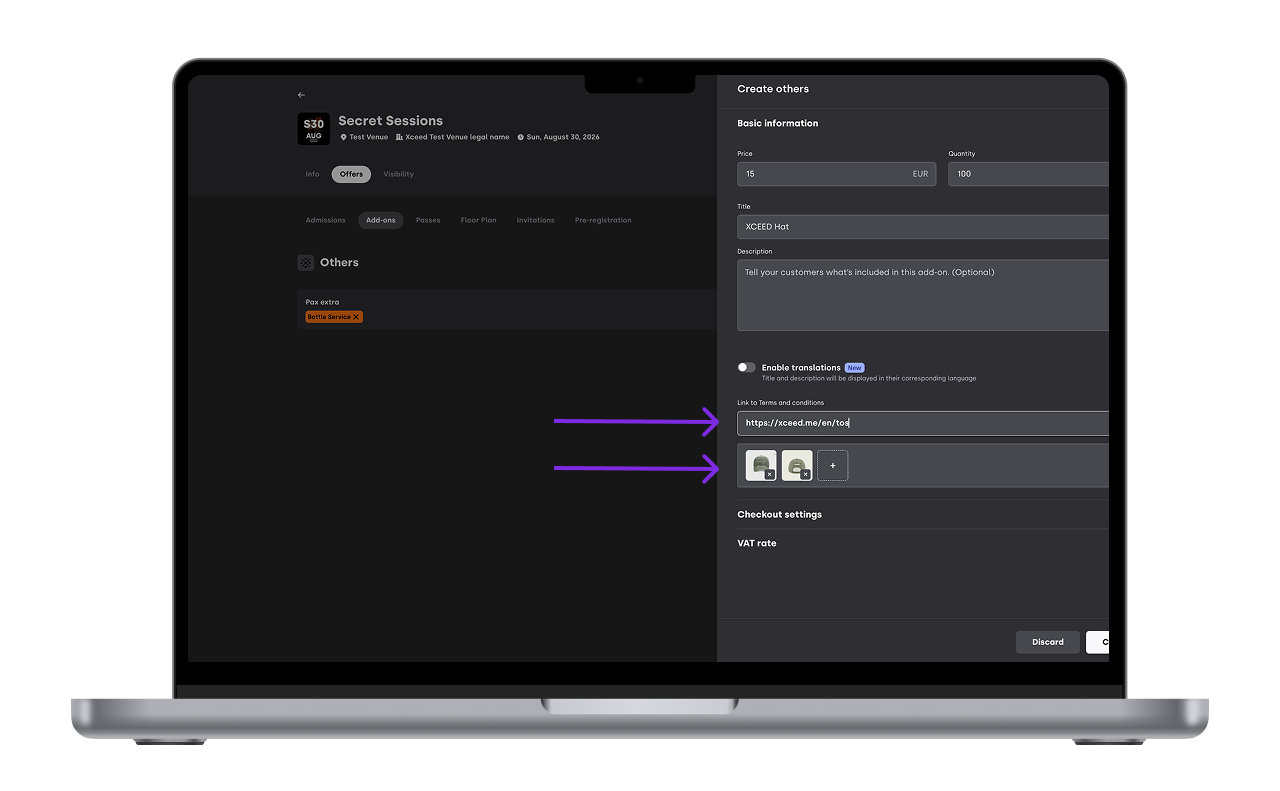
Fill in basic information like the name, price, and description. Decide whether you want to enable translations and if so input the name and description of your add-on in the available languages (Spanish, Italian, French, Portuguese, Germana and Catalan)
Add a picture and T&C to your add-on so its more clear to the client what they are buying
Chose how the add-on applies to the ticket by editing the check out settings:
Fixed quantity per ticket
If the add-on is selected, it automatically applies to every ticket in the booking, one per ticket. There's no way to add it to only some tickets.Flexible quantity per ticket
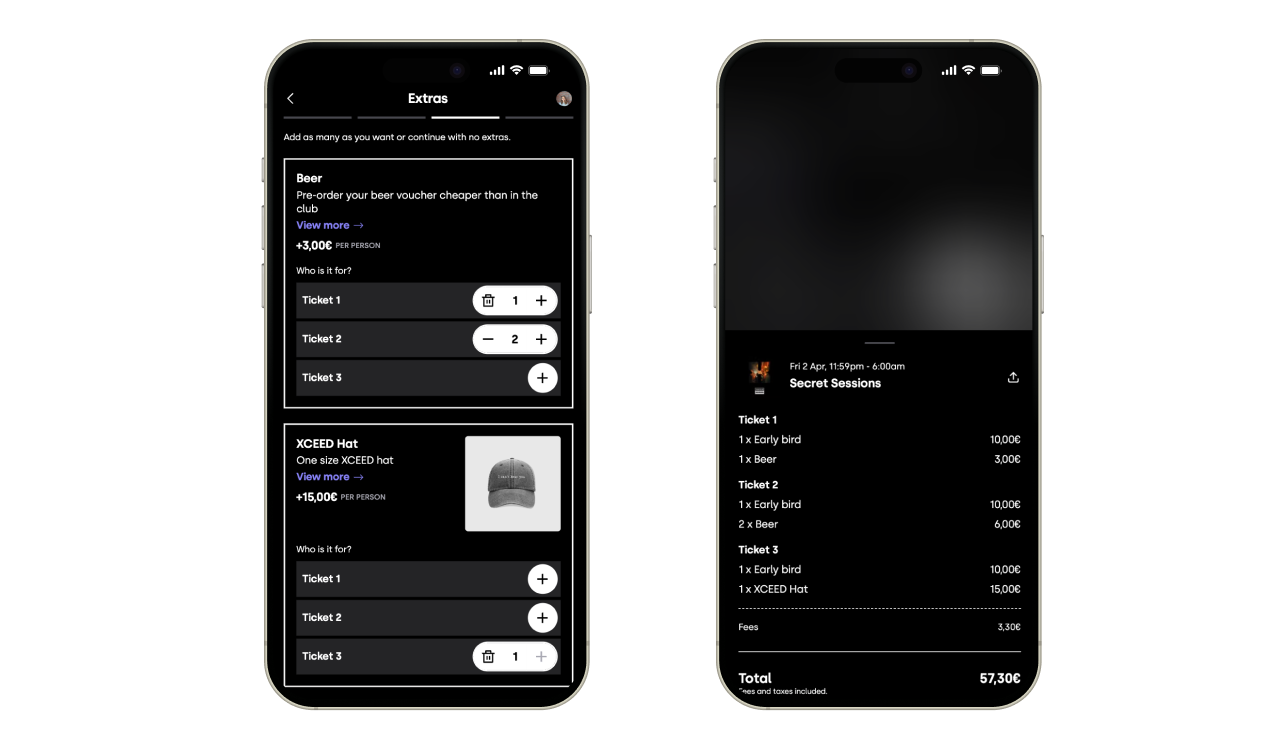
Buyers choose, ticket by ticket, whether to add it and how many. You can set a minimum and maximum quantity per ticket (minimum is always at least 1 — a quantity of 0 is the same as not selecting it).
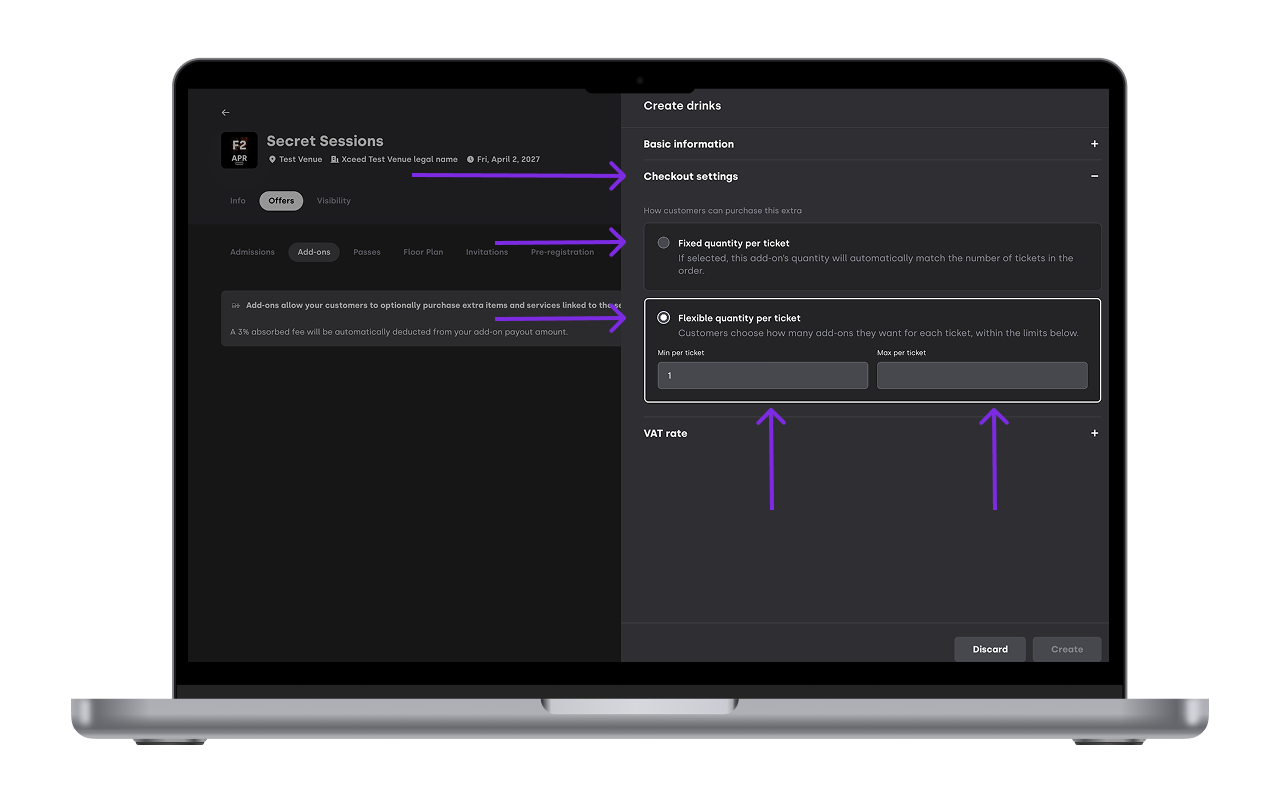
For example: a group buys 3 tickets and your add-on is a bottle of beer set to Flexible. One buyer might add 2 bottles to their own ticket, another adds another add-on instead, and the third adds nothing — all in the same purchase. If that same add-on were set to Fixed, selecting it would apply one bottle to all 3 tickets automatically, with no way to leave any ticket out.
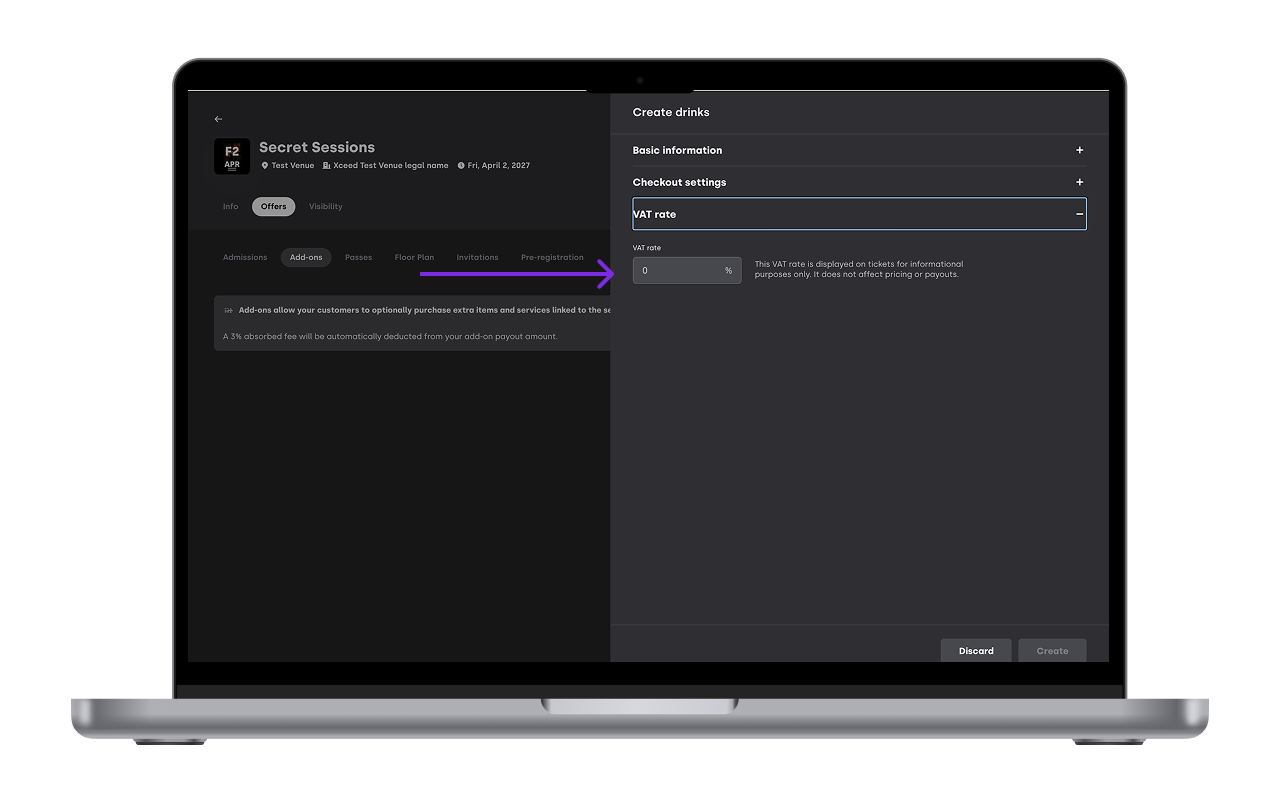
You can also decide what VAT rate applies on your add-on. It can be the same of different form the ticket depending on the type of product/service
Save the add-on.
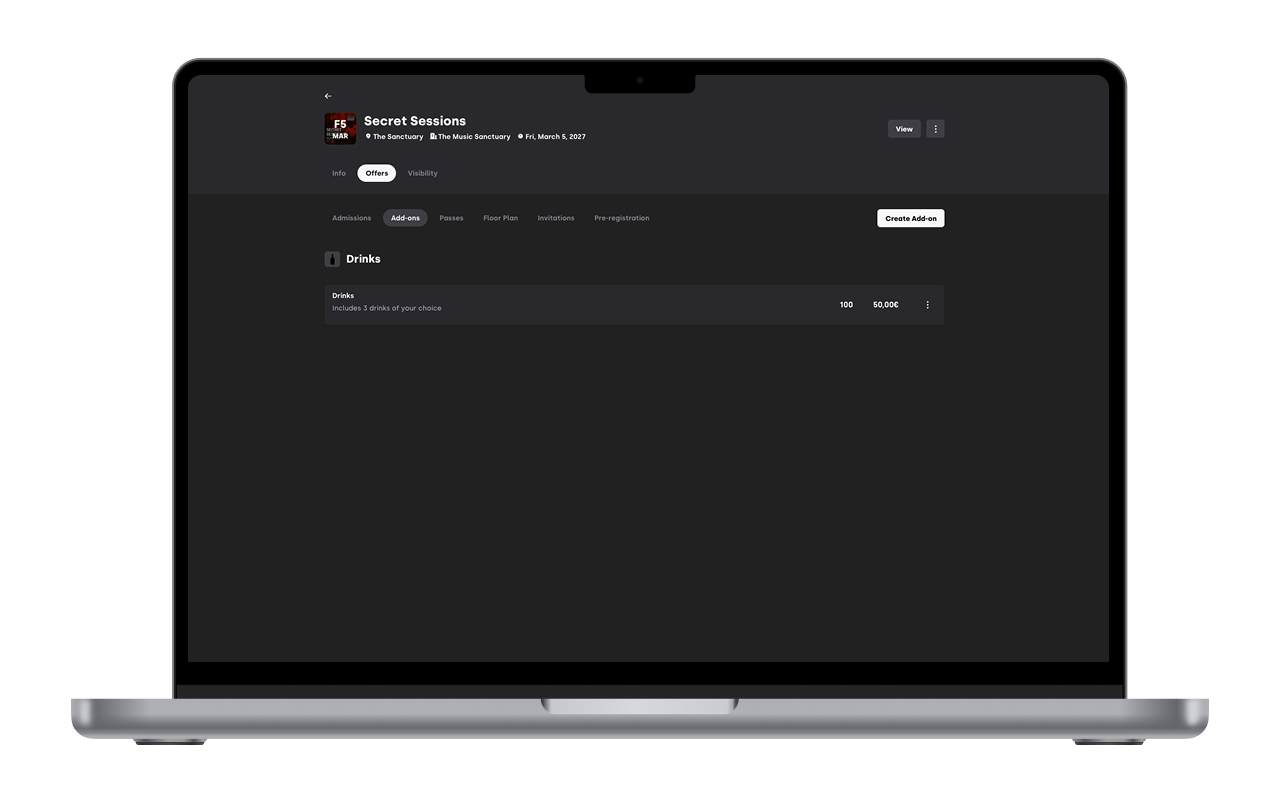
Once created, the add-on becomes available to be linked to admissions.
Note on Insurance: insurance add-ons are always Fixed — every ticket in a booking either has insurance or none do. This can't currently be changed to Flexible.
Important — add-ons apply per ticket, not per booking. There's no way to add a single add-on to a booking as a whole. If you want to offer something naturally shared by a group — a shuttle for up to 6 people, or a hotel room for 4 — there's no setting that represents "one item for the whole group." The closest option is Flexible with a maximum of 1, and a description telling buyers to add it to only one ticket — but nothing prevents each person in the group from adding it separately to their own ticket, which would charge them individually rather than once for the group. Keep this in mind when setting up add-ons meant to be shared rather than personal.
3. Link add-ons to admissions
Add-ons must be attached to one or more ticket types
Select the admission(s) you want the add-on to be available for.
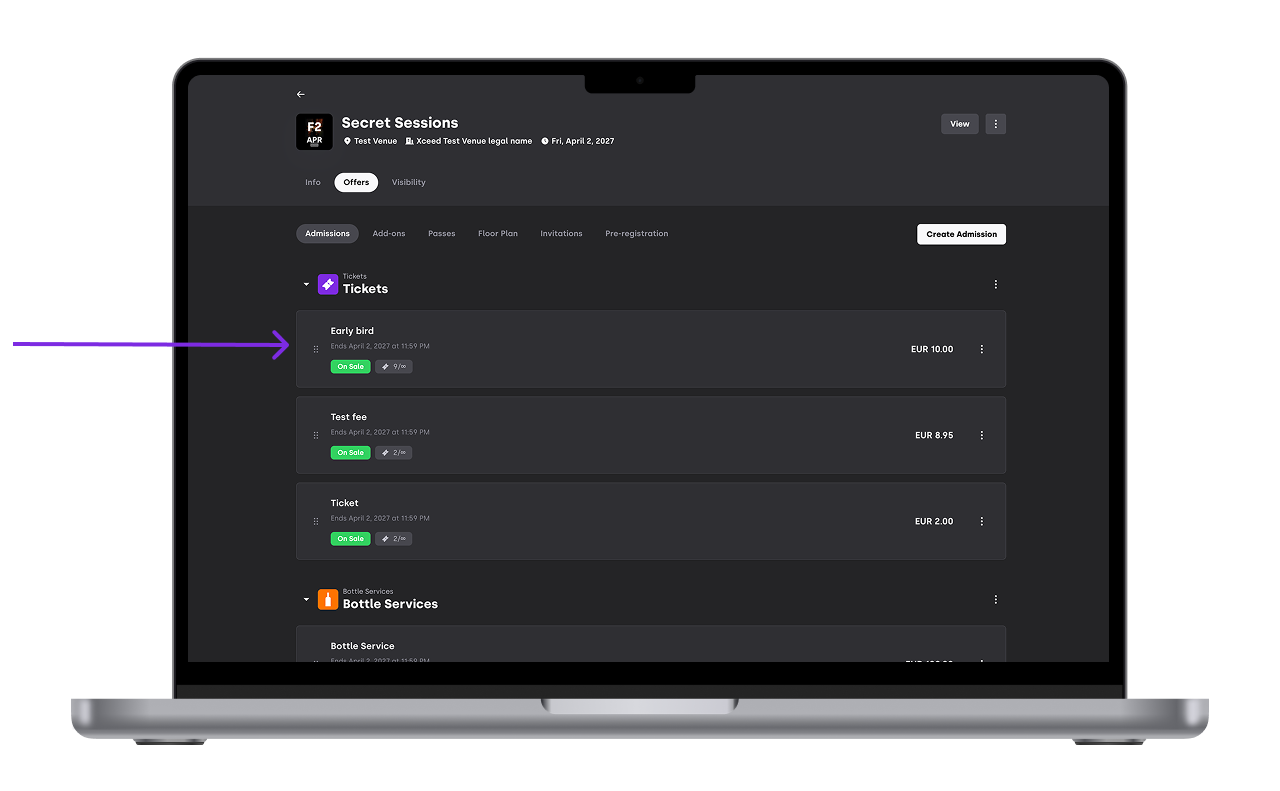
Link the add-on to those admissions.
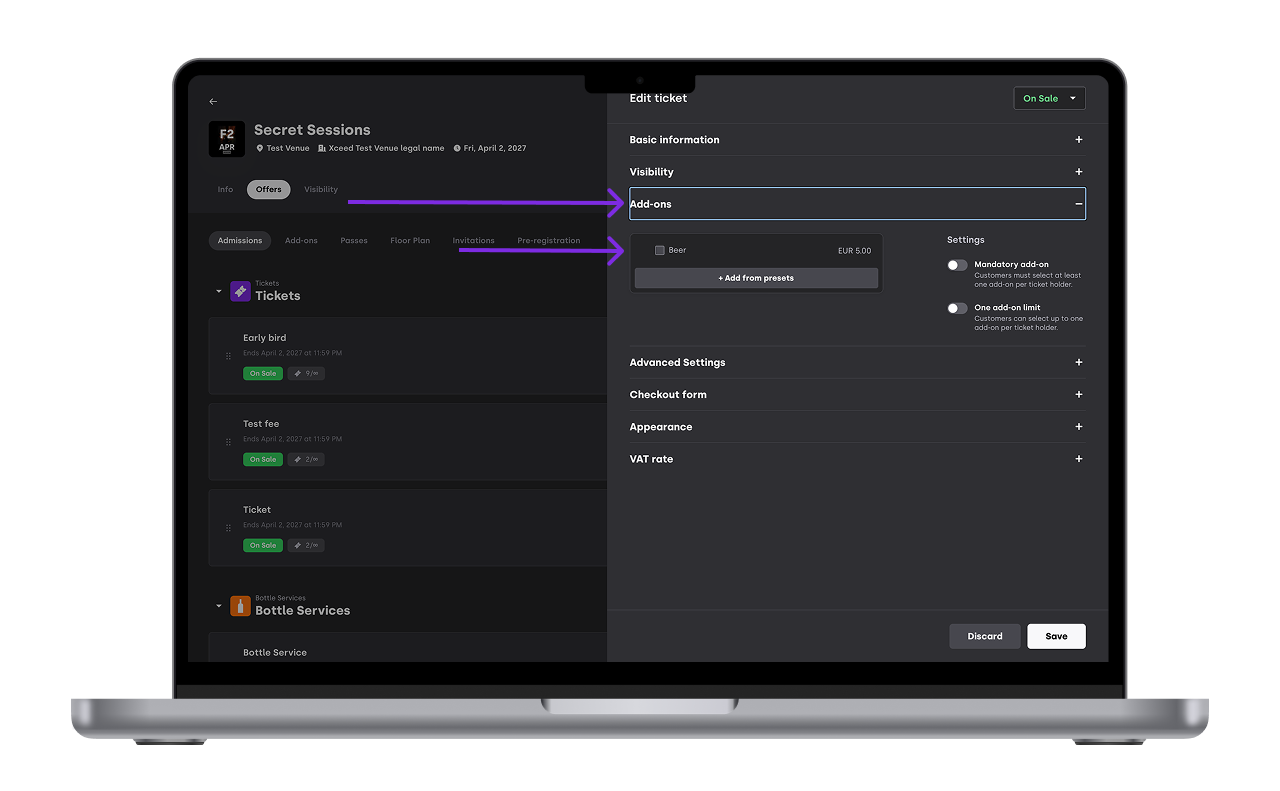
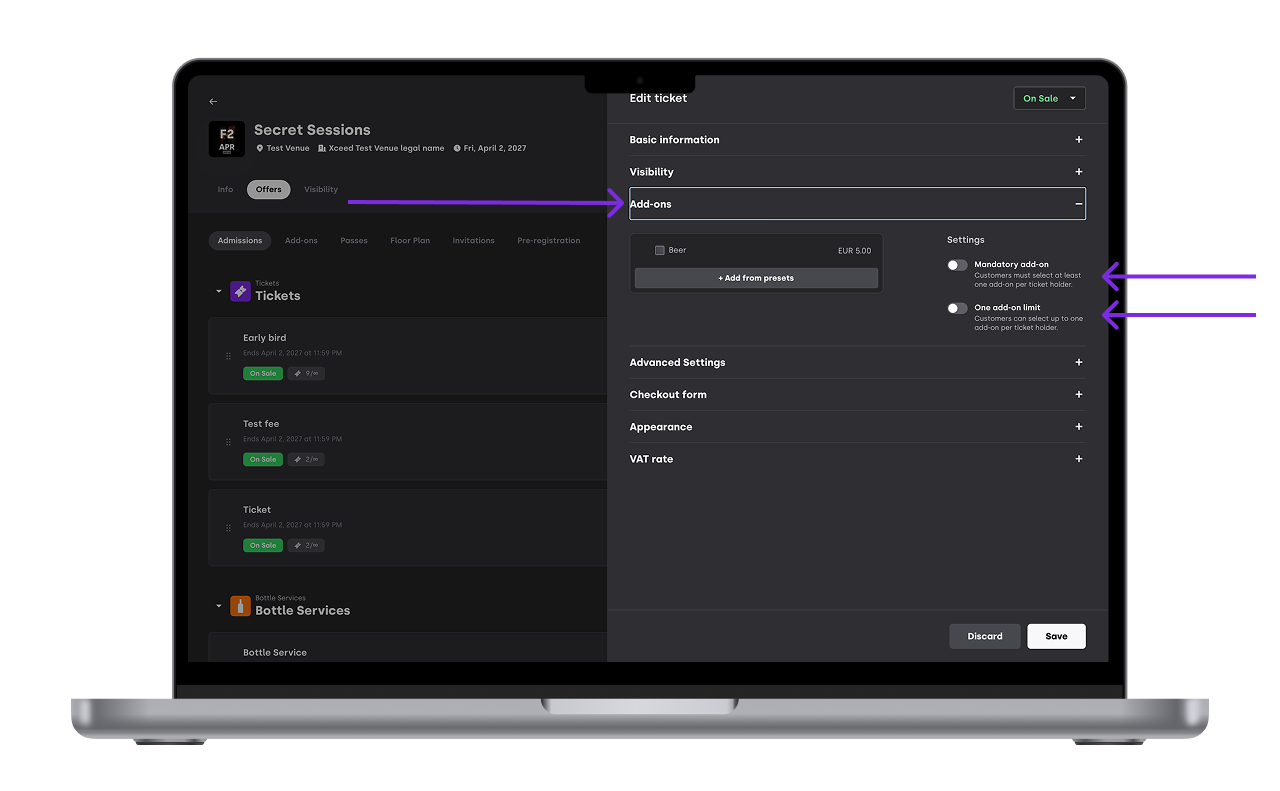
Define how the add-on should behave at checkout:
Optional: buyers can choose whether to add it
Mandatory: the add-on is automatically included with the ticket
Multi-selection: buyers can select more than one type of the add-on
Save your changes. On the add-on tab you can see what offers each add-on is associated too
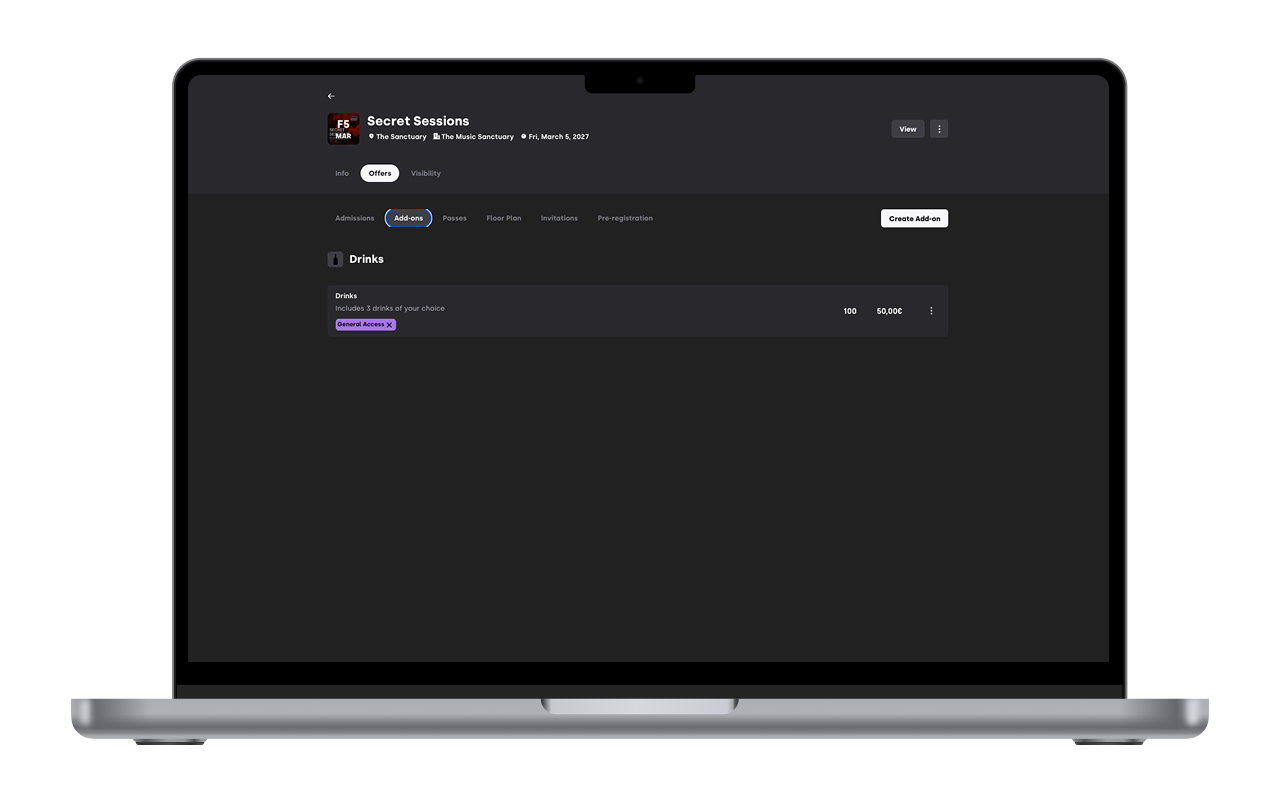
Only buyers purchasing the selected admissions will see the add-on during checkout.
4. How add-ons work for buyers
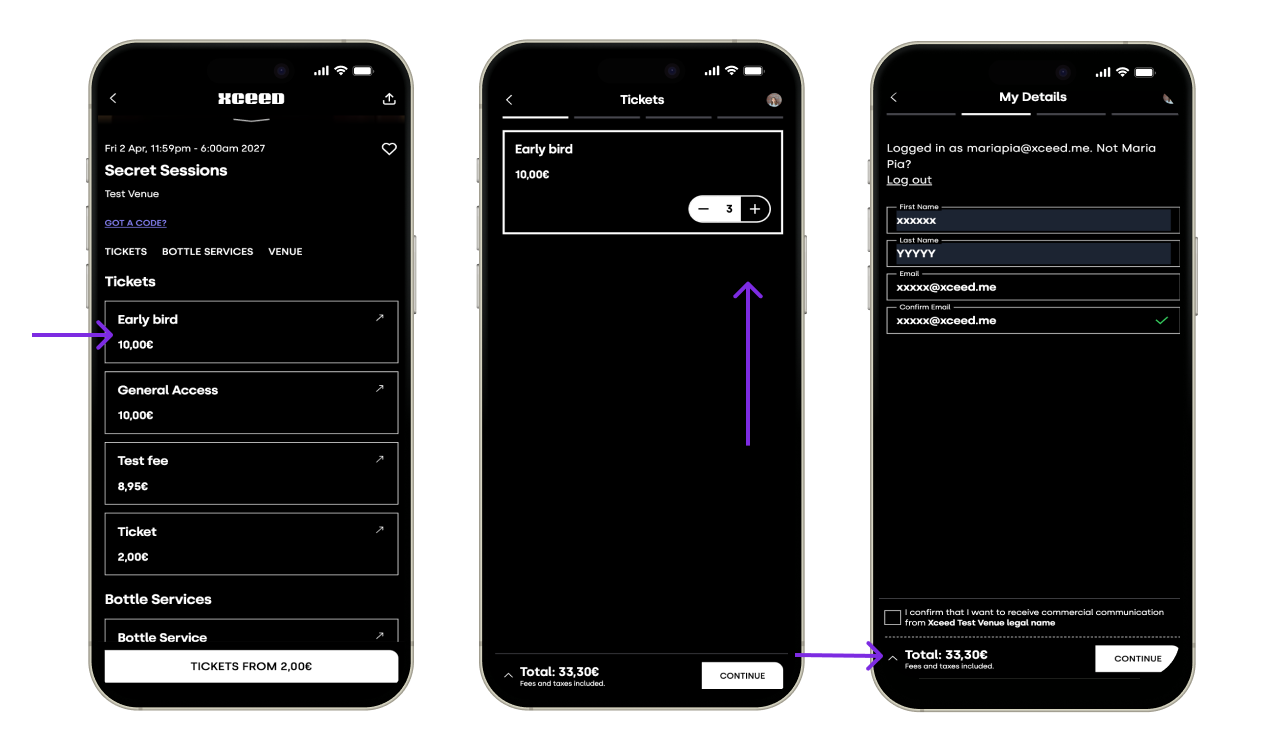
During checkout:
Buyers see available add-ons linked to their ticket.
Add-ons are optional unless set up otherwise.
If an add-on is Flexible, buyers see a breakdown letting them choose the quantity for each ticket individually.
If an add-on is Fixed, buyers see a note that it applies to all tickets, with no per-ticket breakdown.
Selected add-ons are paid together with the ticket.
Add-ons don’t provide a separate QR code for the user but are rather included in the ticket QR code and are flagged once scanned in the XCEED Access app
5. Transaction fees on Add ons
Just like tickets add ons have transaction fees. In order to incentivise add on purchases all add on fees are of 3% absorbed.
Example: If you add on is a Bus service for 10€ the client will pay 10€. Your revenue will be 10€x(1-3%)=9.7€
6. Operational considerations
When using add-ons, keep in mind:
When using add-ons, keep in mind:
Add-ons can have limited availability.
Sold add-ons appear in event reporting.
Delivery or redemption happens on-site, managed by the organizer.
Clear naming and descriptions help staff recognize what each add-on includes.
Add-ons appear as part of the same booking under a single unique QR code.
Avoid offering too many add-ons at once.
Whether an add-on's quantity matches every ticket automatically or can vary per ticket depends on whether it's set to Fixed or Flexible (see section 2).
If you have any other questions check our FAQ page or contact support@xceed.me