
Team Leaders: How to Add Promoters to Your Team
If you manage a promoter team, you can easily invite new members and assign them to your team directly from your dashboard.
1. Access your team management section
First, log in to your XCEED account.
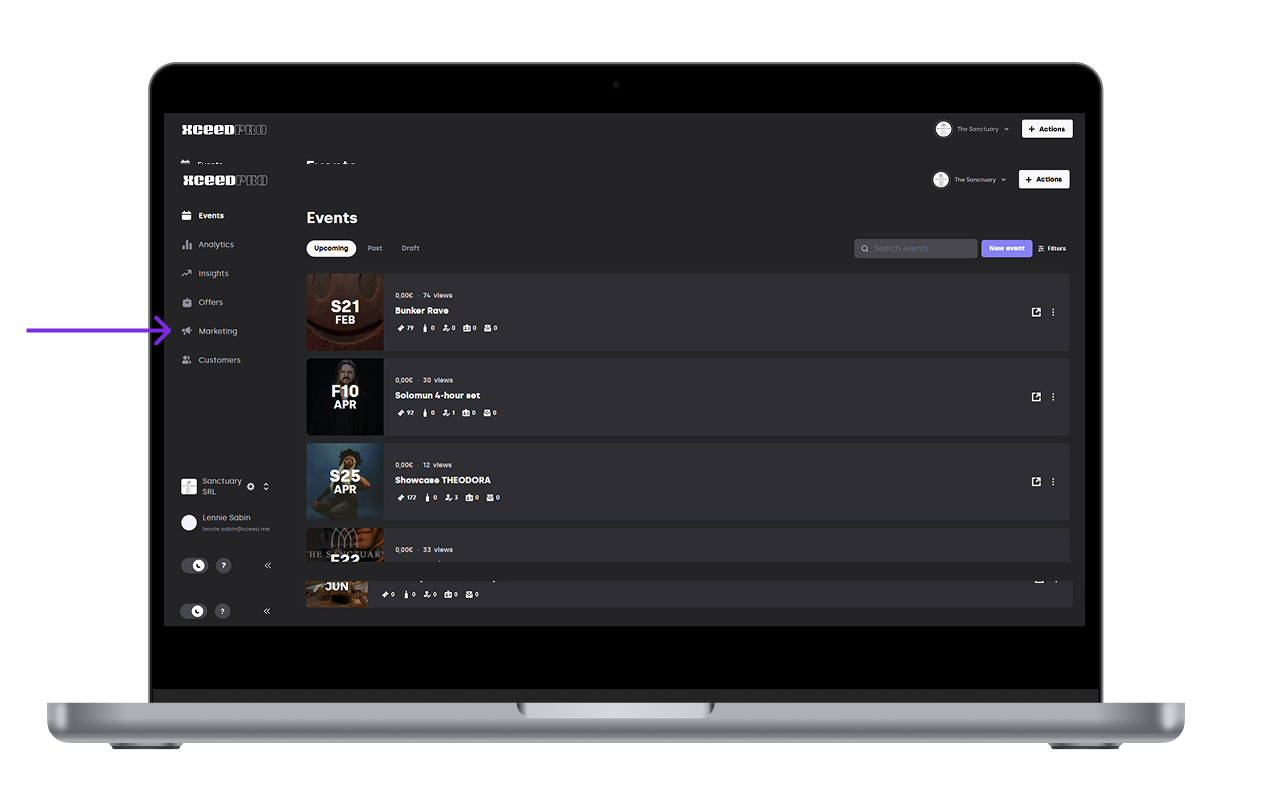
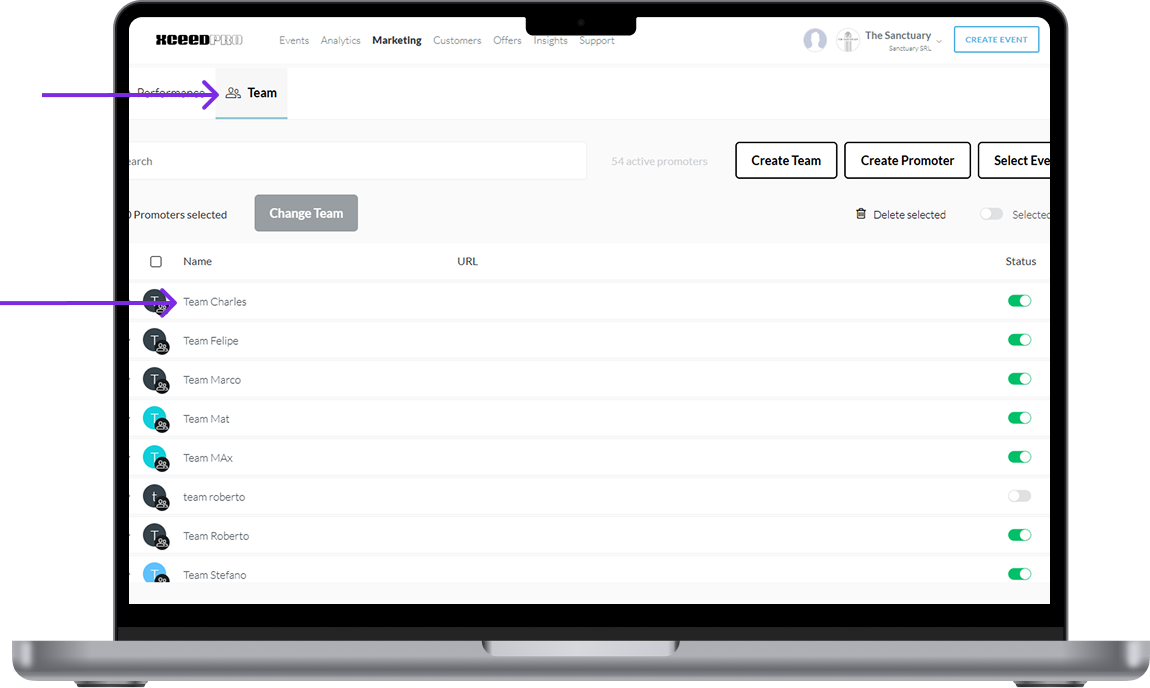
Go to your Marketing > Team section from the dashboard. This is where you can see all current promoters connected to your team.
For now the Marketing tab of XCEED Pro is only available in the browser version, you CAN'T access this from the app.
1.1. Add a new promoter
To add a promoter:
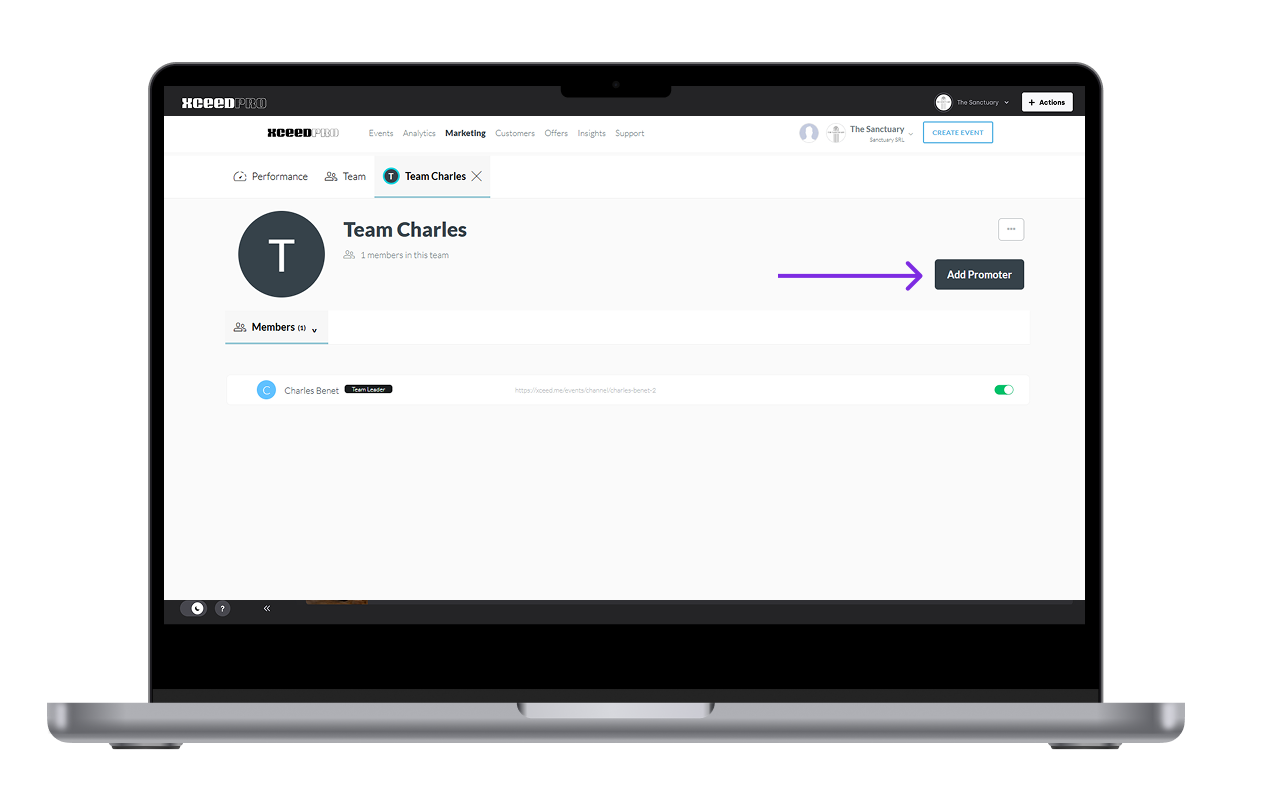
Select your team.
Click on Add Promoter.
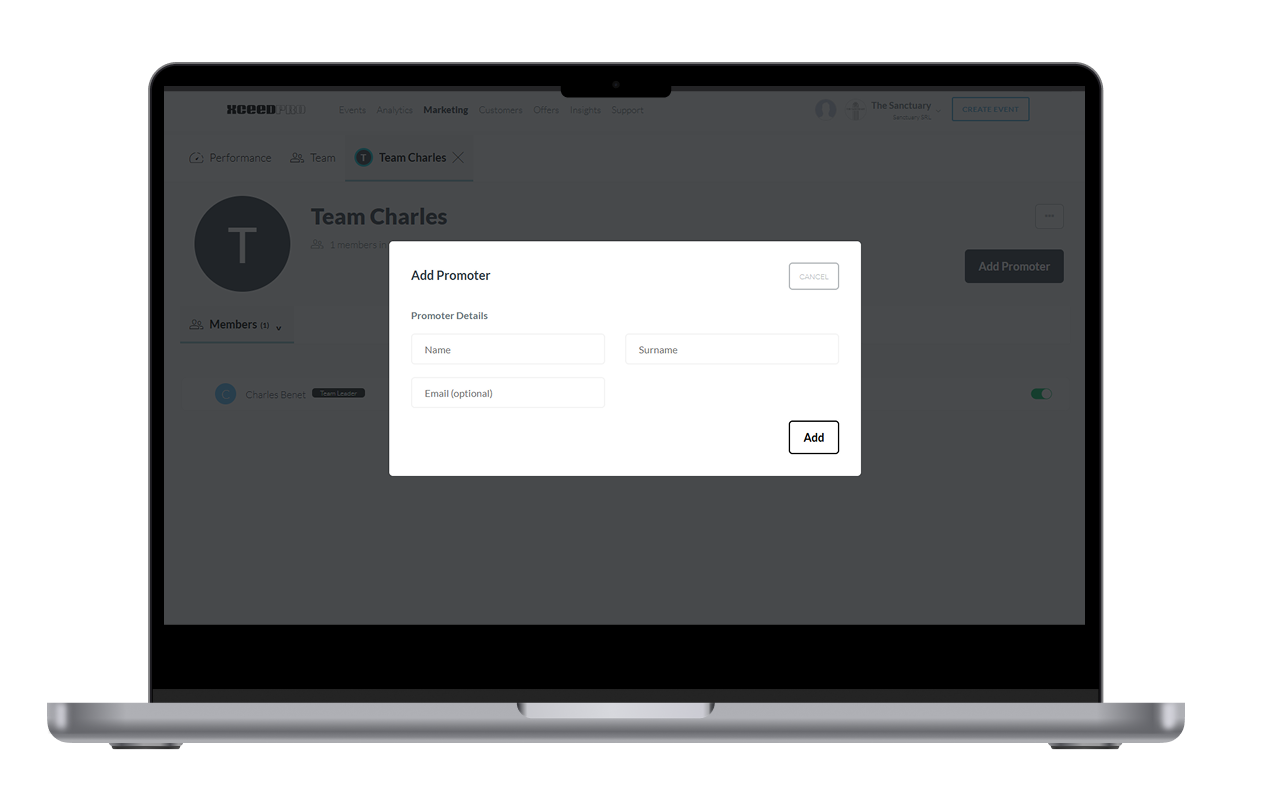
Enter the promoter’s email address.
Confirm the invitation.
The promoter will receive an email invitation to join your team.
1.2. What happens next
Once the promoter accepts the invitation:
They will be linked to your team.
They will be able to access and promote the events assigned to them.
Their performance will be visible inside your team dashboard.
Make sure the promoter signs up using the same email address where the invitation was sent.
1.3. Troubleshooting
If the promoter doesn’t receive the invitation:
Ask them to check their spam or promotions folder.
Confirm that the email address was entered correctly.
Resend the invitation if necessary.
If the issue continues, contact support with the promoter’s email address and team details.
Here is a short video on how to do it:
If you have any other questions check our FAQ page or contact support@xceed.me