
Door Manager: XCEED Pro Access
As a Door Manager, you can log in to XCEED Pro and see the events you’ve been assigned to. This is useful to double-check event details ahead of time and make sure you’re in the right place on the day.
1. Log In To XCEED Pro As A Door Manager
1.1 Open XCEED Pro
Go to XCEED Pro (web or app, depending on your setup).
Log in using your Door Manager email and password.
1.2 Select The Correct Organizer And Venue
Choose the venue you work at.
Choose the organizer you work with.
Once selected, you’ll get access to the events linked to that organizer + venue combination.
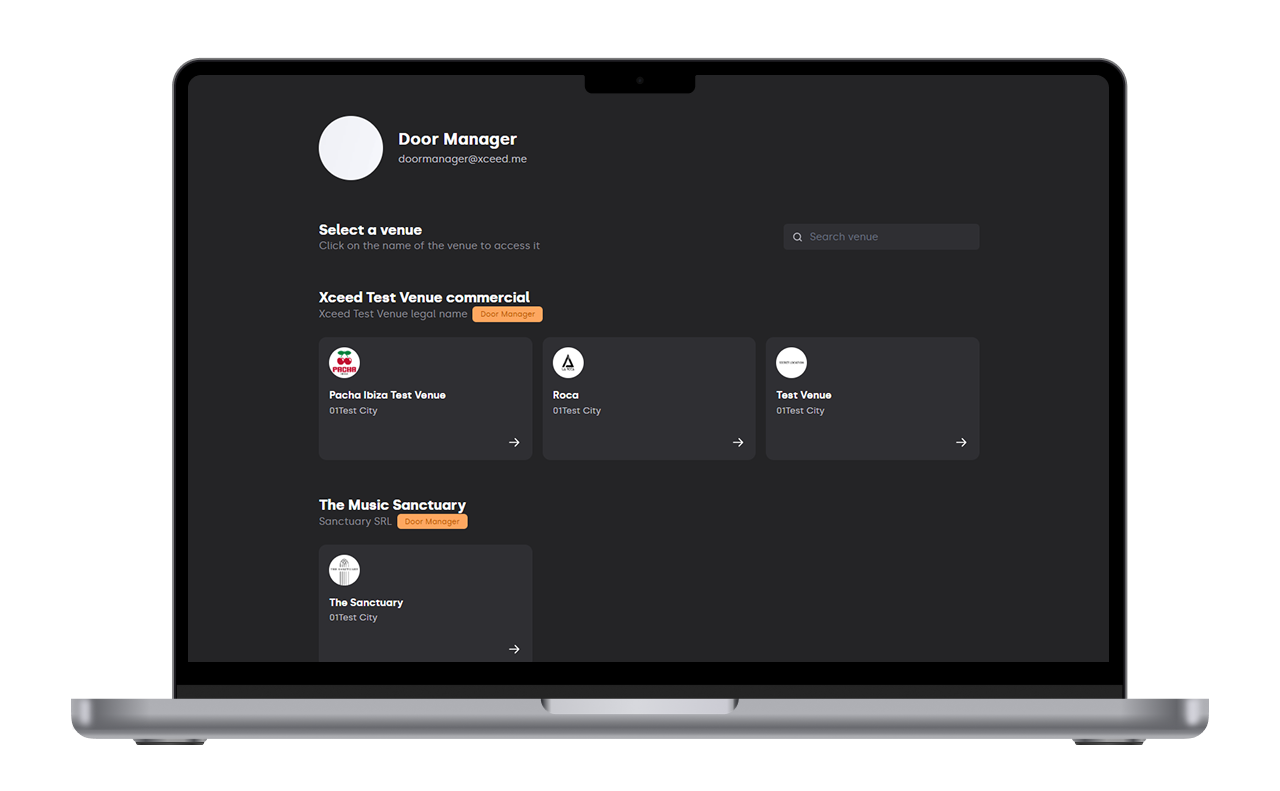
1.3 Events Visibility
After selecting the organizer and venue, you’ll be able to see:
All events for that organizer and venue you’ve been assigned to (so you don’t get lost across multiple event accounts).
By clicking on each event, you will see the list of guests or ticket buyers, their status, and general information.
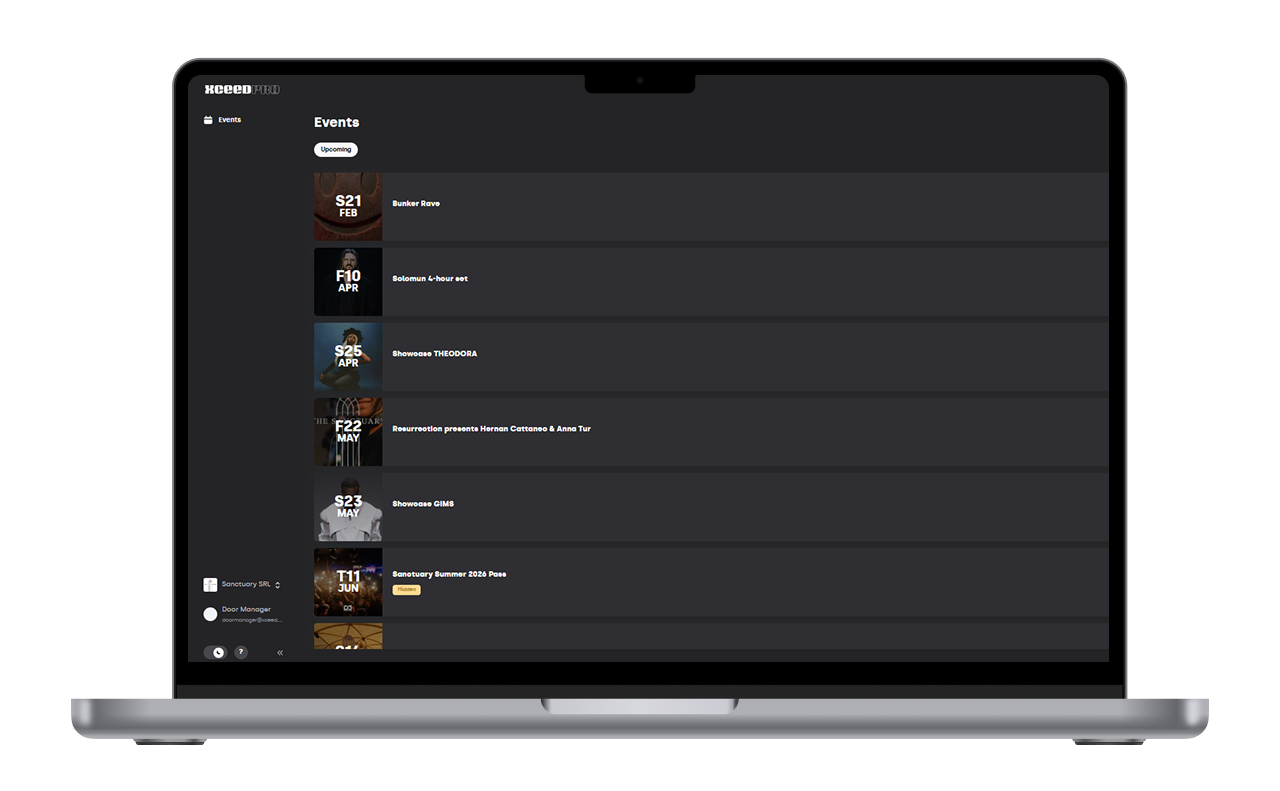
2. Common Issues
2.1 “I Don’t See The Event”
If you can’t see the event, it’s almost always one of these:
You selected the wrong venue or organizer.
You haven’t been added to the correct account/event by the organizer team yet.
Switch the organizer/venue selection first, then refresh and check again.
If you have any other questions check our FAQ page or contact support@xceed.me