
Resell ticket of your events on XCEED
There will always be ticket resales on your event, specially if its sold out. Make it safer for your clients and better for you by using the XCEED resale platform
You can decide weather you want all your events to allow resale on XCEED or just a few, when resale starts and finishes and earn a fee every time one of your tickets is resold. All from your XCEED Pro
Agenda
Earn from resales with the organiser resale fee
Set up resale for your event
Tell your customers how to resell their tickets
1. Earn from resales with the organizer resale fee
Running an event means balancing a lot at once: keeping tickets affordable, rewarding fans who buy early, and still covering your costs. As demand builds, tickets bought at early prices often gain value and get resold. The organizer resale fee lets you share in that value, so you can keep early tickets accessible without leaving money on the table.
1.1 How it works
You can set a fee of up to 10% on every resale of your event’s tickets (it’s off by default).
The fee is paid by the person buying the resold ticket. It costs you nothing, and the seller still gets back the same amount.
It’s added on top of the 5% we already charge for running the resale system. For example, if you set 5%, the buyer pays a total resale fee of 10% (our 5% plus your 5%). If you set the maximum 10%, the total is 15%.
Your fee is calculated on the full resale price, including fees and add-ons.
You earn it on every resale, so a ticket resold twice earns you twice.
The buyer sees our fee and yours combined in a single “Resale fee” line at checkout and on their ticket.
1.2 Getting paid
Your earnings appear in the event report in XCEED Pro and in the Resale tab in Offers (Company admins and team members with access to event revenue can see them).
We pay them out with your usual payout schedule.
If a resale buyer gets a refund, your fee is refunded too.
2. Set up resale for your event
You can set up the resale for your whole company as a default or by event.
2.1 For the company as a whole
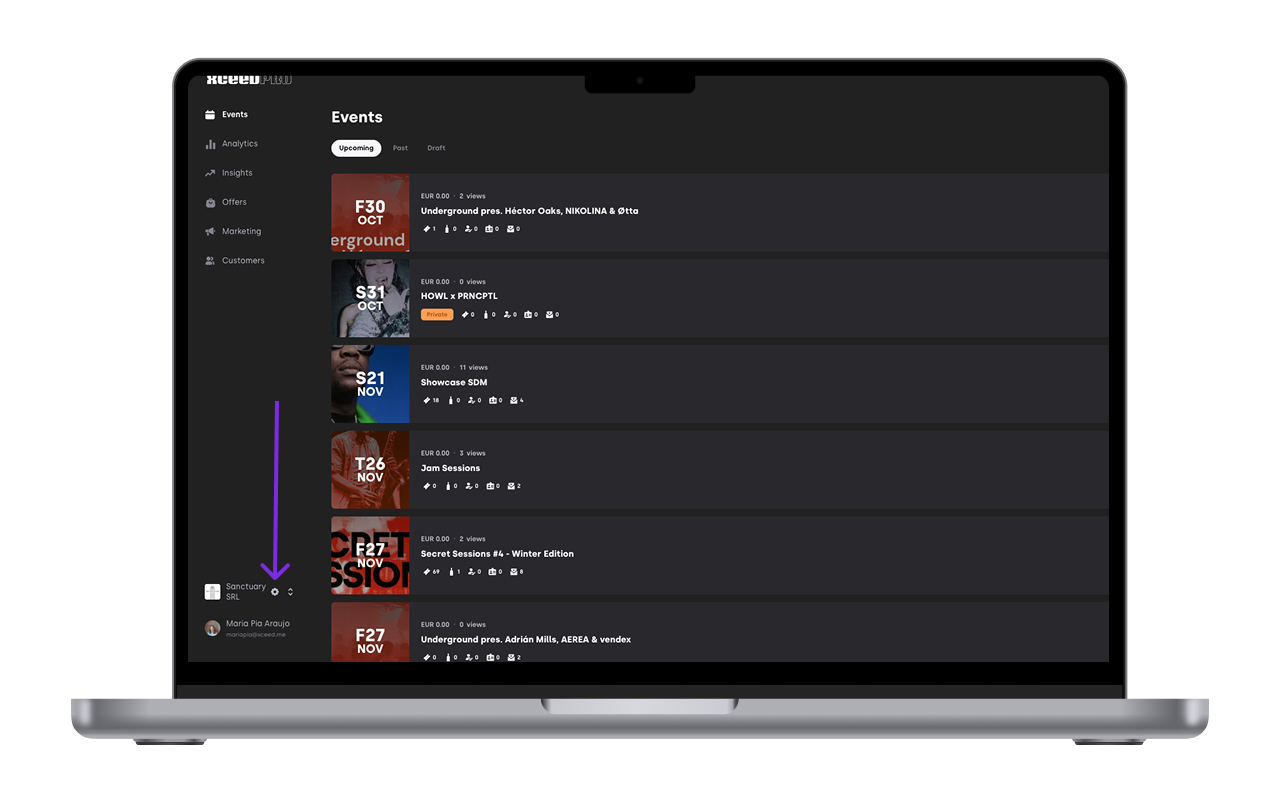
Login to your XCEED account and go to your company settings page
Click on the the events tab
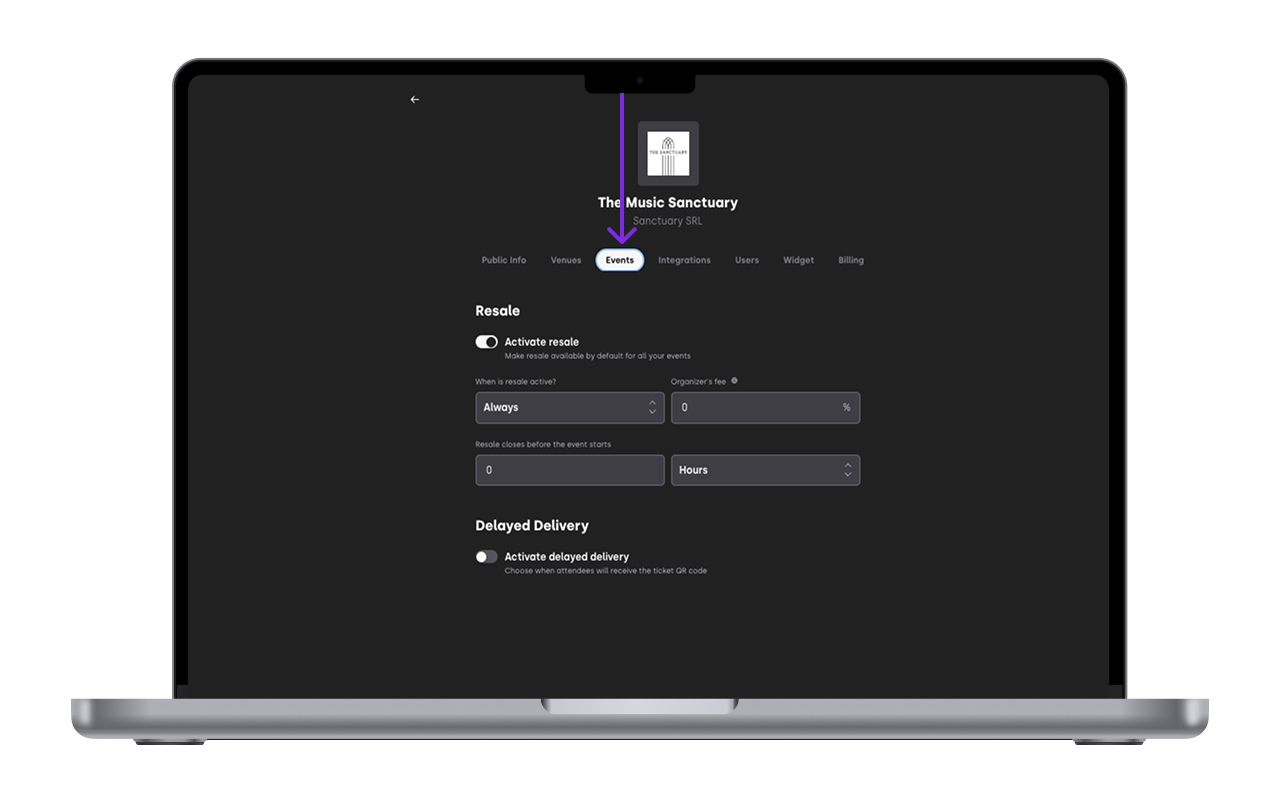
Turn resale on or off
On: your customers can list and buy resale tickets for this event.
Off: nobody can list or buy resale tickets for this event.
Choose when resale opens (Mode)
Always: resale is open as soon as it is turned on.
When sold out: resale only opens once your event is sold out.
Your event counts as sold out when none of your tickets, bottle service or season passes for that night are on sale or scheduled to go on sale later.
These never count, so they don't stop your event from being sold out:
Guest lists, invitations and staff passes
Offers only available with a promo code
Import-only (offline) offers
Hidden, draft or deleted offers
If your event looks sold out but resale isn't open, check for a release that is scheduled but hasn't opened yet.
An event with only a free guest list and no tickets is not considered sold out, so resale stays closed.
Choose when resale closes (Close time)
Set how many hours or days before your event starts resale should close.
If you leave it at 0, resale stays open until your event starts.
Any ticket still listed at the close time is removed from resale, and the seller gets an email.
A buyer who is already paying at that exact moment can still finish their purchase.
Set your fee by entering a number between 0 and 10 with up to 2 decimal cases. You can change your fee at any time.
Tickets that are listed and not sold yet update to your new rate automatically.
Tickets that are already sold, or that a buyer is paying for right now, keep the old rate.
Attention:
You can set default resale settings for your whole company. These only apply to new events you create. Changing your company defaults does not change events you already created. To change those, update each event one by one.
2.2 For a specific event
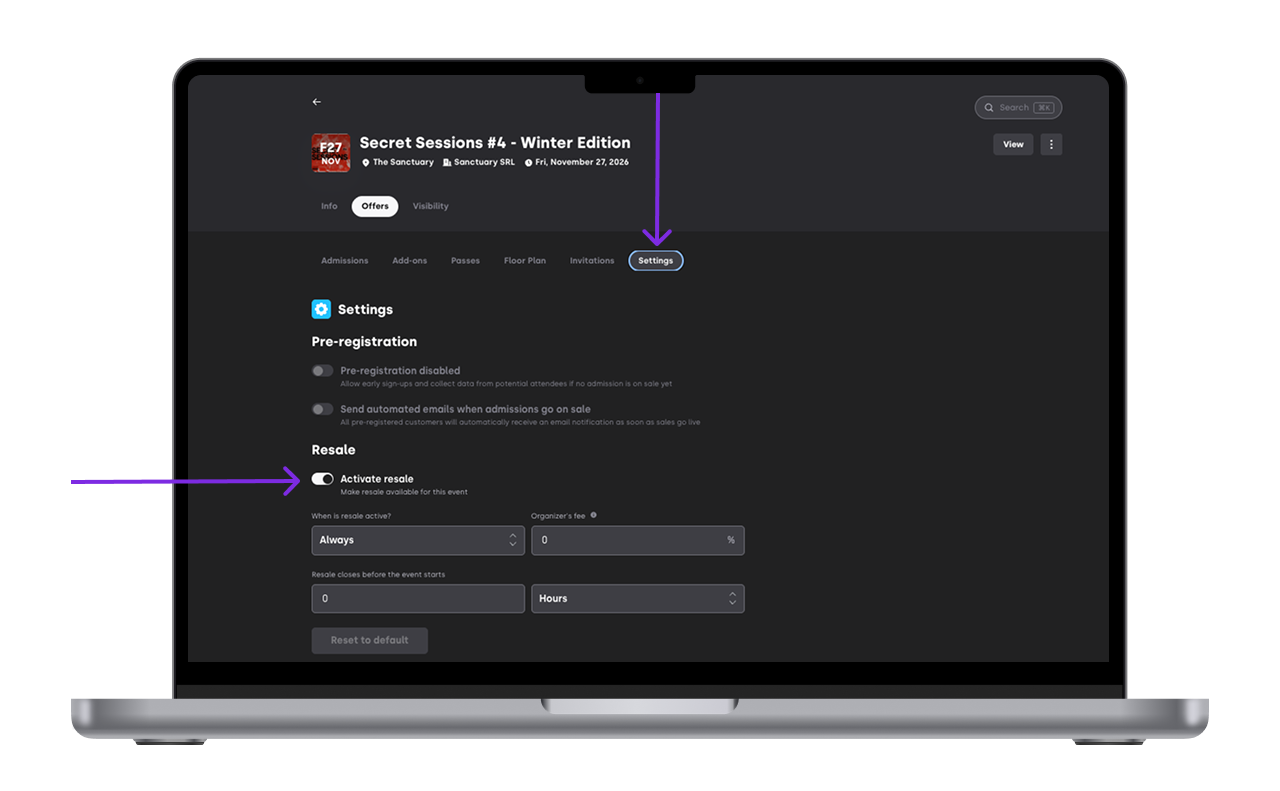
Open the specific event you want to set the resale for and click on edit
Go to the setting tab
Activate resale just like you would do on the company default settings
Attention:
When resale closes (you turn it off, the event isn't sold out yet, or the close time is reached):
Nobody can list or buy resale tickets.
Tickets already listed are removed from resale and the seller gets an email.
The ticket itself is never affected. Your customer can still use it to get in.
When resale opens again:
Sellers whose tickets were removed get an email inviting them to list them again.
Nothing is relisted automatically. Your customers need to list their tickets again themselves.
3. Tell you customers how to resell their tickets
Use this step by step guide if you want to help your customers resell their tickets on XCEED
If you have any other questions check our FAQ page or contact support@xceed.me