
Show the VAT rate on your ticket PDF
Use this when you need VAT transparency for buyers, fiscal compliance, or internal accounting processes. It’s especially useful for events where tickets act as simplified invoices. Once enabled, the VAT rate appears automatically on the ticket PDF.
1. Enable the VAT rate on ticket PDFs
You can configure VAT in XCEED in two different ways, depending on whether you want a global setup or event-specific control.
1.1 Set VAT company-wide (via offer presets)
Use this option if the same VAT rate applies to all your events and offers.
Go to Offers tab in XCEED Pro.
Edit or create your offer presets.
Assign the appropriate VAT rate to each offer type
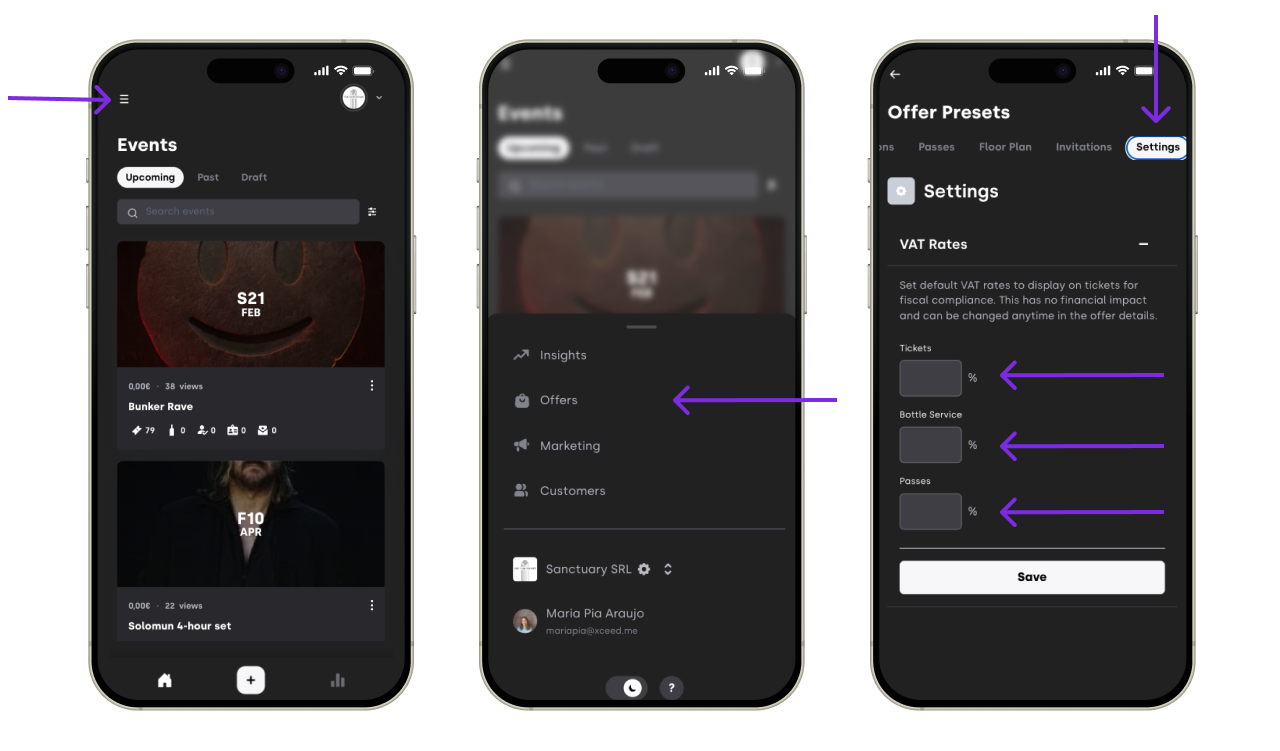
Save your changes.

This only applies to the new tickets created.
1.2 Set VAT per event (per ticket)
Use this option if different events or ticket types require different VAT rates or if your offers are already created without VAT set up
Open the specific event in XCEED Pro.
Edit the ticket you want to configure.
Assign the correct VAT rate to that ticket.
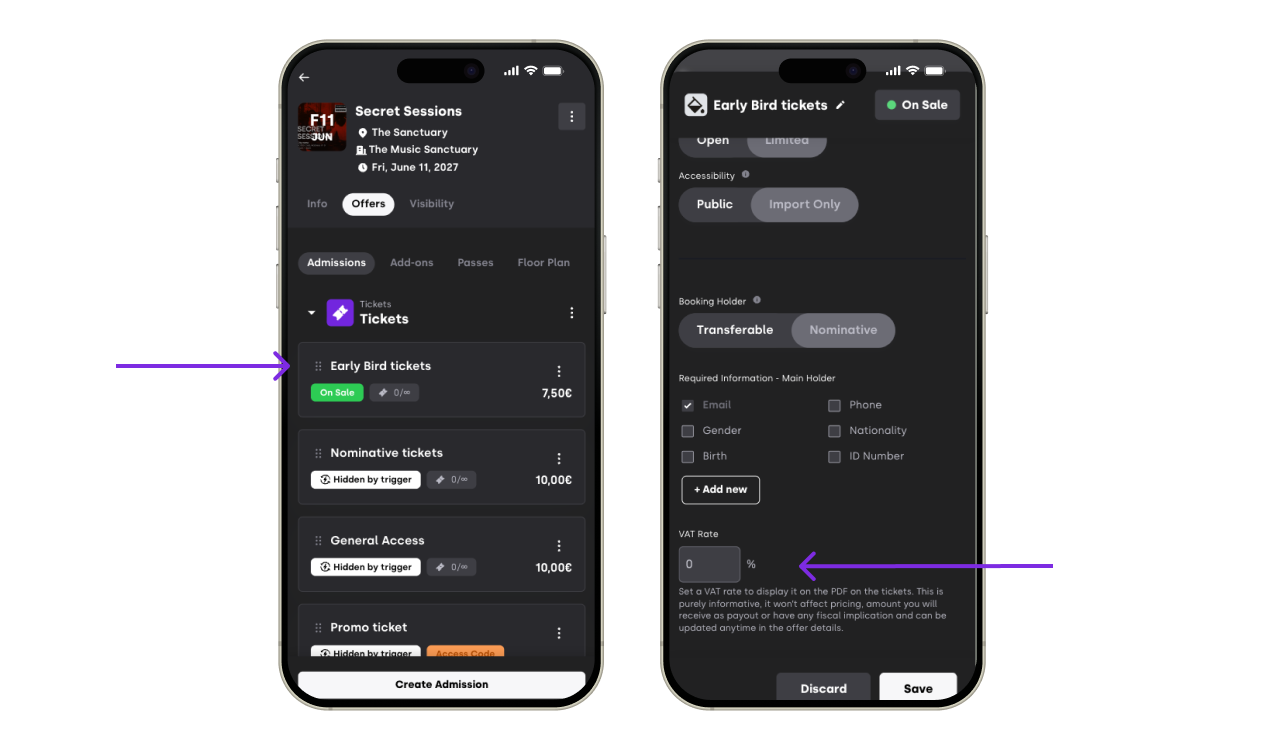
Save the ticket.

Only the tickets with a VAT rate assigned will display it on their ticket PDFs.
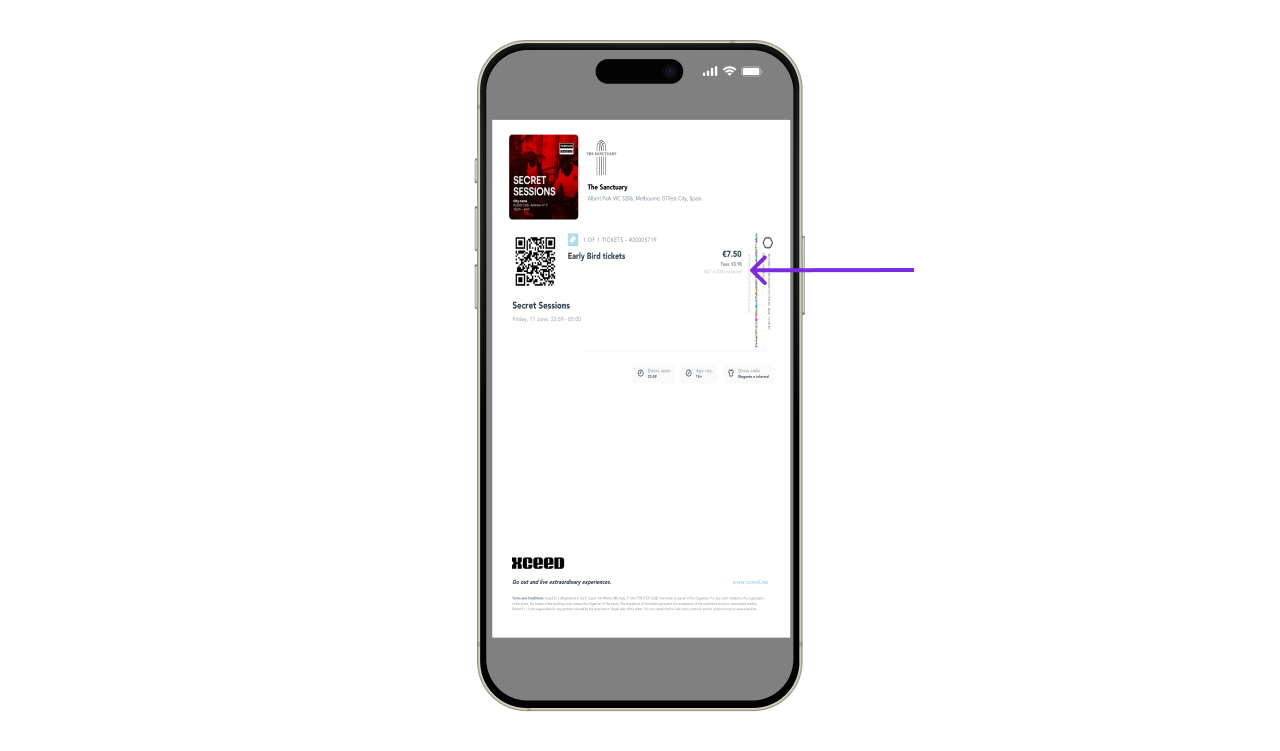
2. How the VAT rate appears on the ticket
On the ticket PDF, buyers will see:
The VAT rate applied
The ticket price
Other standard ticket information
The VAT rate is displayed automatically and does not require manual editing per ticket.
3. Important things to keep in mind
VAT is shown only if you set it up
Changes do not affect already generated ticket PDFs
VAT rates depend on your local tax rules
This won’t change what you earn or what your customers pay. It’s just about clarity on the ticket.
If you have any other questions check our FAQ page or contact support@xceed.me