
Manage Offline Ticket Sales
Use this when you’re selling tickets via promoters, at the venue, or through partners, but you still want those sales registered in your event. You’ll log the off-line sale from the Action button, send tickets (if needed), and have them ready for validation at the door.
1. Create An Off-line Sale
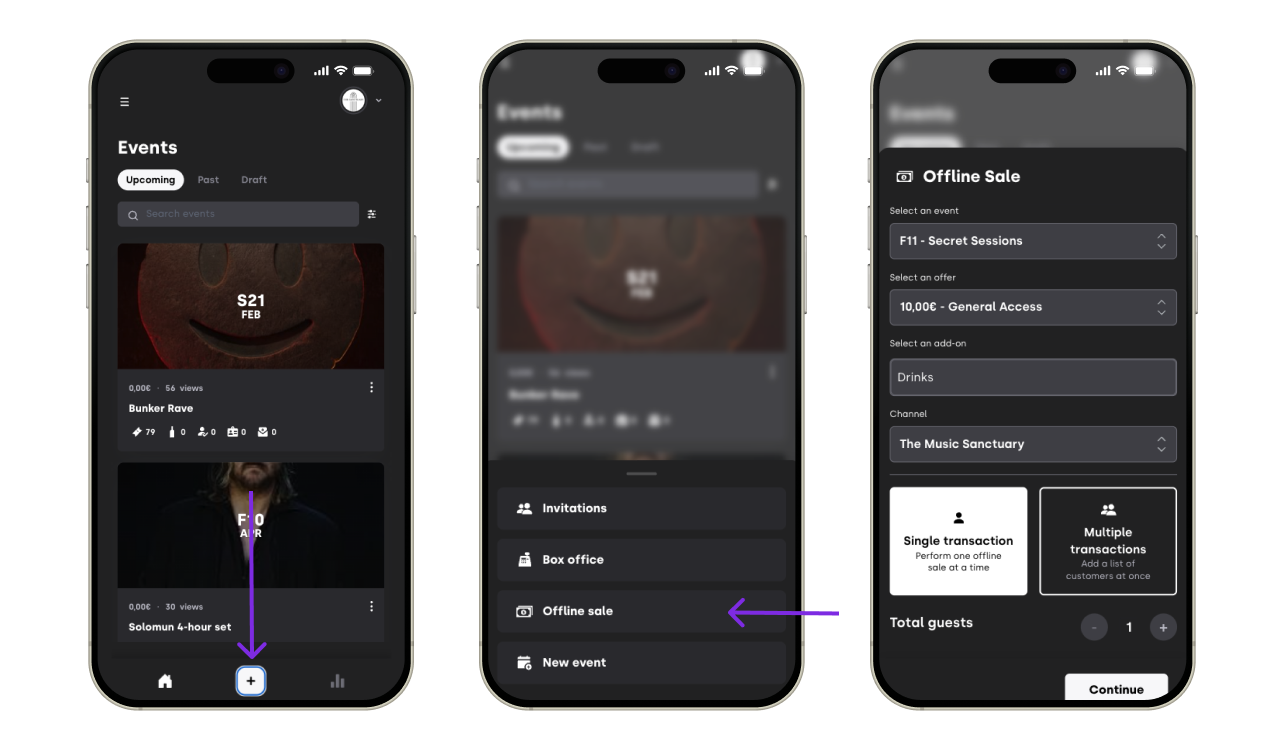
In XCEED Pro, click the Action button (+ -> Bottom-center).
Select Off-line sales.
Choose the event, the ticket type, the channel, and any add-ons (if applicable).

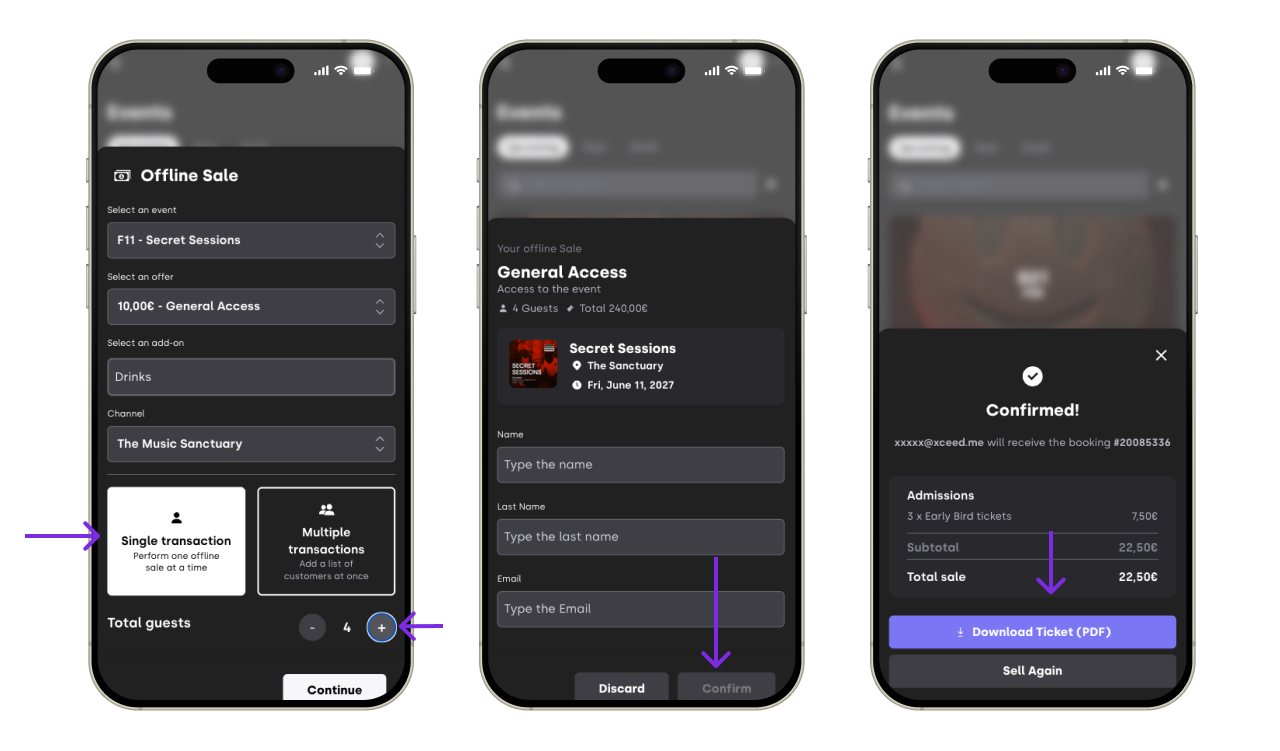
1.1. Single transaction
Use this to add one person and assign one or more tickets under the same name and email by filling in the fields.
If your offer is not nominative and doesn’t require extra information fields, you can add a list of people in bulk.

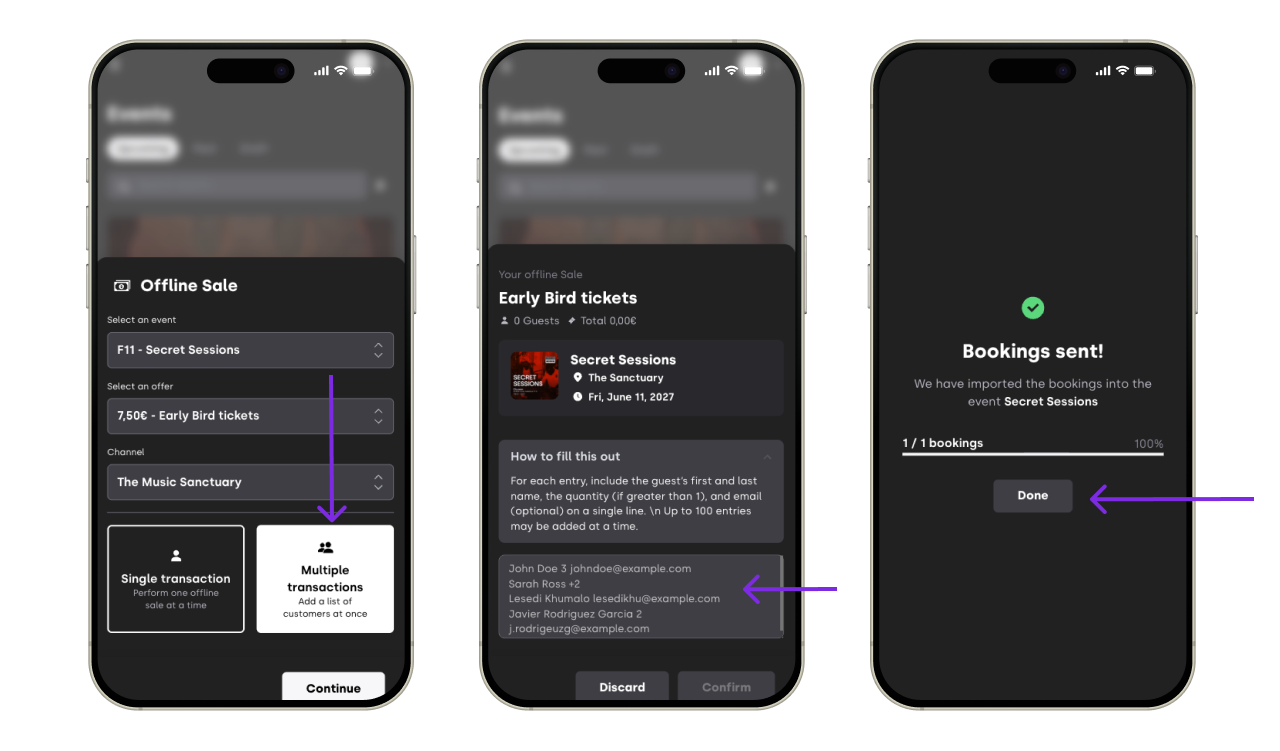
1.2 Multiple transactions
Use this to add many people at once by pasting a list of names and emails (with the needed ticket amounts per person):
Choose Multi-invite.
In the text box, add one invitation per line, using any of these formats:
Name (mandatory)
Example:Xxxxx Yyyyy→ creates 1 invitationName + quantity
Example:Xxxxx Yyyyy 3→ creates 3 invitationsName + “+quantity”
Example:Xxxxx Yyyyy +4→ creates 5 invitationsName + email (optional quantity can be included or not)
Example:Xxxxx Yyyyy xxxxx@xceed.me→ creates 1 invitation and sends it to that email
Click save

1.2.1. If You Didn’t Add An Email
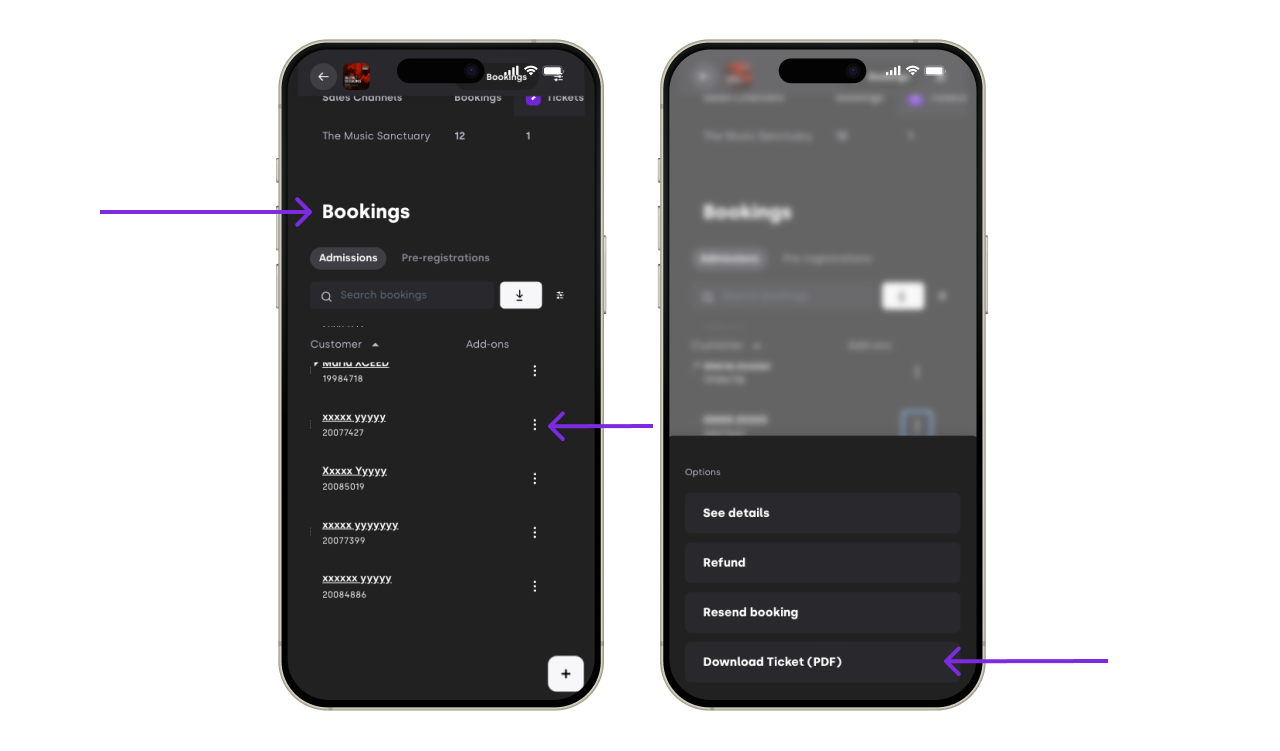
If no email was included, you can still:
Download the invitation PDF later from your customer list and send it manually, or
Ask the guest to give their name at the door.

If you have any other questions check our FAQ page or contact support@xceed.me