
What you can do with the XCEED MCP
Discover 10 practical ways to use the XCEED MCP to report, price, build and manage your events just by typing what you need.
You can use the XCEED MCP to get sales reports in seconds, compare your prices with the market, or build a full event from a PDF or a flyer. It also helps with the repetitive work, like updating descriptions across all your events or duplicating an event for the next four weekends. Here are 10 examples to get you started, from the simplest to the most advanced.
1. Before you start
To try these examples, you need to connect the XCEED MCP to your AI assistant first. If you haven't done it yet, follow the steps in How to use the XCEED MCP.
You can copy each example as it is and replace the event names, dates and numbers with your own.
2. 10 things you can do
2.1 Reporting, your way
Ask for the numbers you need, in the format you want:
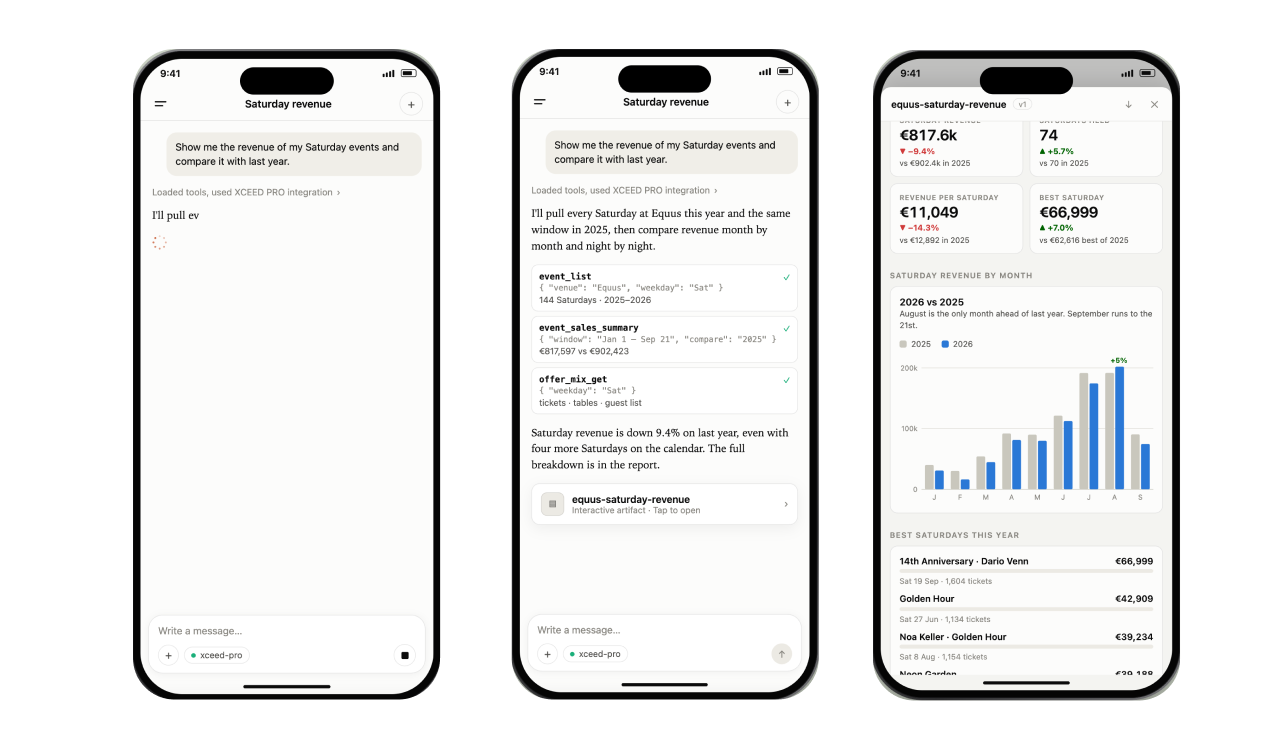
"Show me the revenue of my Saturday events and compare it with last year." Check out an example:
"How is Friday's event selling? Which channel sells the most? How many tickets are left?"
"Generate a report with graphs and tables, focused only on bottle service sales."
Your assistant doesn't just give you numbers. It also explains what they mean.
2.2 Your data and the outside world
Mix your XCEED data with research from the internet:
"Show me my bookings by country. Then analyse which kind of artists generate more interest in each country."
"Research ticket prices for similar events in Barcelona this season, then compare them with mine."
"Research the market for a techno night in Madrid in November, then create the event in XCEED with a pricing structure based on that research."
For research, make sure web search is turned on in your AI assistant.
Check out an example video:
2.3 Smarter pricing
Ask your assistant to review your prices:
"Analyse my pricing from last year, taking inflation into account. Is my pricing right, or can I optimise it?"
When you agree with the recommendation, type: "Apply that price update to event X." Your assistant makes the change in XCEED PRO, but only after you confirm it.
Check out an example video:
2.4 Build events in minutes
Give your assistant the details or a file, and it creates the event for you:
"Here's a PDF from the organiser. Create the event with its ticket types."
"Create an event for this Saturday. 100 tickets at €15 called 'Entry + drink', then sequential release: 200 at €20, 200 at €30 and 100 at €40. Use this flyer as the cover, add the line-up and an exit wristband add-on."
2.5 Floorplans and bottle service from a photo
Upload a photo of your floorplan and a file with your tables:
"Here's a photo of my floorplan and a CSV with tables, capacity and prices. Build the floorplan and create the bottle service offers."
Your assistant reads the image, draws every table, creates the zones and offers, and links everything together.
Check out an example video:
2.6 Sales monitoring and pricing rules
Ask your assistant to keep an eye on your sales:
"Check the sales of event X every hour. If it's selling fast, alert me that it's time to close the current phase and open the next price tier."
You set the rule, and your assistant follows it. It can either just notify you, or apply the change you've defined.
Tip: for simple rules like "when phase 1 sells out, open phase 2", ask your assistant to set up the sequential release and sales triggers in XCEED PRO instead. They're more reliable because they don't depend on your assistant remembering to check.
2.7 Channels and teams management
Clean up and organise your sales channels:
"List all the channels that haven't sold anything in the last 3 months and aren't linked to any future events."
Then type: "Now disable them" or "Now remove them." Your assistant shows you the list first and only acts after you confirm.
"Create a channel called 'Newsletter' and an exclusive €10 ticket that's only visible on that channel."
Check out an example video:
2.8 Guest lists and outreach
Find the right customers for your next campaign:
"Find my customers from Barcelona who attended last month's events, and prepare a segment for my next newsletter."
If you've connected your email marketing tool to your AI assistant, it can take it from there. Before you send anything, read section 3.
2.9 The boring, repetitive stuff
Let your assistant do the work you don't want to do:
"Update the description of all my upcoming events to include the new door policy."
"Duplicate last Saturday's event for the next four Saturdays."
Start the request, go do something else, and check back when it's done.
2.10 All of this from your phone
The connector also works in your AI assistant's mobile app. Check how tonight is selling, adjust a price or set up next weekend's event wherever you are.
3. Use it responsibly
3.1 Always check before you confirm
Your assistant asks for permission before it changes anything in XCEED PRO. Read what it's about to do, and confirm only if it's correct. This is extra important for prices, deleting channels and changes to live events.
3.2 Try new things on a test event
Before you try a big change, like a new pricing structure or a full floorplan, test it on an event that isn't on sale yet.
3.3 Respect your customers' data
Only send marketing emails to customers who agreed to receive them. Don't share customer lists outside the tools you've approved for your business.
3.4 Double-check research and recommendations
Market research and pricing advice are a starting point, not a final answer. Check the numbers before you apply them to your events.
If you have any other questions check our FAQ page ([link]) or contact support@xceed.me