
How to Create Passes
Use passes when you want to offer bundled access to multiple events or dates. They are perfect for events with recurring or consecutive activities, such as festivals, or multiple-event packages. A single pass can be sold and grants entry to all linked events.
Passes are useful in the following cases:
You want to sell access to multiple events at a discounted price
You’re organising a festival or multi-day event with several sessions
You need a simplified way to manage access to multiple activities without creating separate tickets for each one
Passes are ideal for offering flexibility while simplifying ticket management for your event.
Agenda
1. Create a Pass
Passes are created as a preset in the Offers tab.
Log in to XCEED Pro.
Go to the Offers tab in your event settings.
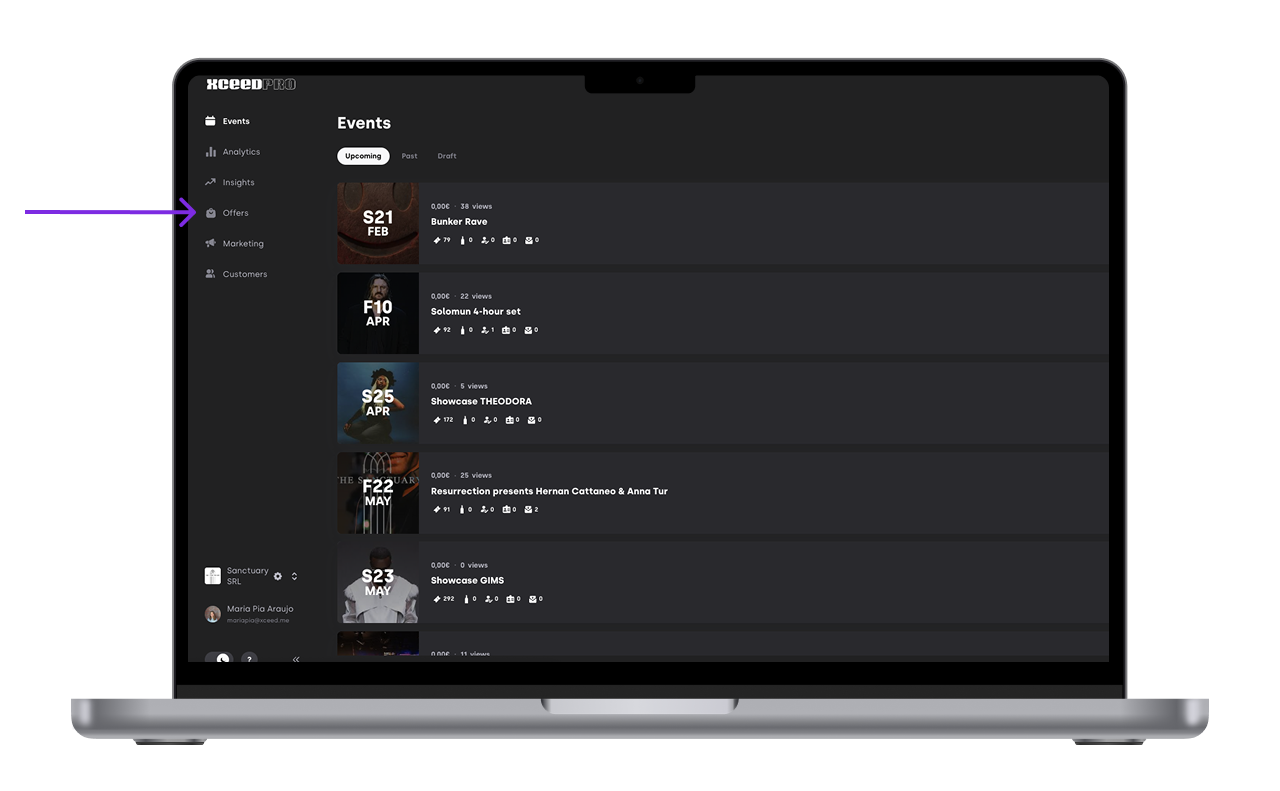
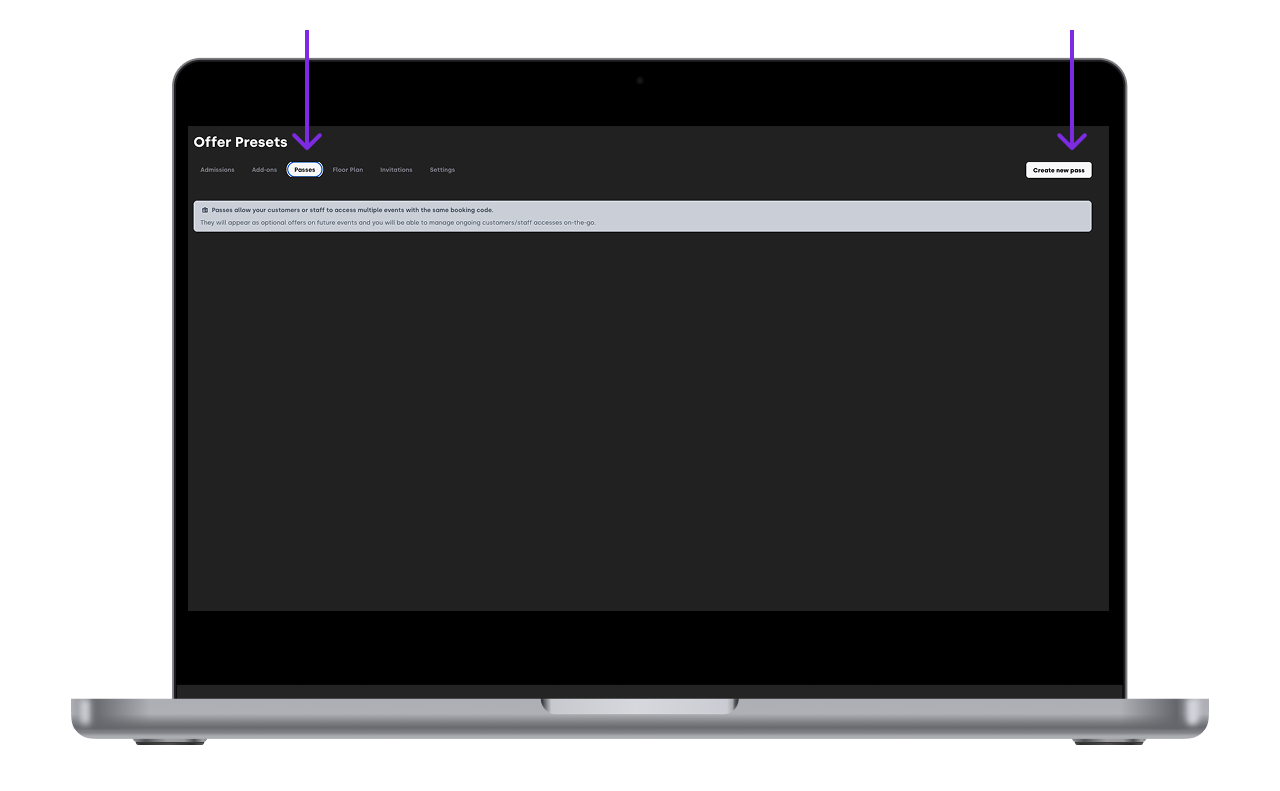
Click on Passes and then Create a new pass.
Define the following for the pass:
Name (e.g., “Weekend Summer Pass”)
Price
Quantity (how many passes are available)
Description (details about what the pass offers)
Validity start and end dates (along with the days of the week it applies to)
Min and max quantities per purchase (how many passes can be purchased per transaction)
All passes by default are nominative but you can set them as transferable
Choose its visibility (whether the pass is available across all sales channels or just specific ones)
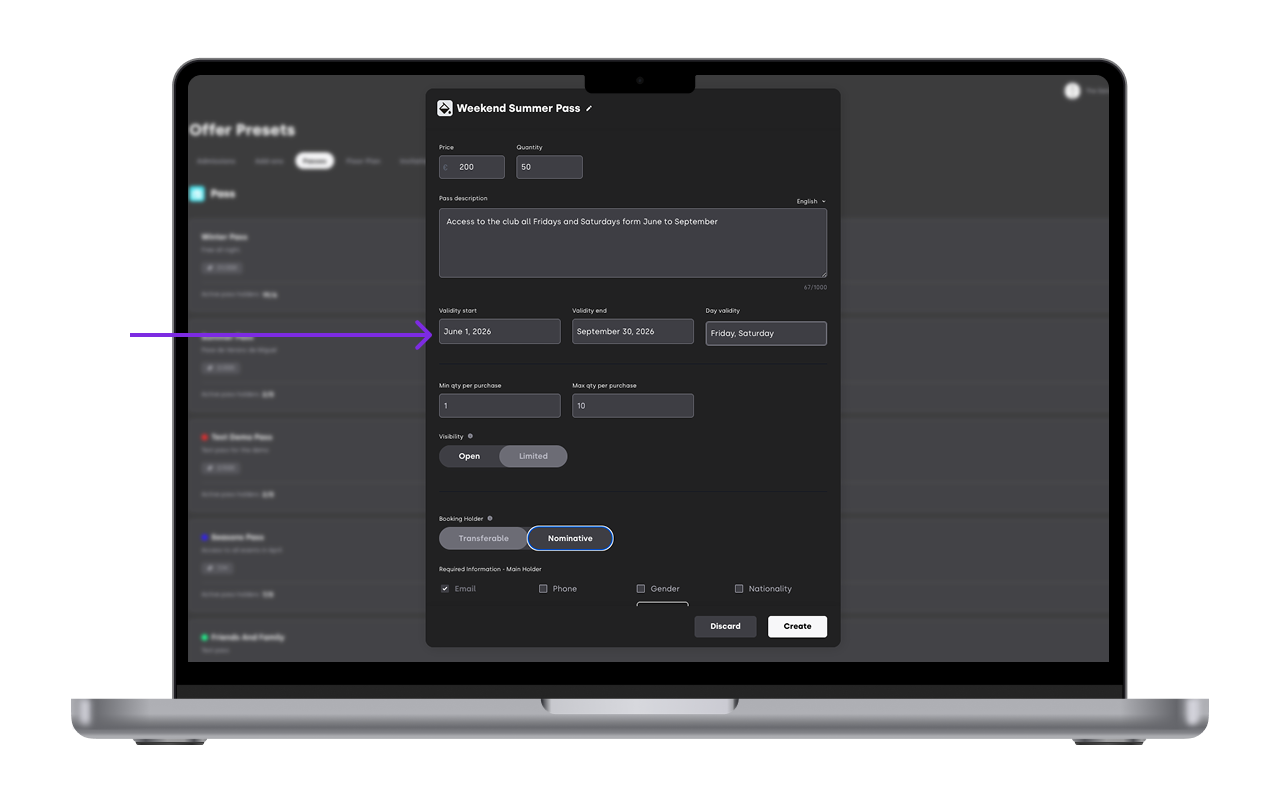
Save the offer.


Once saved, the pass will be available to be linked to your events.
2. Active Pass vs. Pass on Sale in an Event
2.1 Active Pass
By default, all events that fall under the dates and days of a pass’s validity will accept this pass at the door.
However, you can deactivate the pass for specific events:
Enter the event where you want to deactivate the pass
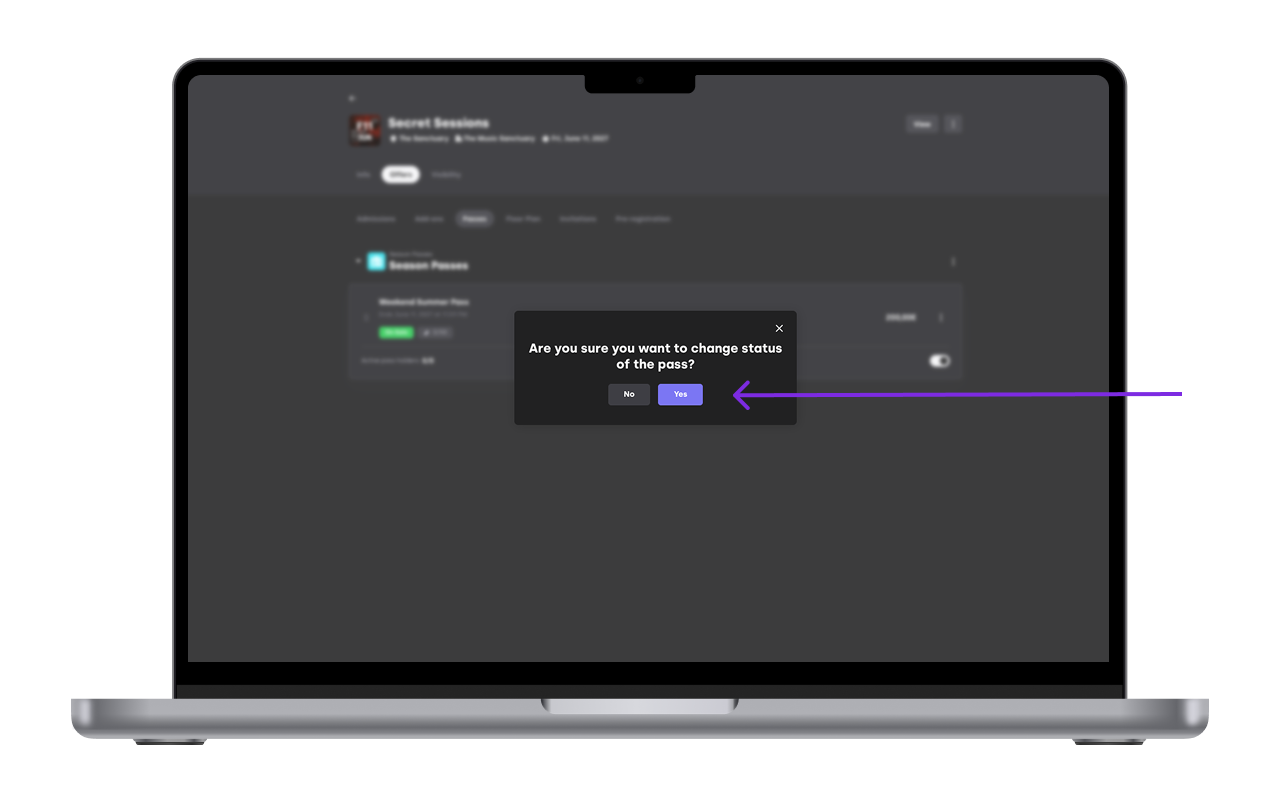
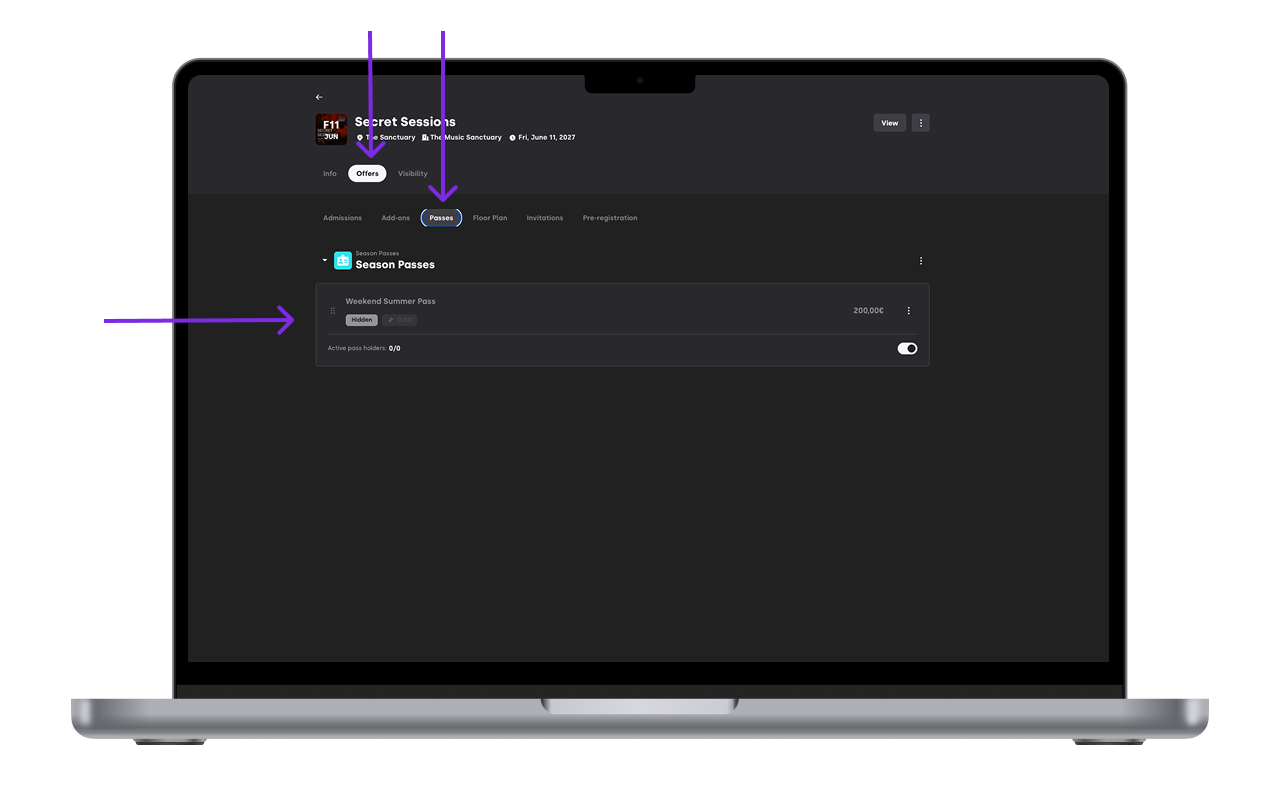
On the Offer/Pass tab click on the toggle to deactivate
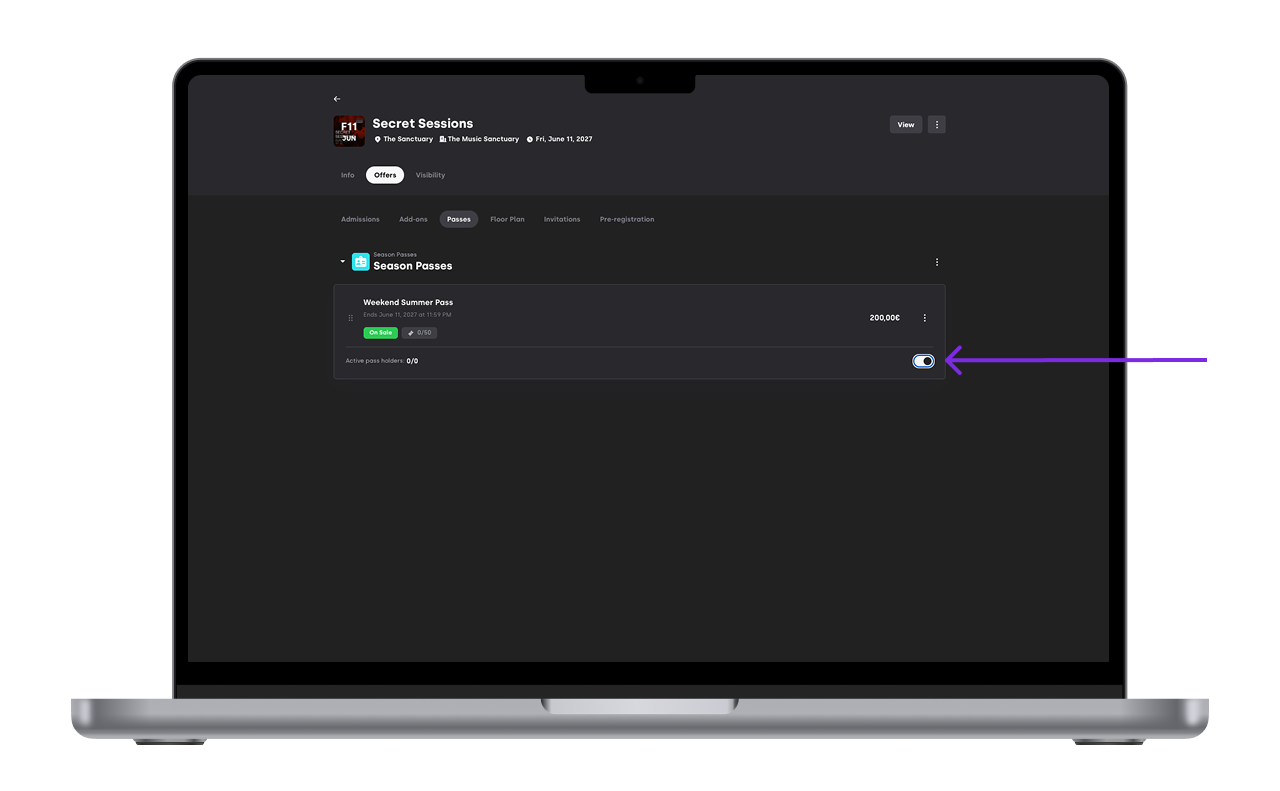
Confirm that you want to change the pass status


2.2 Event that sells the pass
A good practice is to have the pass on sale for all the events where it is valid. This ensures greater visibility and the ability for customers to purchase the pass at any time.
Although the pass is valid by default, you must manually set it to be on sale for each event. This is done by changing the pass status to valid in the event’s settings.
After creating the pass preset, you need to link it to the specific events that it will grant access to.
Select the events that you want the pass to provide access to.
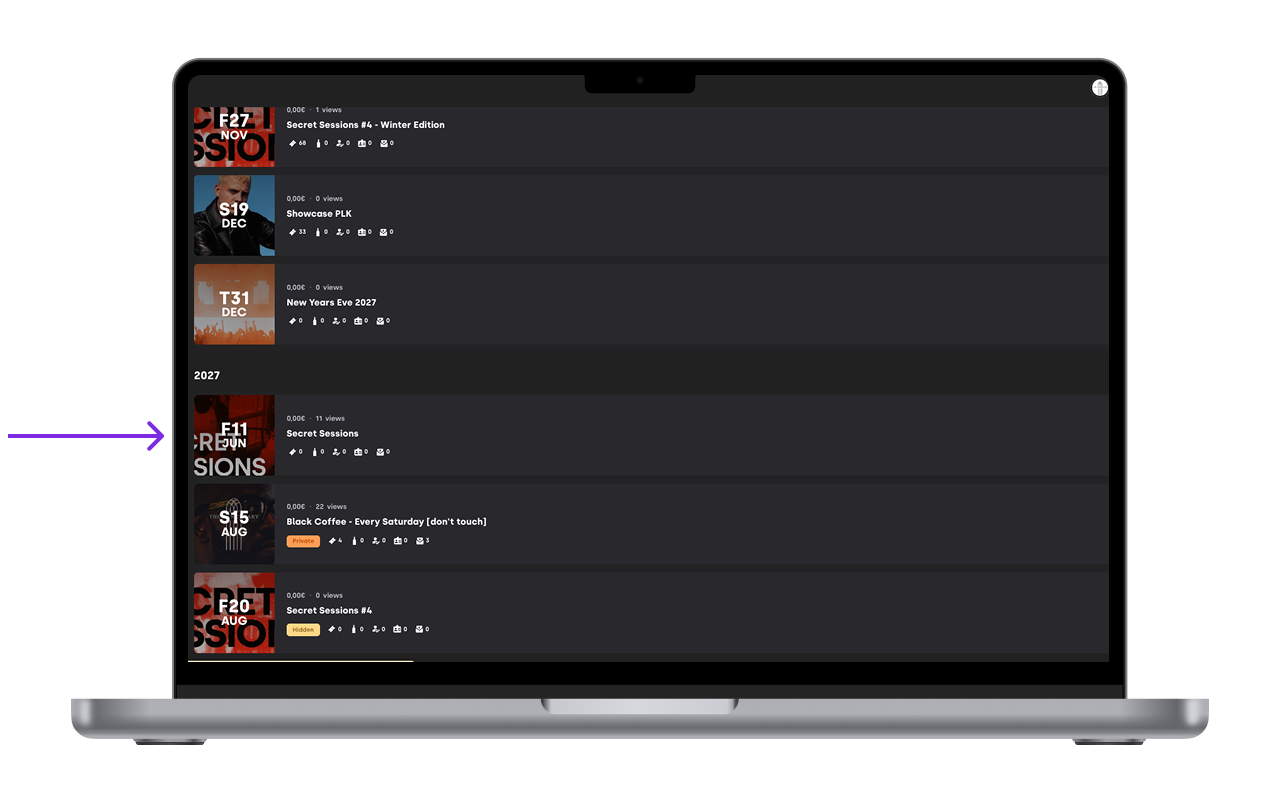
Link the created pass preset to those events in the offer-> pass tab and changing the status to On Sale
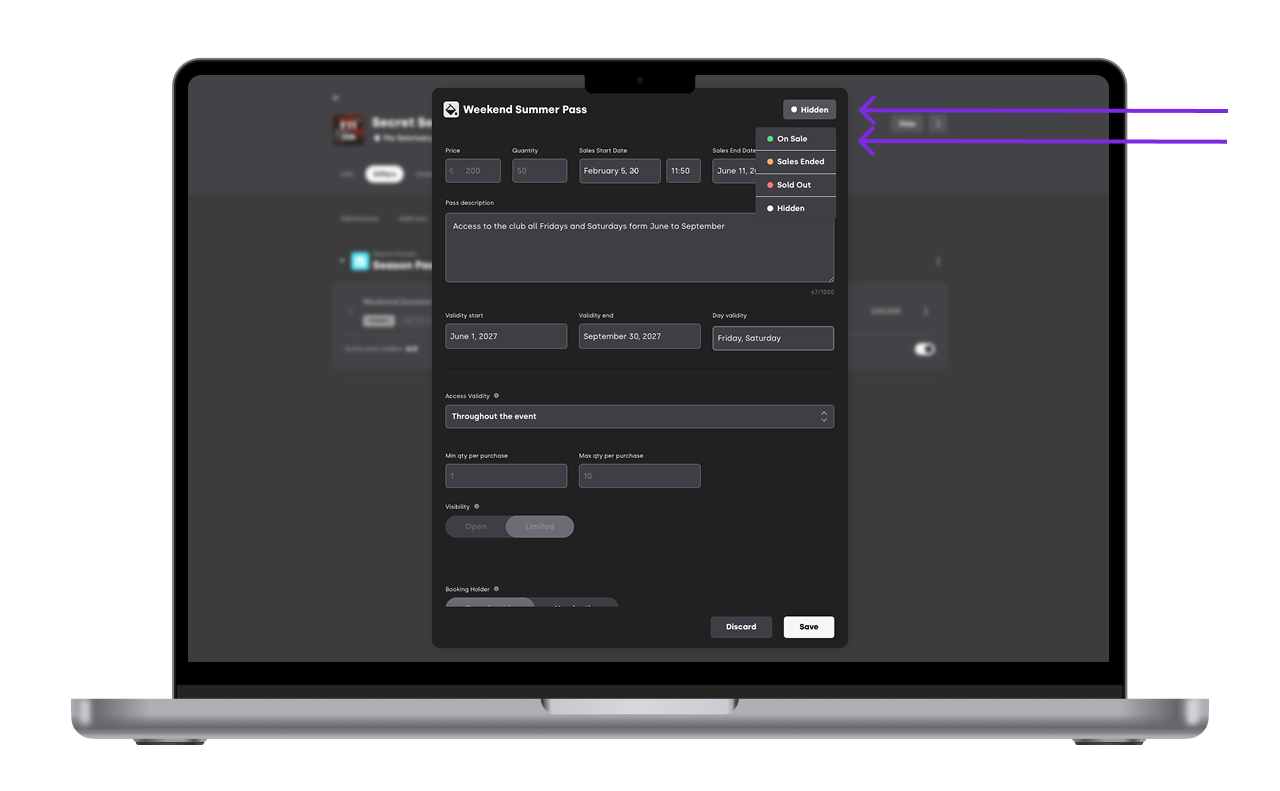
Save your changes.
Repeat this process to put this pass on sale on all other events where it is valid.


3. Manually adding a pass holder (offline sales)
You can manually add a pass holder when selling a Pass offline
Go to XCEED Pro into the Offer tab
Go into the pass offer tab
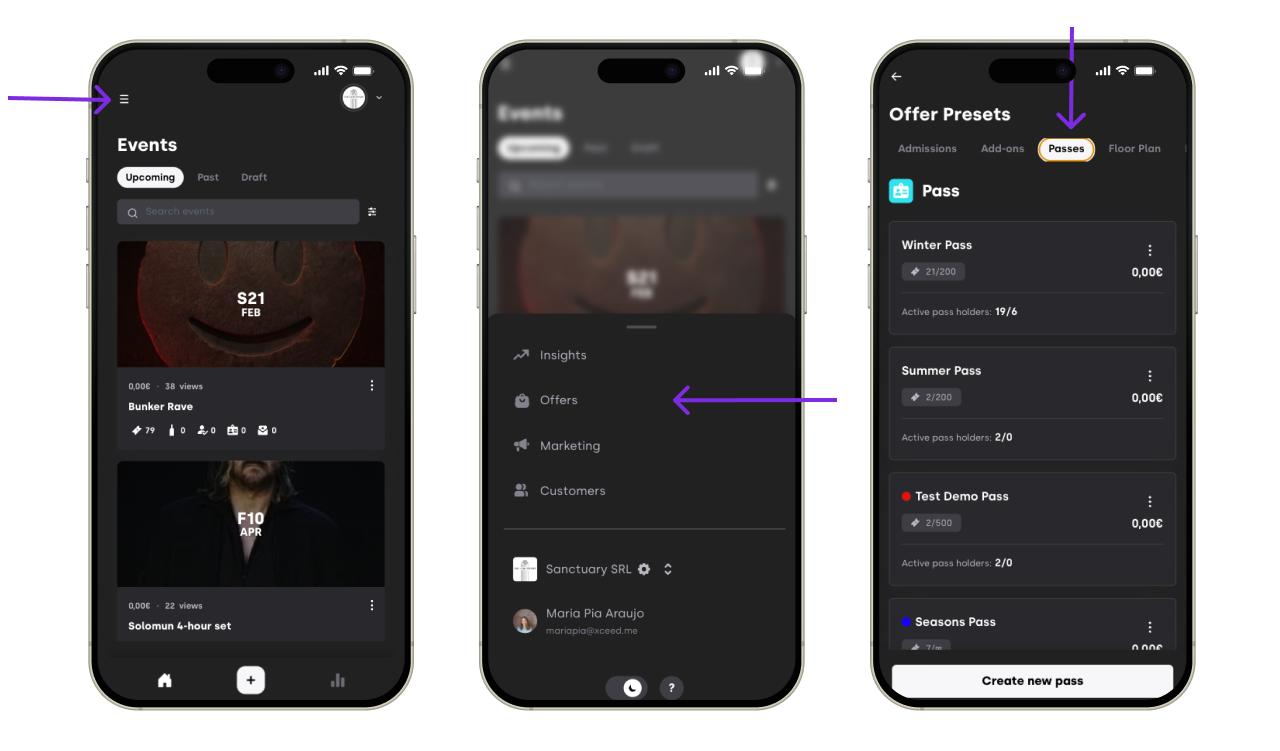
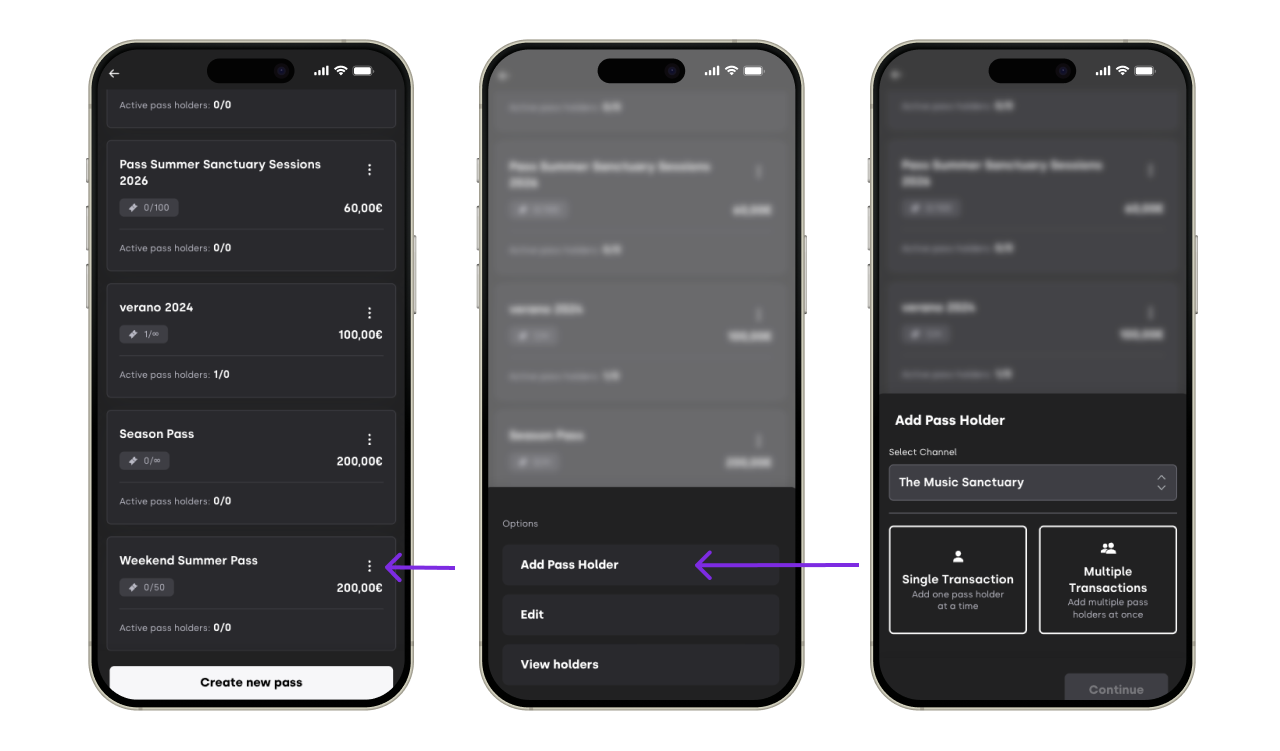
Click on the 3 dots of the pass you want and chose Add a Pass Holder
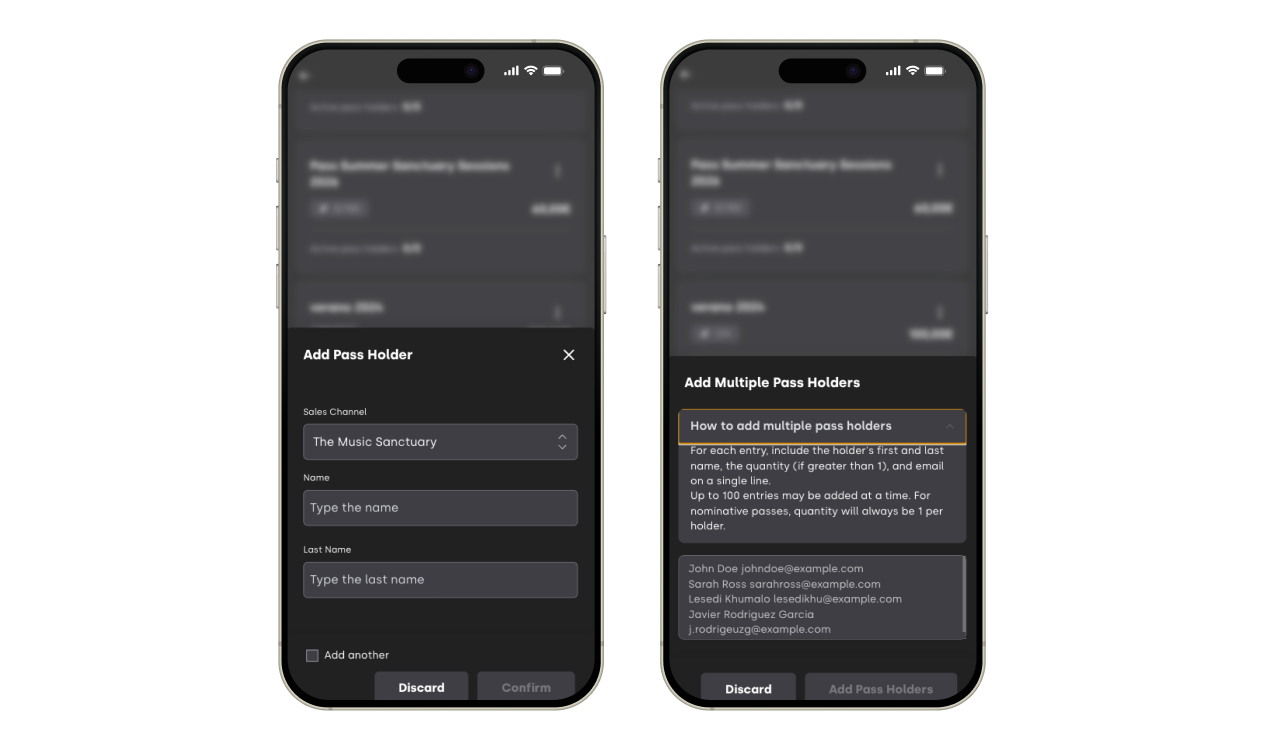
Chose wether is a single or muti-transaction
Fill in the Customer data (name, email and any other information requested)
The pass will be added to the customer’s account if they have one, and a QR code will be generated and sent to the email


This process is useful for offline sales or when assisting customers at the door.
4. Manually deactivating pass holders
To deactivate a pass holder and prevent them from accessing linked events, follow these steps:
Open the XCEED Pro event on the edit pass tab
Find the pass holder in the list of pass holders
Click on the toggle to deactivate their pass.
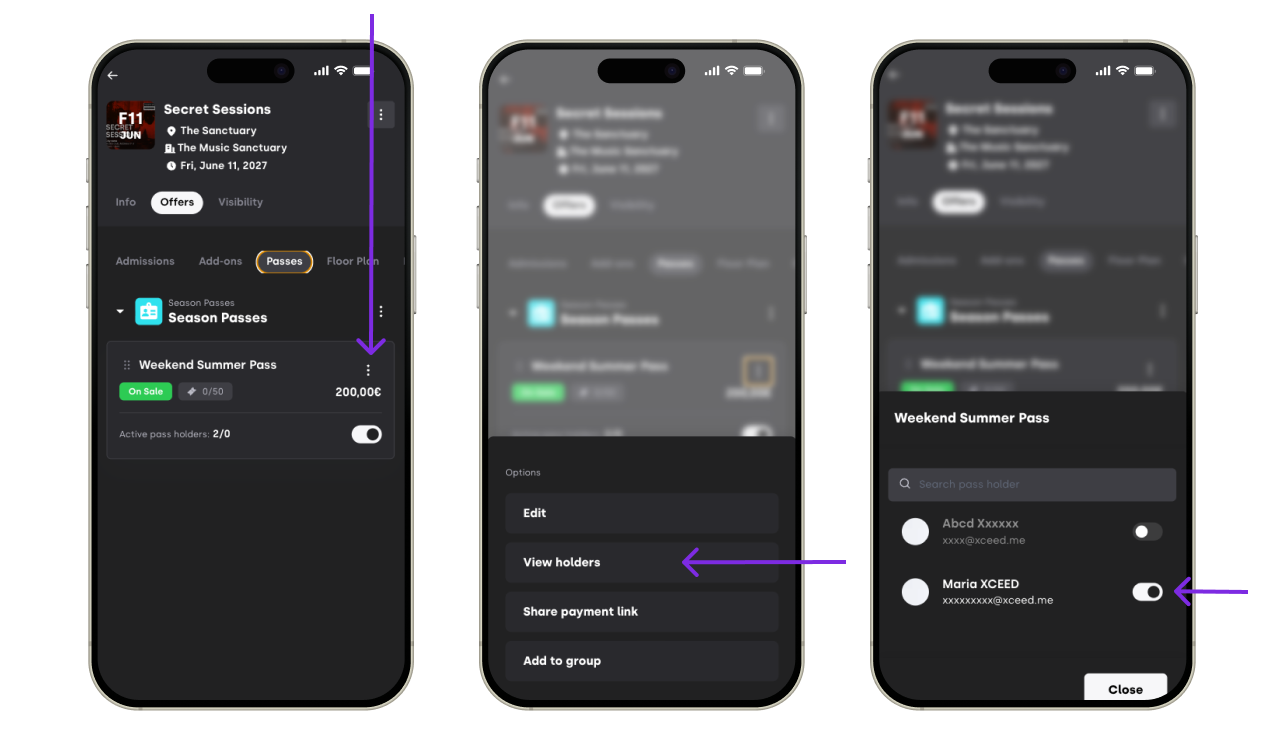
Save the changes.

Once deactivated, the pass holder will no longer have access to this specific event but will be valid for all others included in the pass.
5. How passes look for clients
For the customer, the pass appears as a QR code as a PDF or as Wallet ticket
The pass is visible in their XCEED account under their bookings, showing:
One QR code valid for all the event
The pass name(s) and validity date(s)
Pass description and price
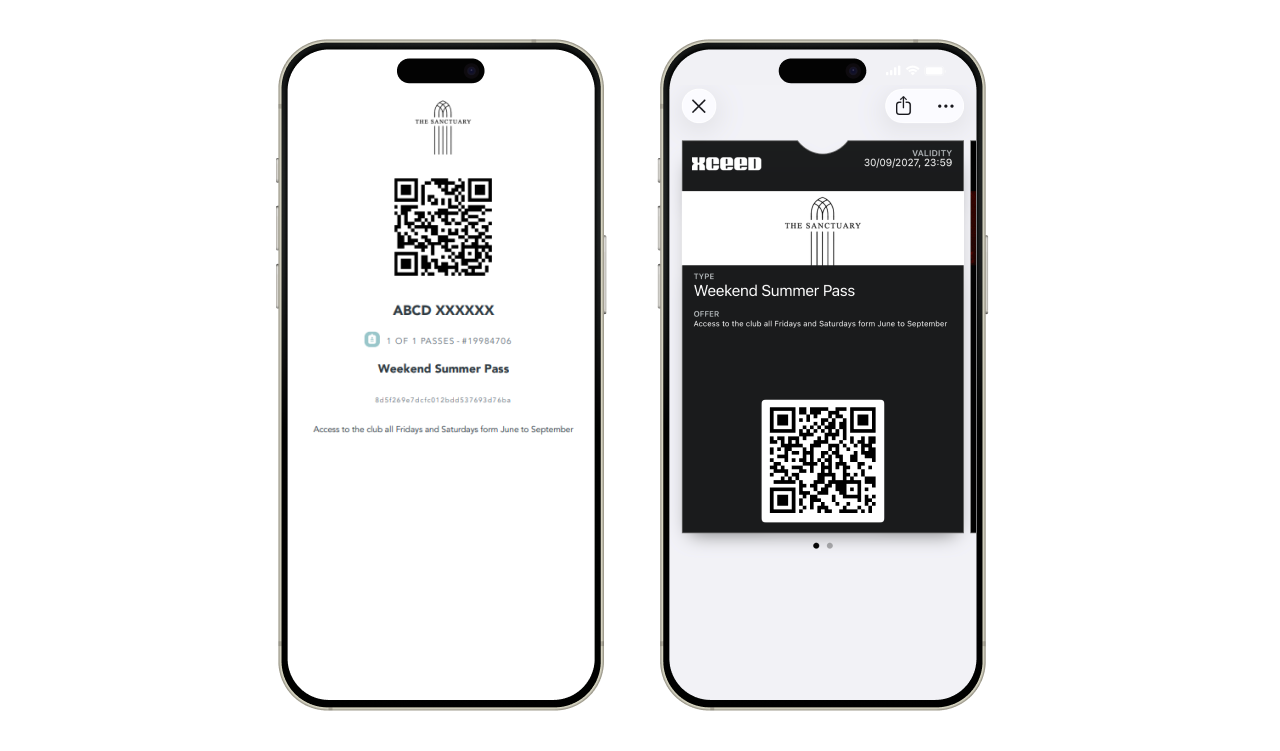
Clients can use this QR code to enter any event linked to the pass.
6. How passes work at the door
Each pass generates a unique QR code that clients can save on their wallets or as a PDF
The QR code can be scanned multiple times, but only at the linked events
Once scanned at an event, the QR code becomes invalid for that specific event, but can still be scanned at all other linked events
See more about scanning at the door here
7. Best practices for passes
Clearly name passes to indicate which events they cover (e.g., “3 day Festival Pass” or “Summer Weekends Pass”)
Link the pass only to events that make sense for the customer’s experience
Limit the number of passes available if you have a cap on event attendance
Clearly communicate what the pass includes to avoid confusion
You should remove from sales a pass if the events falls under the pass conditions but is not included in the Pass pack
If you have any other questions check our FAQ page or contact support@xceed.me