
Create and manage your event - XCEED Pro
Use this feature to launch club nights, festivals, private parties, or VIP experiences, manage ticketing and guest lists, and control visibility across your sales channels.
Agenda
Create your event
1.1 Access event creation
1.2 Fill in the event information
1.3 Visuals and description
1.4 Additional event settingsAdd your sales products (offers)
2.1 Types of offers
2.2 Offers on sale for general public
2.3 Limit the visibility of an offer
2.4 Offer details
2.5 Offers order
1. CREATE YOUR EVENT
1.1 Access event creation
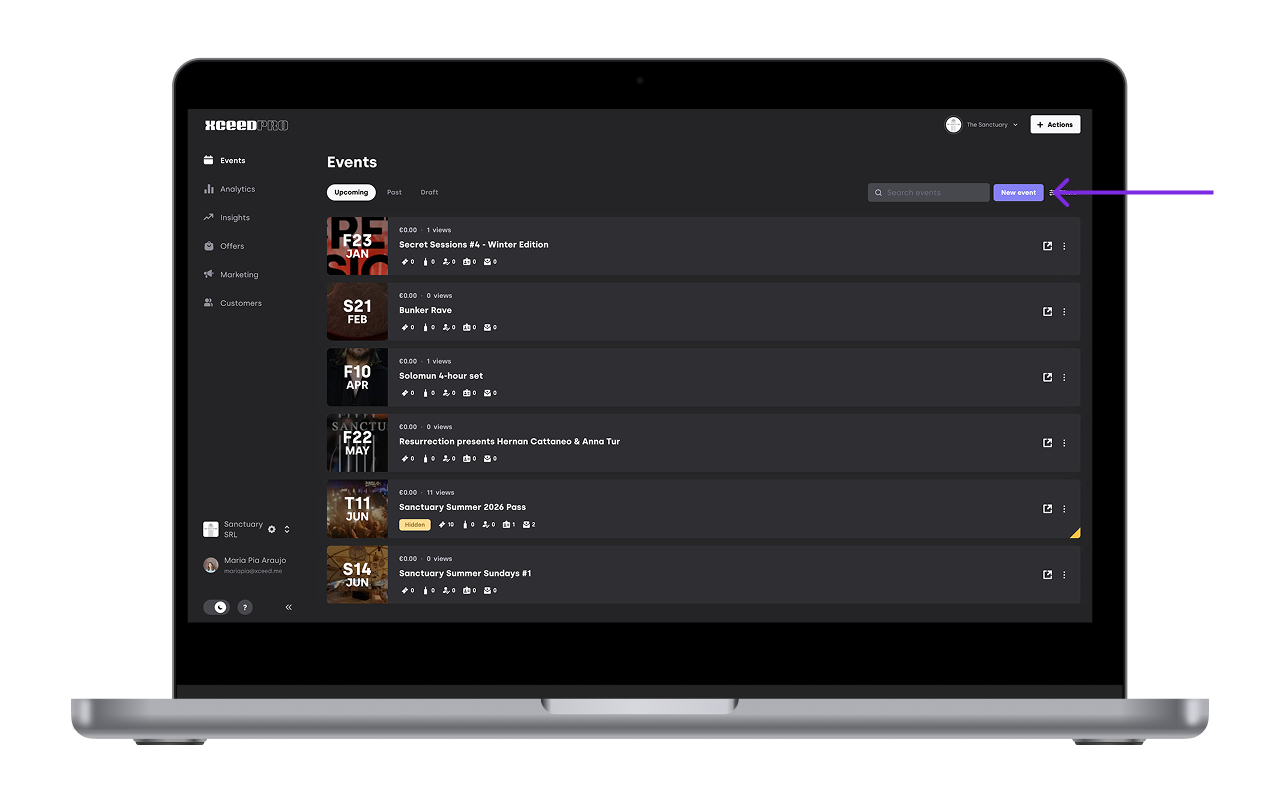
Log in to your XCEED Pro account and click on Create Event.
1.2 Fill in the event information
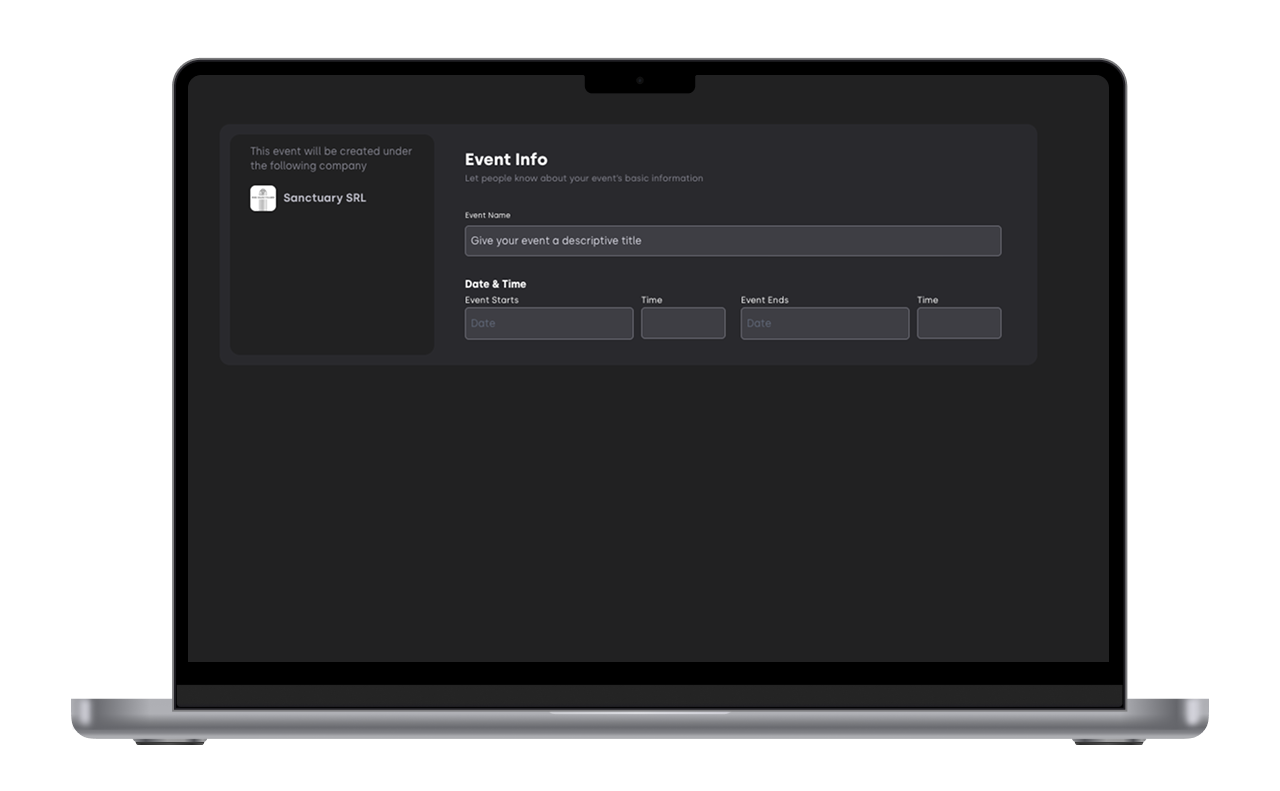
1.2.1 Event title: Choose a clear title for your event. Do not use capital letters in the title.
1.2.2 Event time: Define the event duration.
Important:
If your event runs from Friday night to Saturday, set the start time to 23:59 on Friday.
Setting it to 00:00 would mean the event starts at the beginning of Friday, which is a common mistake.
1.3 Visuals and description
1.3.1 Image: Upload a high-quality image
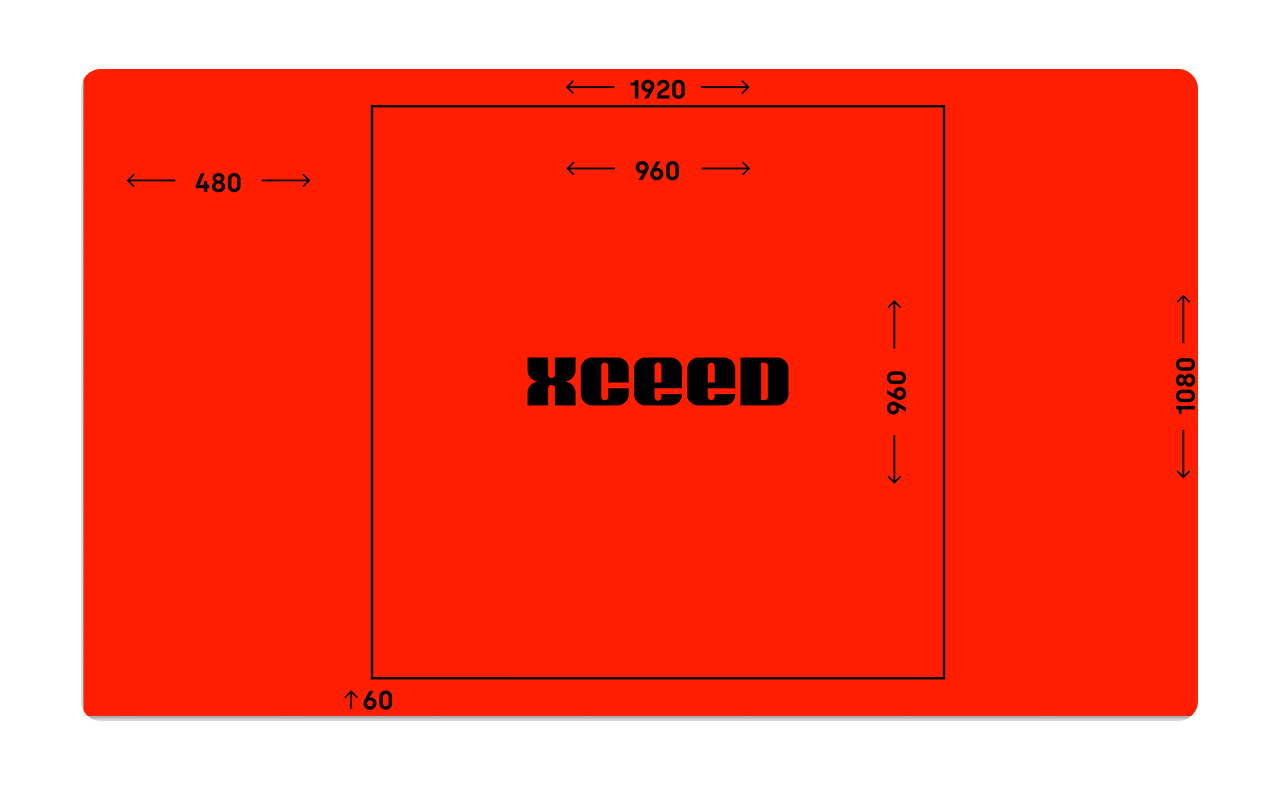
960 × 960 px recommended
1920 × 1080 px can also be used
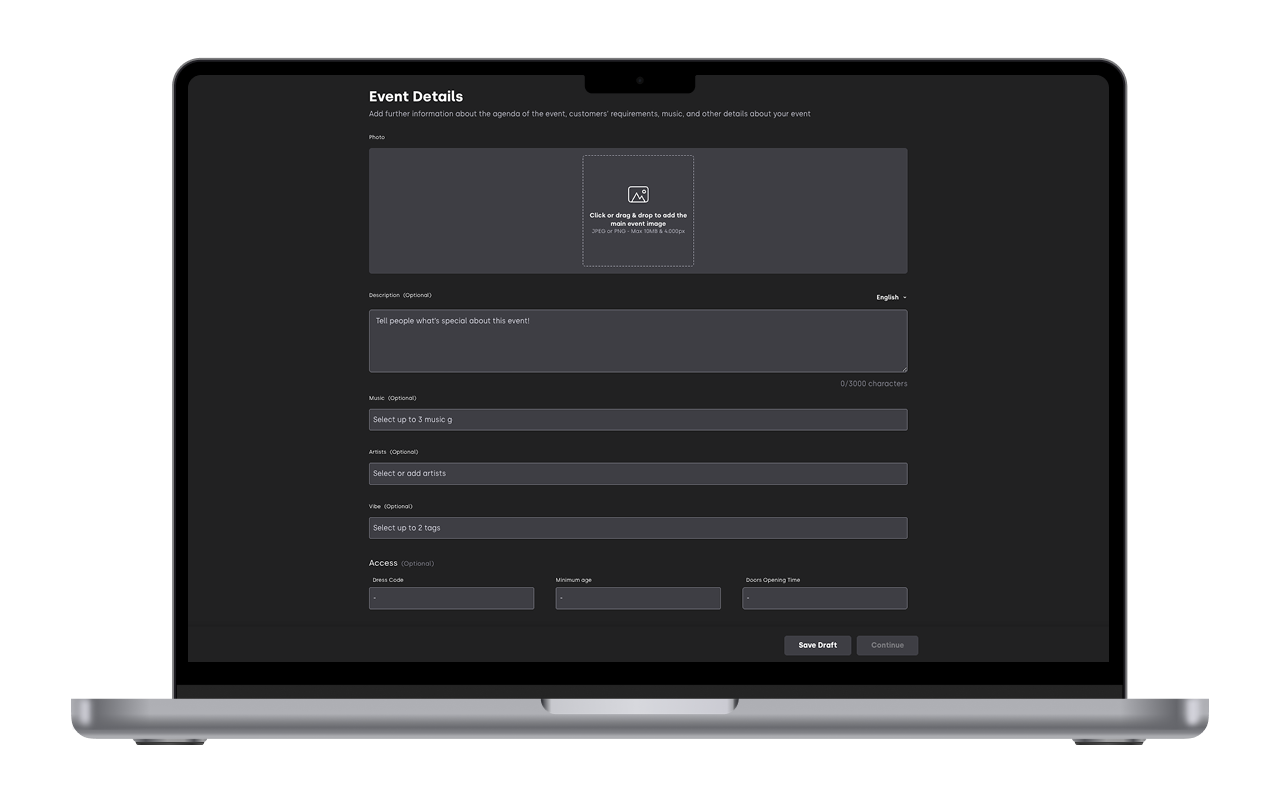
This image will be public on XCEED, so use a clean design with artist names and key information.
1.3.2 Event Description:Add the event description in the available languages: English, Spanish, French, Italian, Portuguese, German and Catalan. English is strongly recommended for international audiences. Use this space to explain what makes your event worth attending.
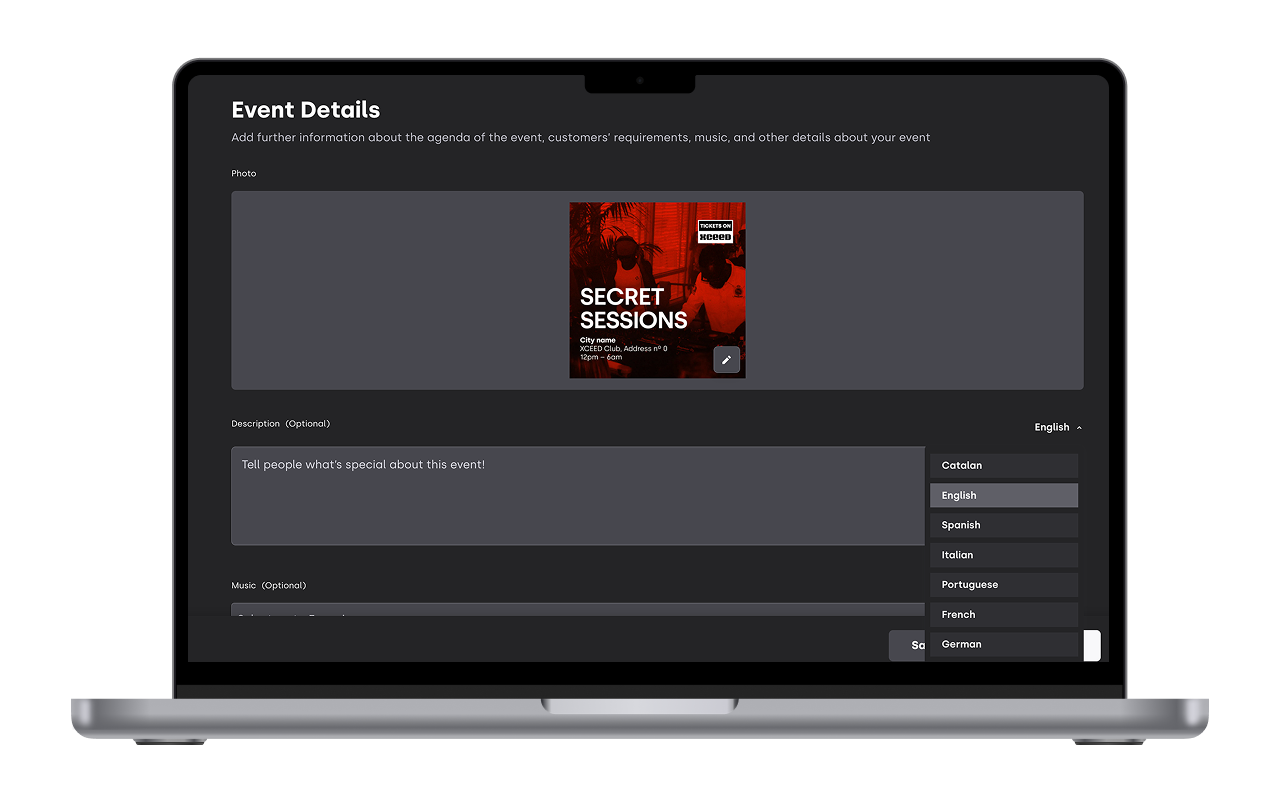
1.4 Additional event settings
Configure the rest of the event details:
Music genres
Vibe
Artists
Dress Code
Age
Opening hours
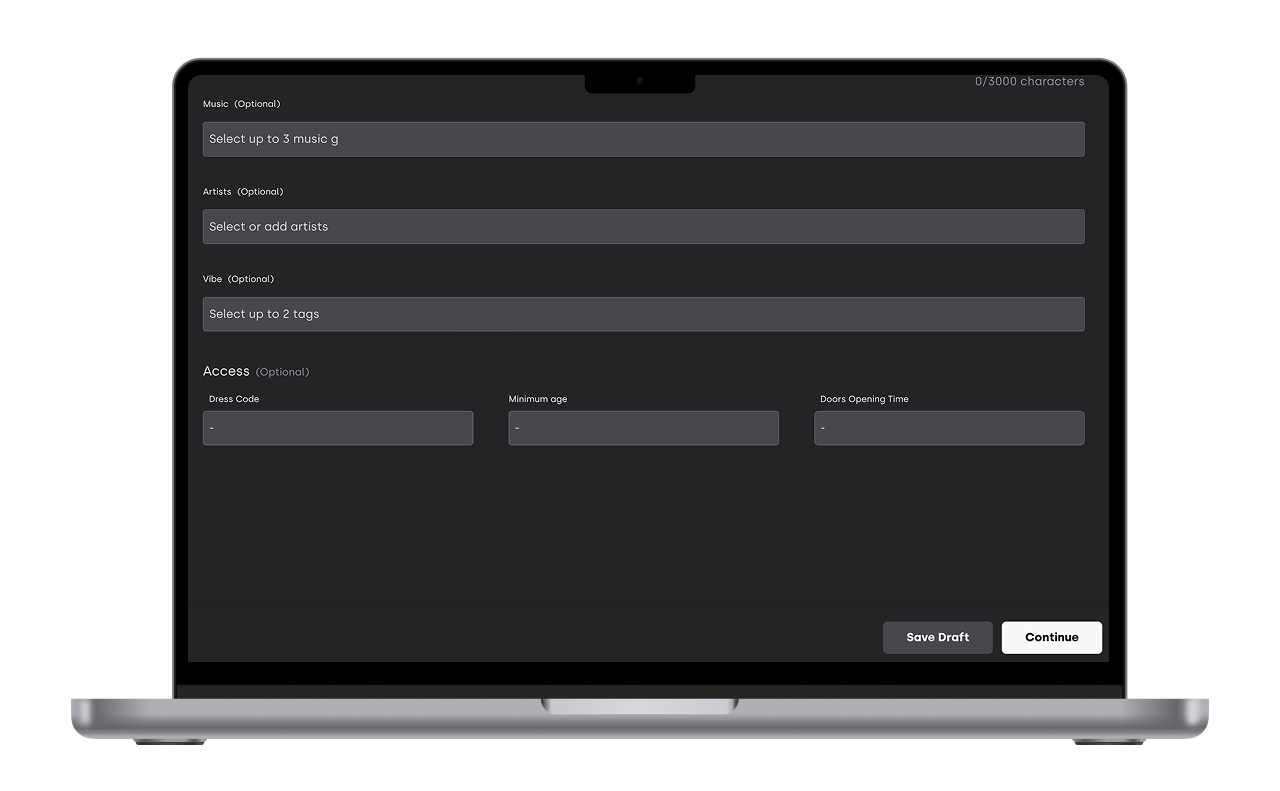
Click Continue once everything is completed.
2. Add your sales products (offers)
Add offers to you event on the Offer tab by clicking on create admission
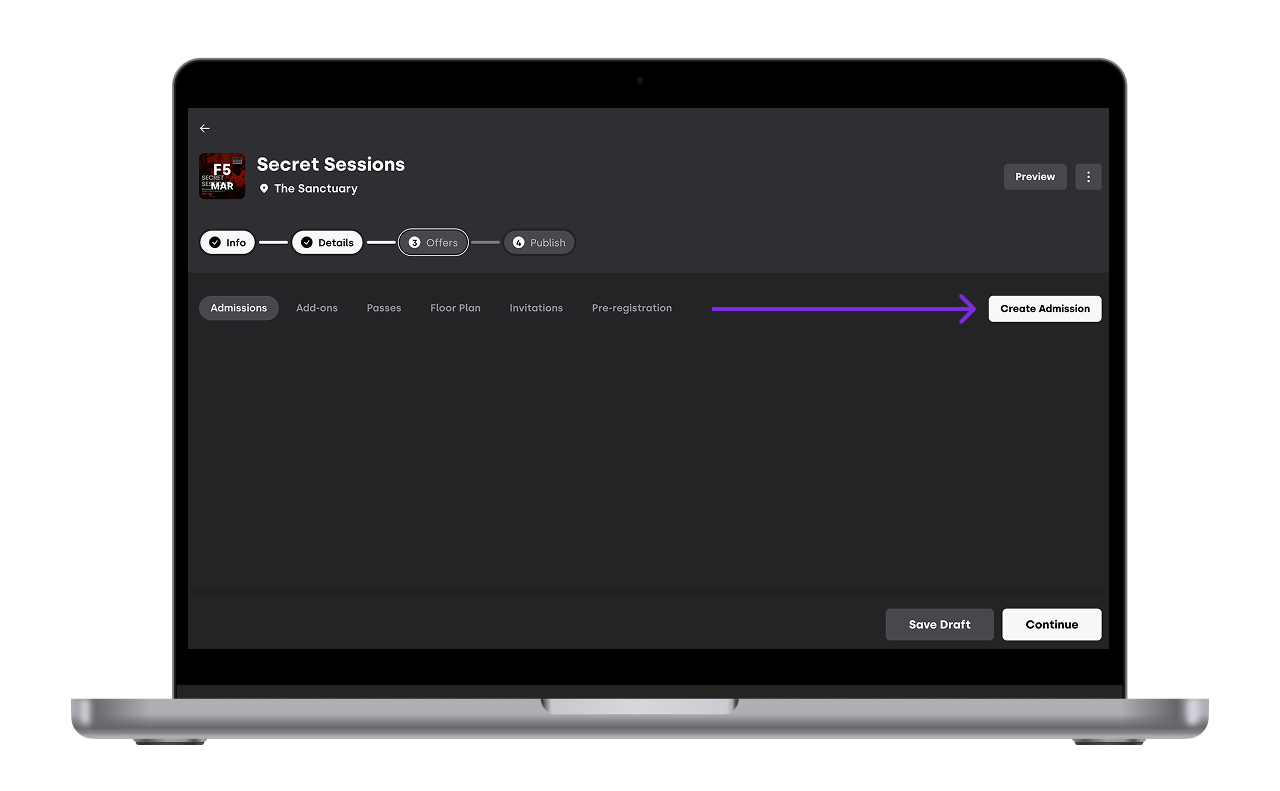
2.1 - Types of Offers
You can sell your event using three types of offers:
Guest List
Tickets
Bottle Service
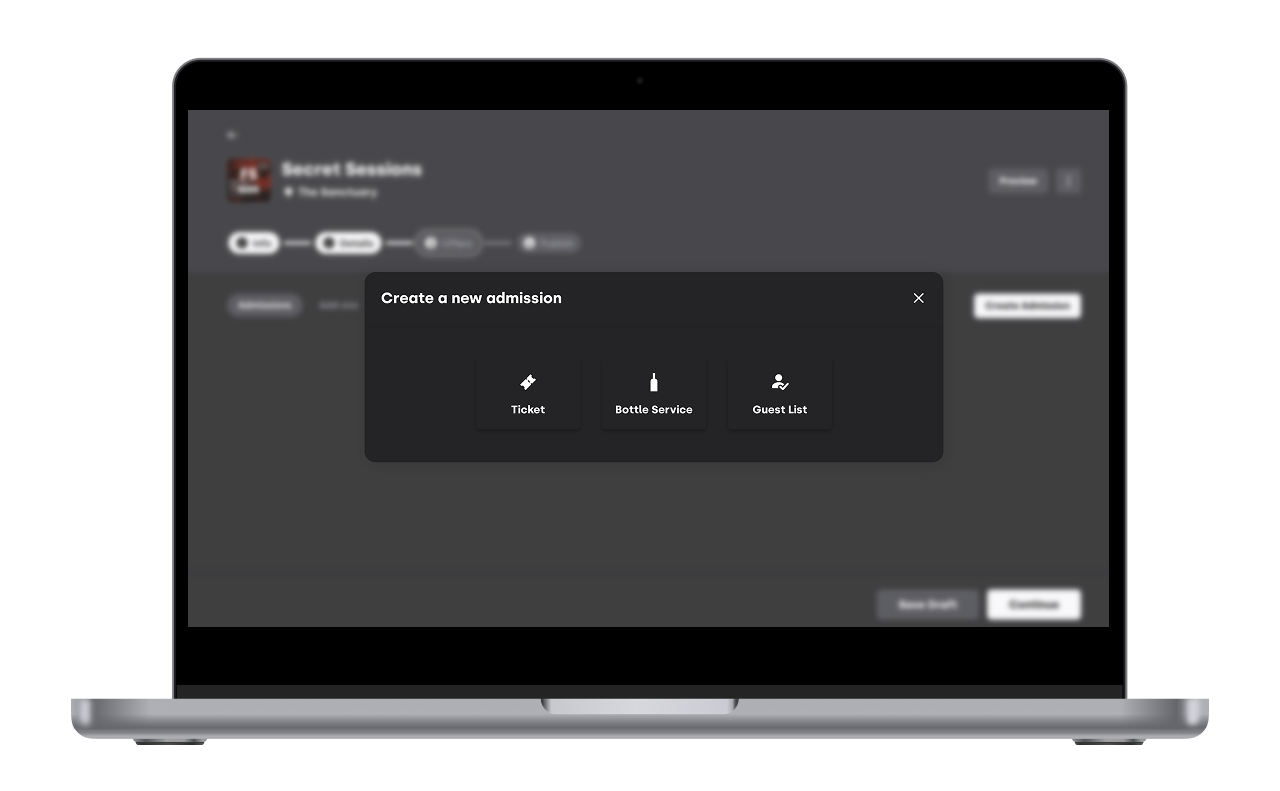
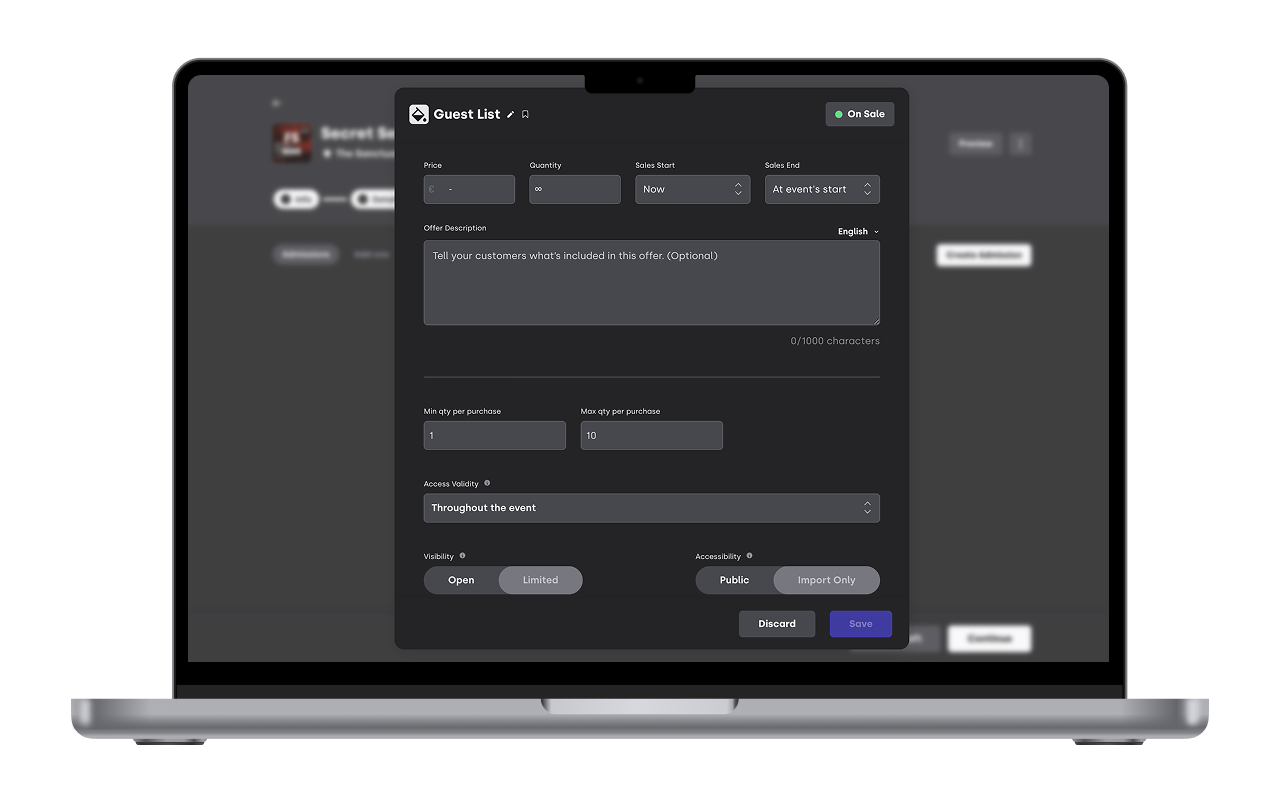
2.1.1 Guest List
Create a guest list that users can subscribe to. You can add a price to be paid at the door and include a description.
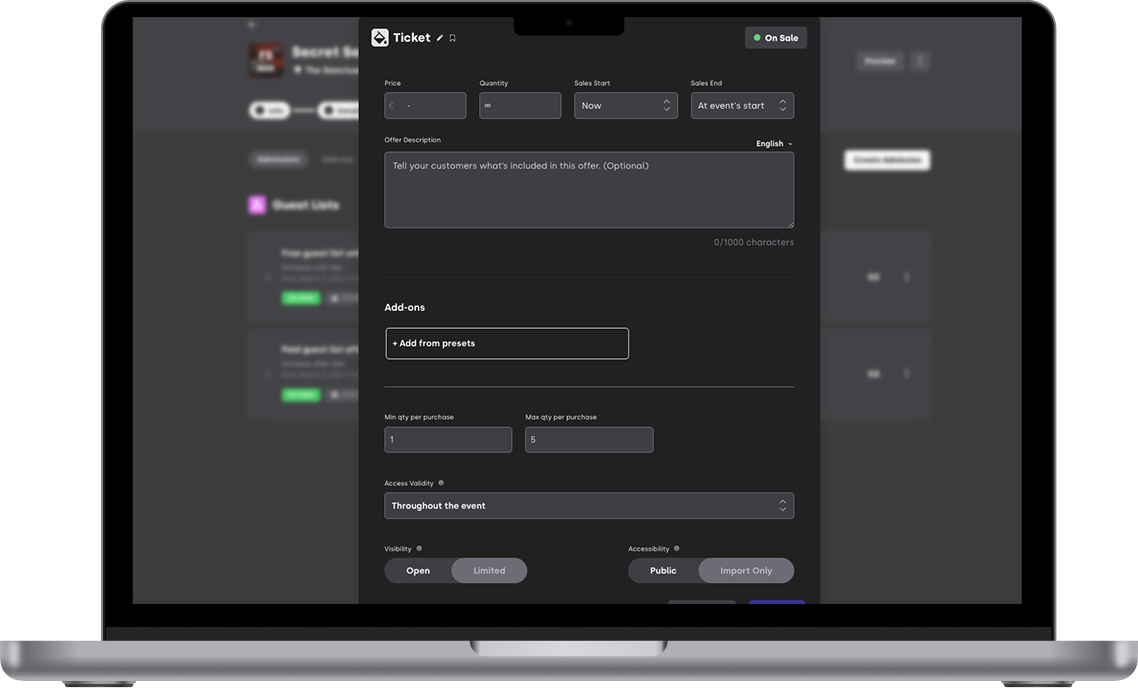
2.1.2 Tickets
Set ticket prices, descriptions, sales start and end, validity of offer and quantity limits.
Creating group tickets is also possible. Check how to do it here
2.1.3 Bottle Service
Use this option to sell tables or bottle services. Remember to set up how many people can access each table.
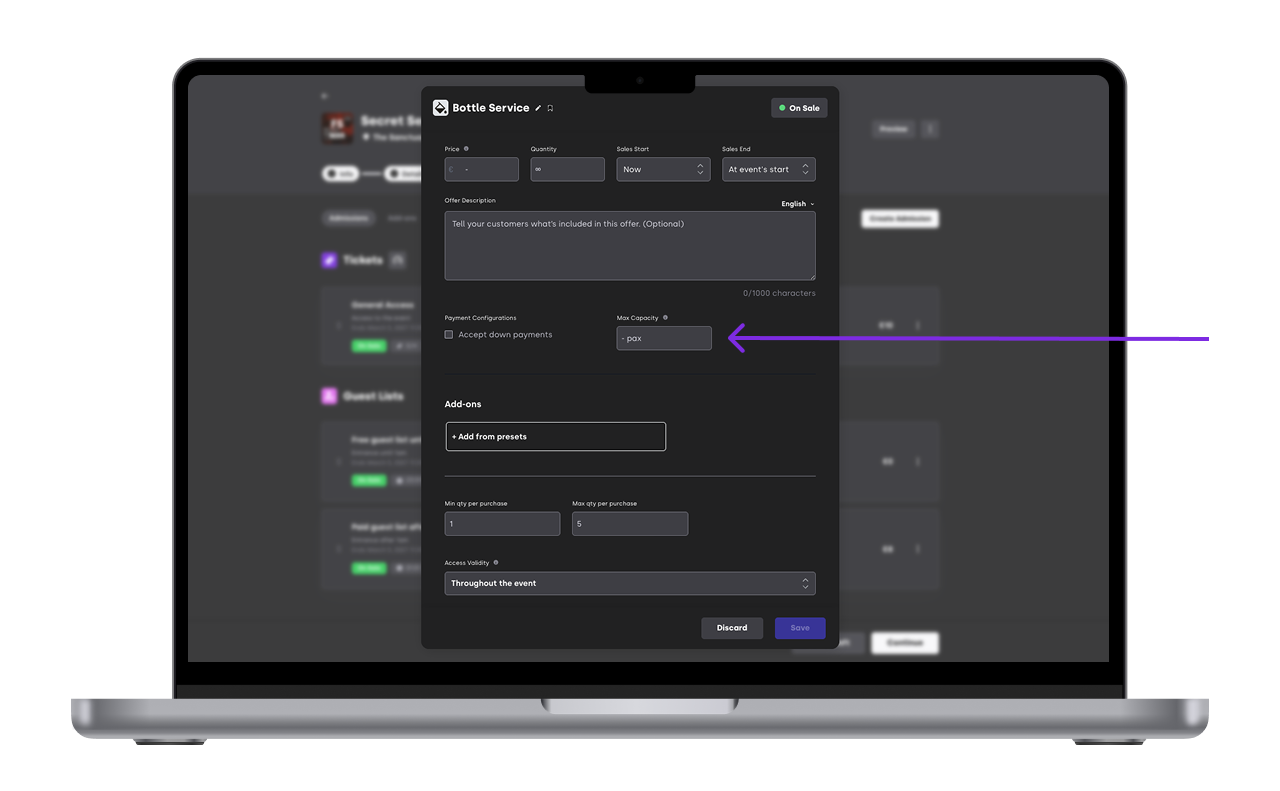
You can also attach a floor plan to show how your tables are set up (see more here for a simple floor plan or here for an intercative one) or define down payments for high priced tables (see more here).
Tip1:You can give your offers a custom name and colour by clicking on the pencil or the paint bucket icon.
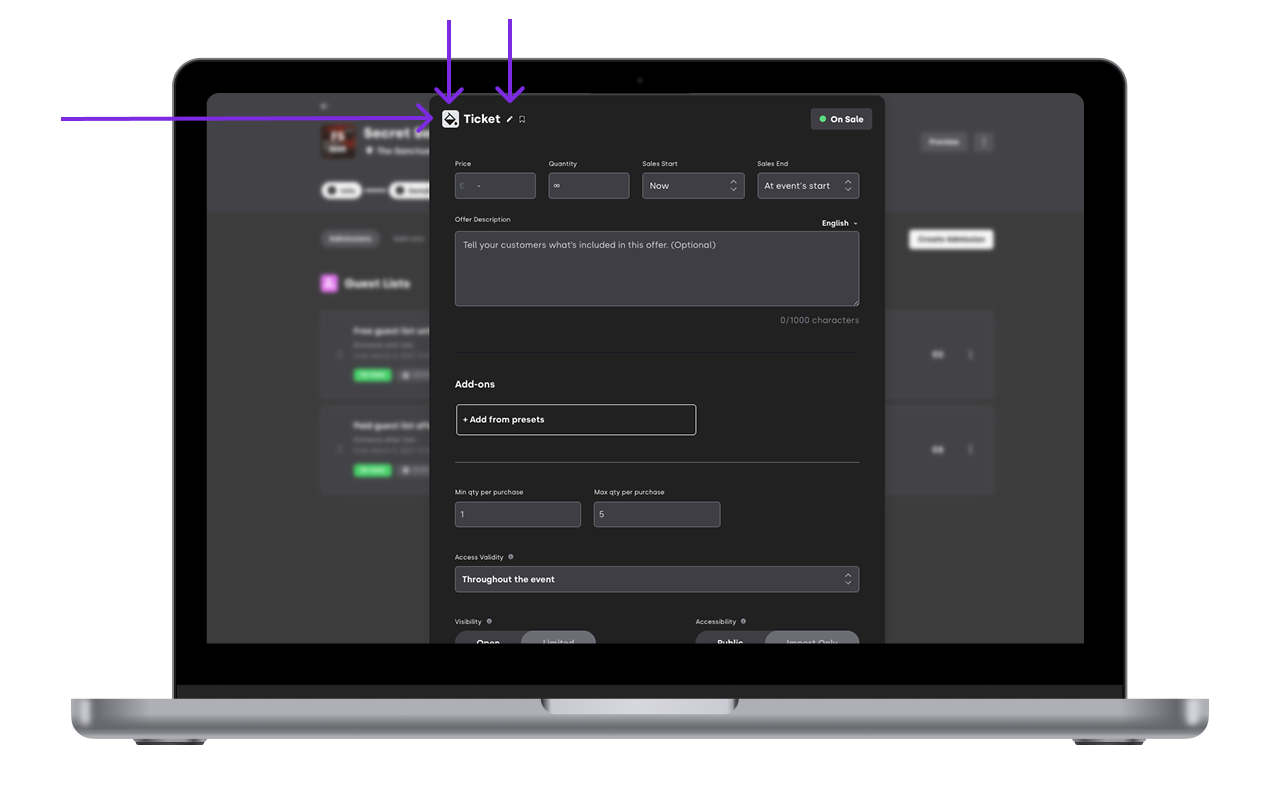
Tip2: Add a description to your offer with what it includes in different languages
Tip3: Set up different sales start and end time using triggers (see more here)
Tip4: Add a specific time slot for the validity of an offer to facilitate door control (by default an offer is valid throughout the event)
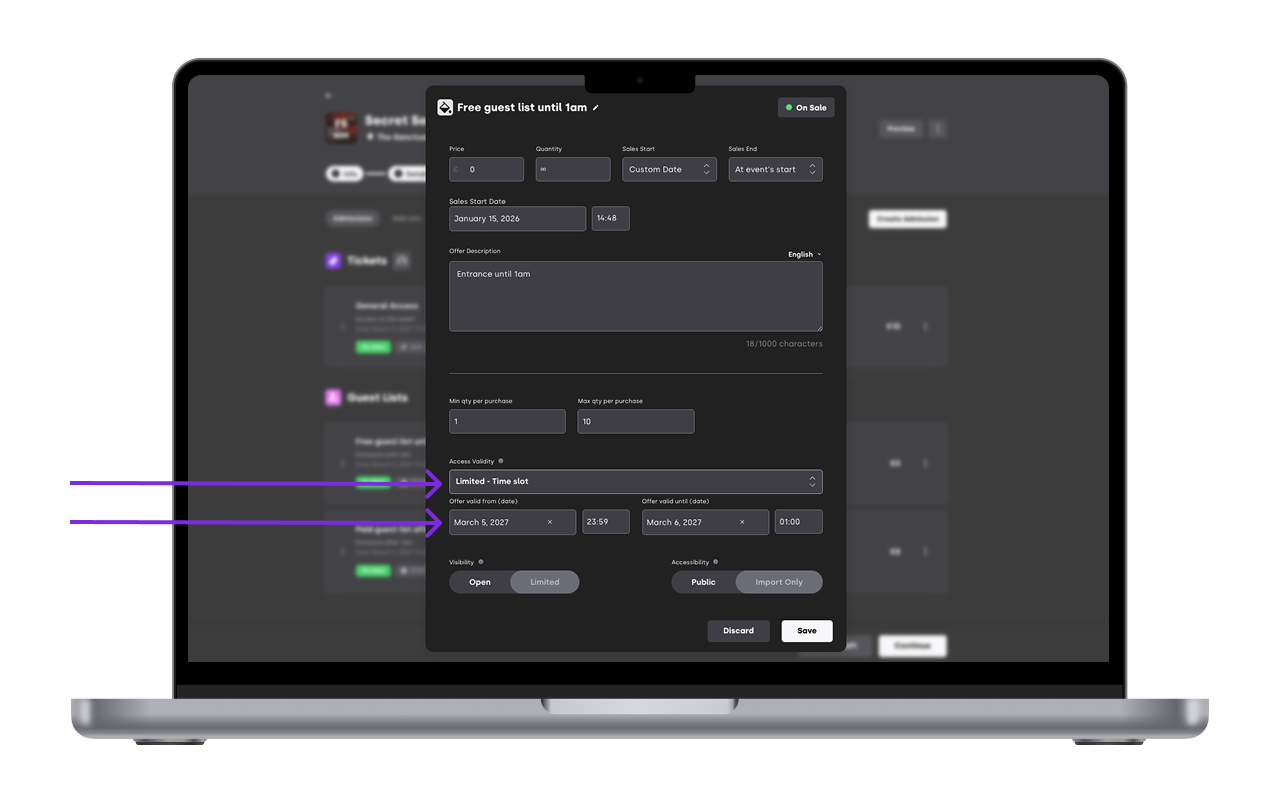
Tip5: save time by creating offer presets and avoid repetitive work when creating your events (see more here)
2.2 Offers on sale for general public
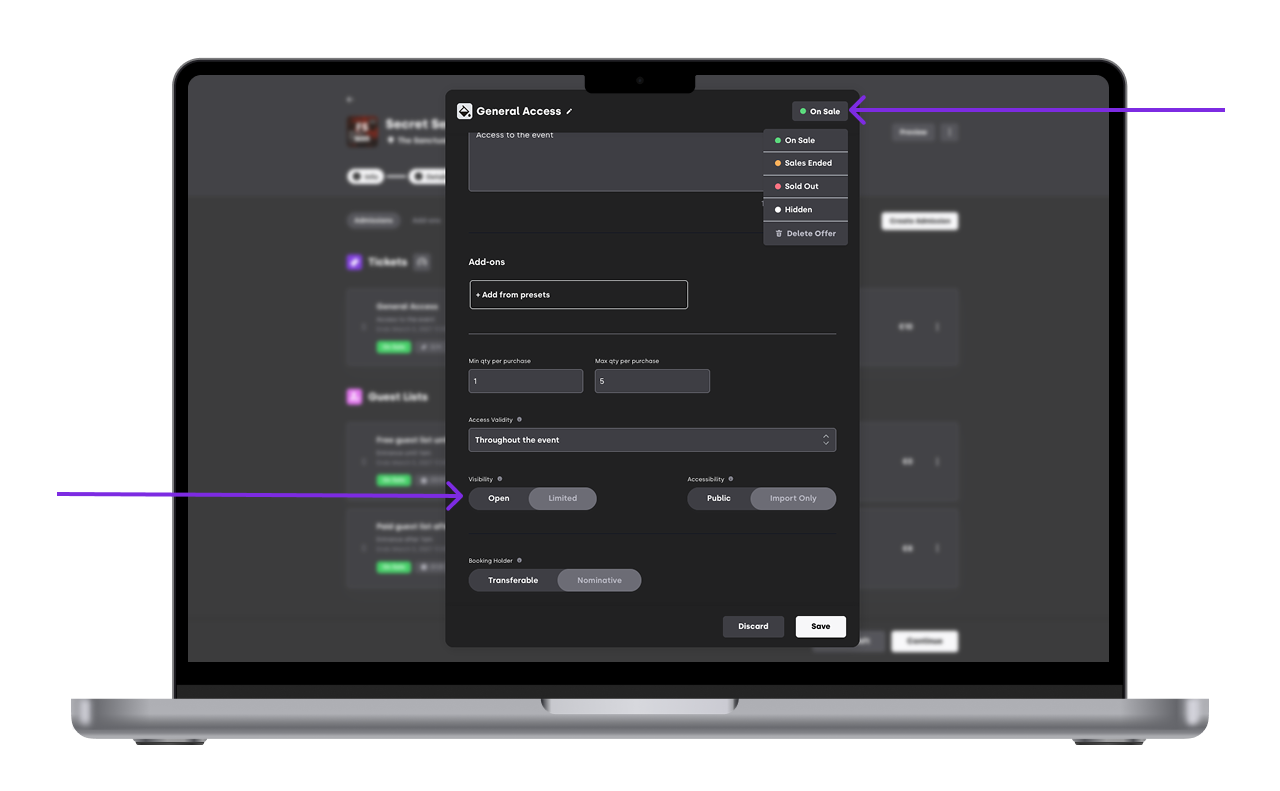
If an offer is set to On Sale and Open, it will appear online, in the event link, your website (in case you have our Widget installed) and any promoter-sales channel link.
You can manually change the status of an offer at any point:
Sales ended - Appears on your event page but not available for purchase as time to buy them has passed
Sold out - Appears on your event page but not available for purchase as all quantities have been sold already
Hidden - Doesn't appear on your event page
Offer status will change automatically as they reach their triggers.
2.3 Limit the visibility of an offer
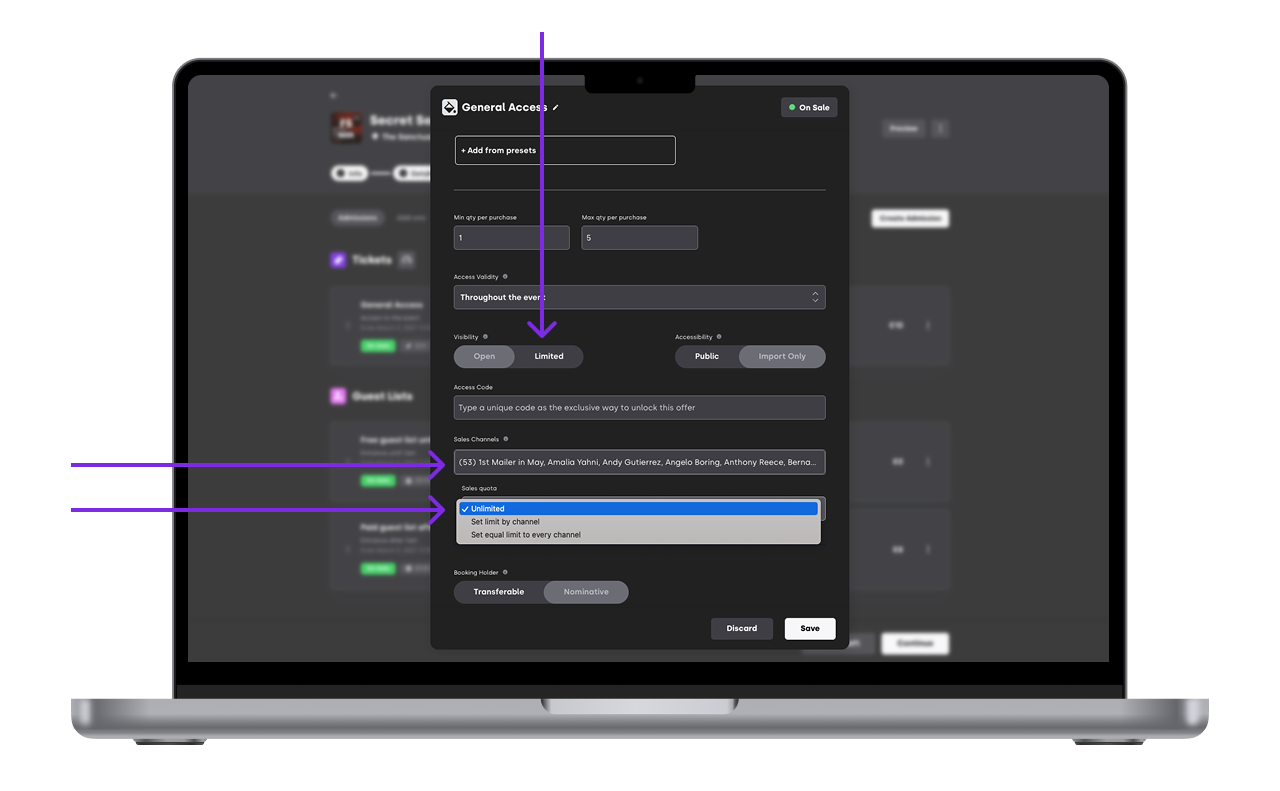
You can make some offer only available for selected people or groups:
Assigning offers to specific sales channels or promoters
Limit quantities per promoter
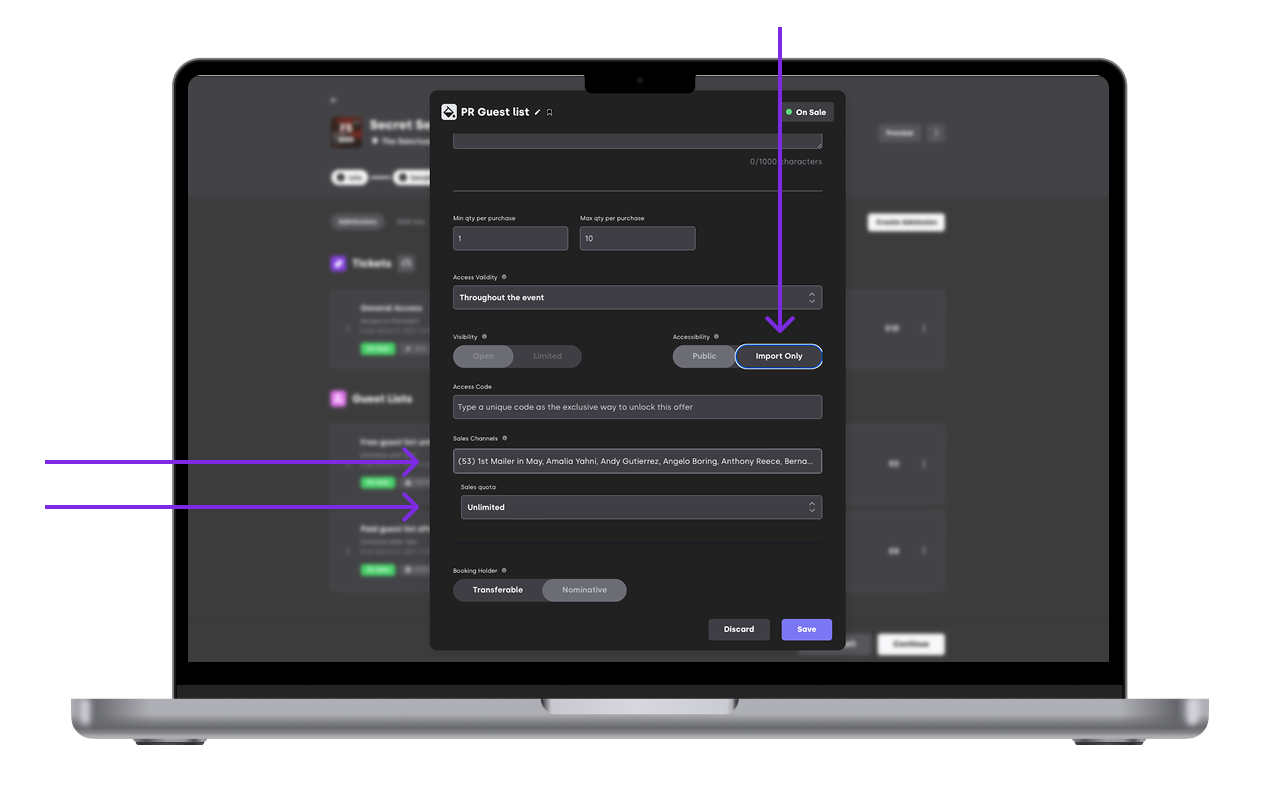
If an offer is set to Import Only, promoters can add guests via XCEED Pro (See more here), but customers cannot buy it online.
You can also limit which promotores can add guest and how many.
2.4 Offer details
For all tickets bought on XCEED the buyer needs to input his name and email. As an organiser you can ask for any other personal details (example: ID, phone number, age, nationality, etc...)
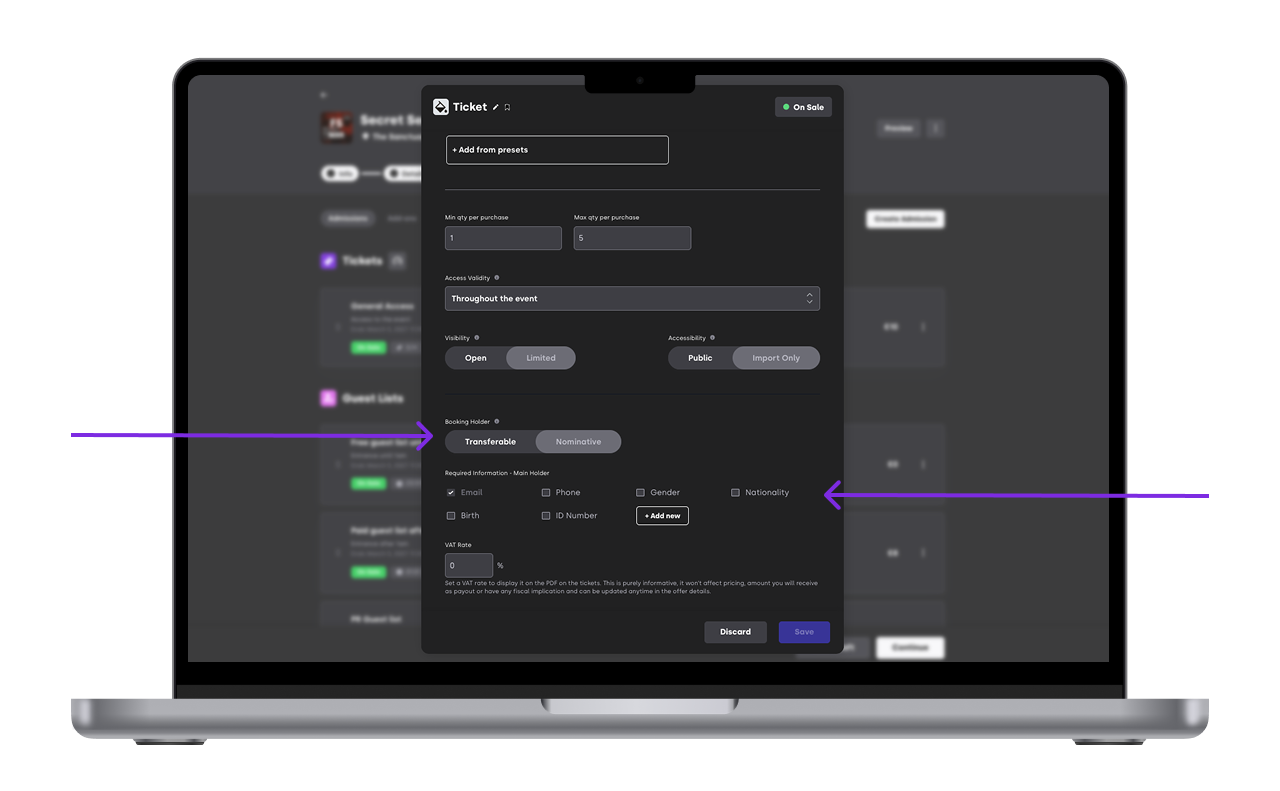
There are 2 types of tickets:
Transferable tickets: Unique QR codes but only the name and info of the buyer is recorded. This is enabled by default on XCEED.
Nominative tickets: Besides unique QR codes, each ticket inside a booking has the personal details of the event goers not only form the buyer.
Remember: The faster the purchasing process the higher the conversions so only request extra information or nominative tickets if you really need this
2.5 Offers order
You can reorder your offers at any time:
Click Edit
Go to Offers
Drag and rearrange the offers as needed
You can change the order of individual offers or the section and group. See more here
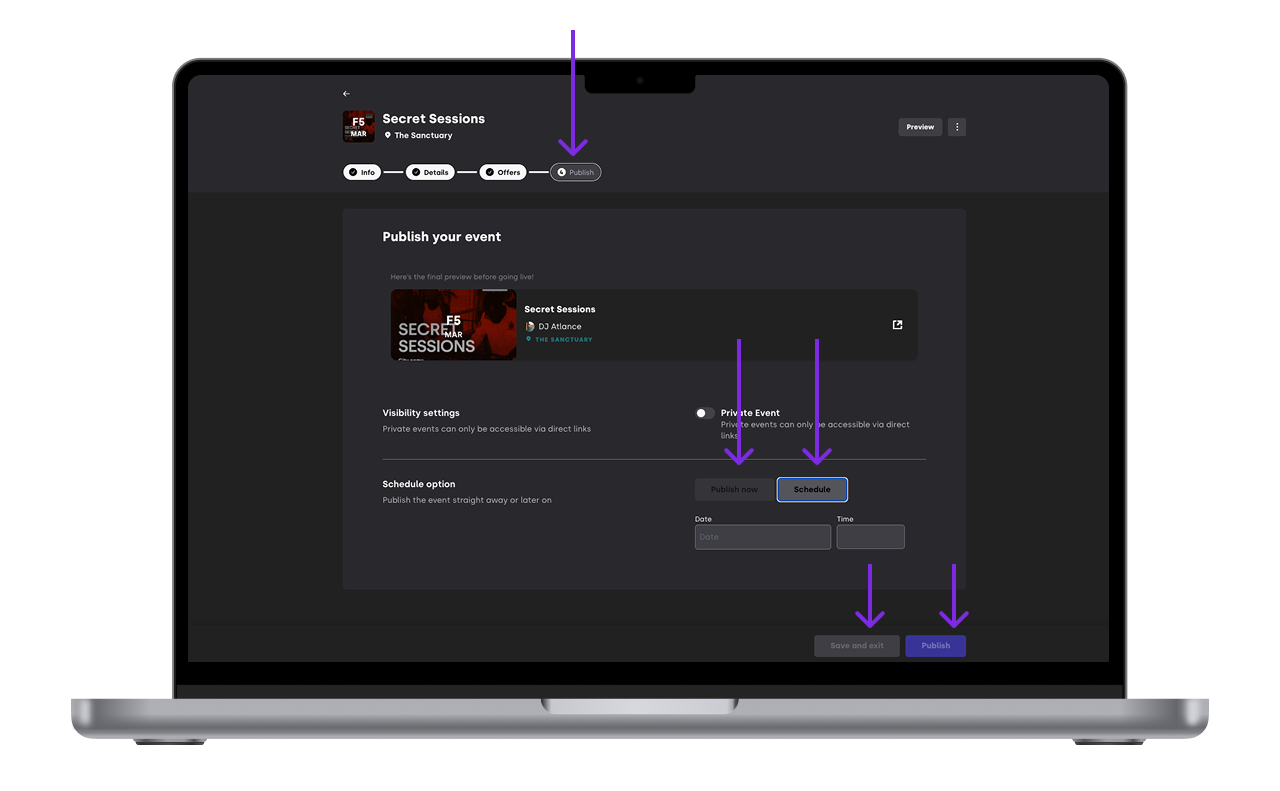
3. Publish your event
You can:
Save the event as a draft to publish later
Publish immediately
Schedule it for a later date and time
Once published, your event is live and ready to sell.
If you set your event as private it will be on sale but only with direct links to it. It will not appear on the XCEED market place or on your general (all-events) promotor channels
4. What your clients receive
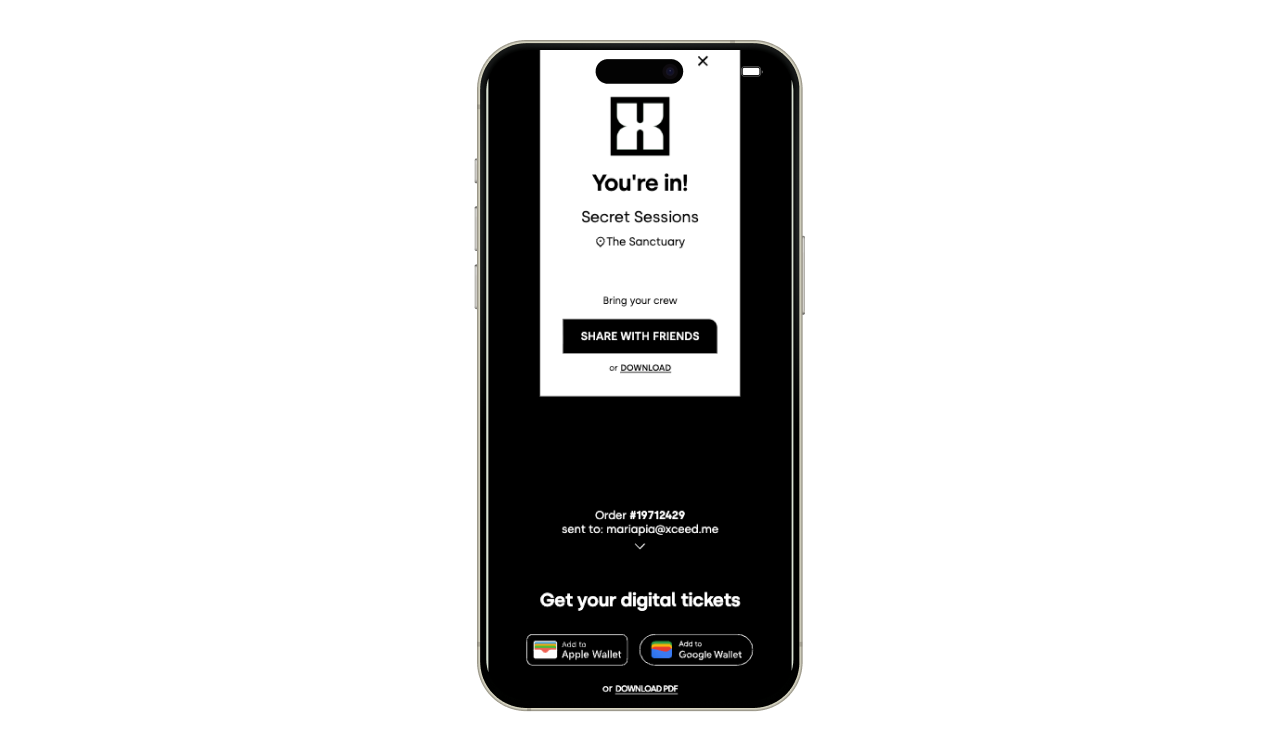
After completing payment, customers receive:
A success confirmation page
An email with the ticket PDF
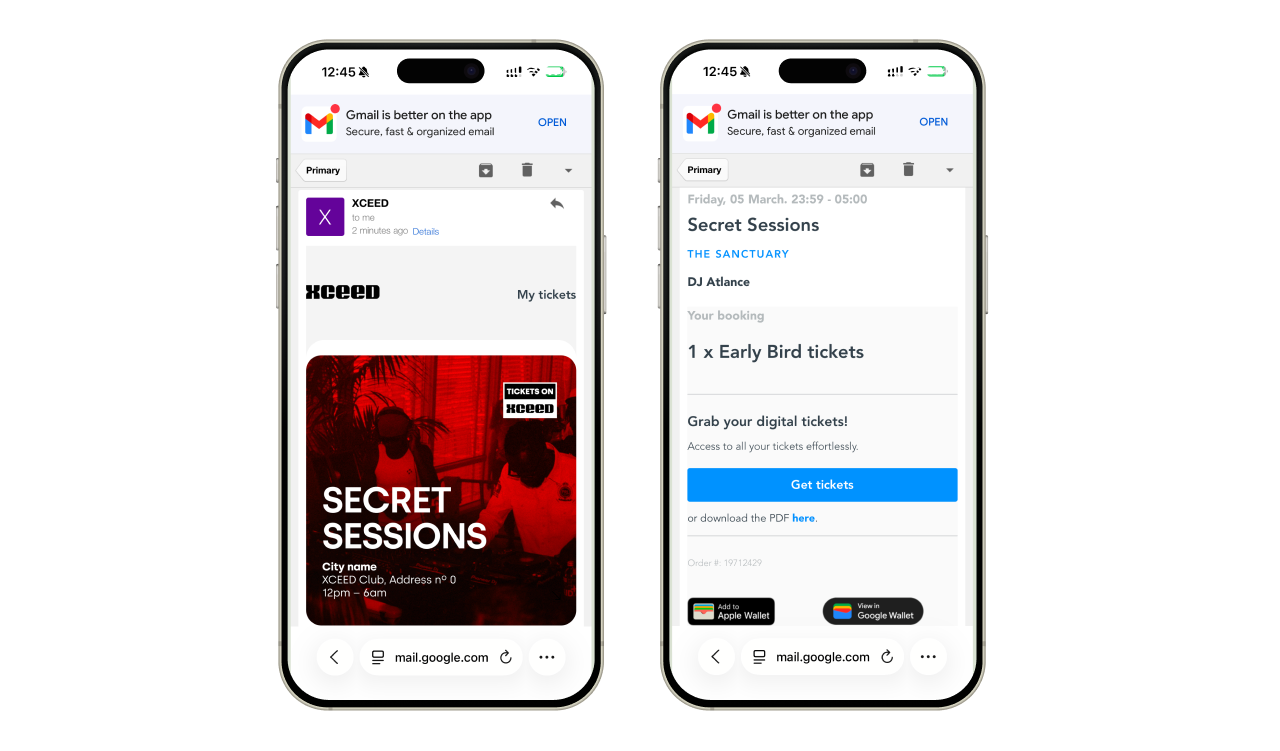
The option to add tickets to Apple Wallet or Google Wallet

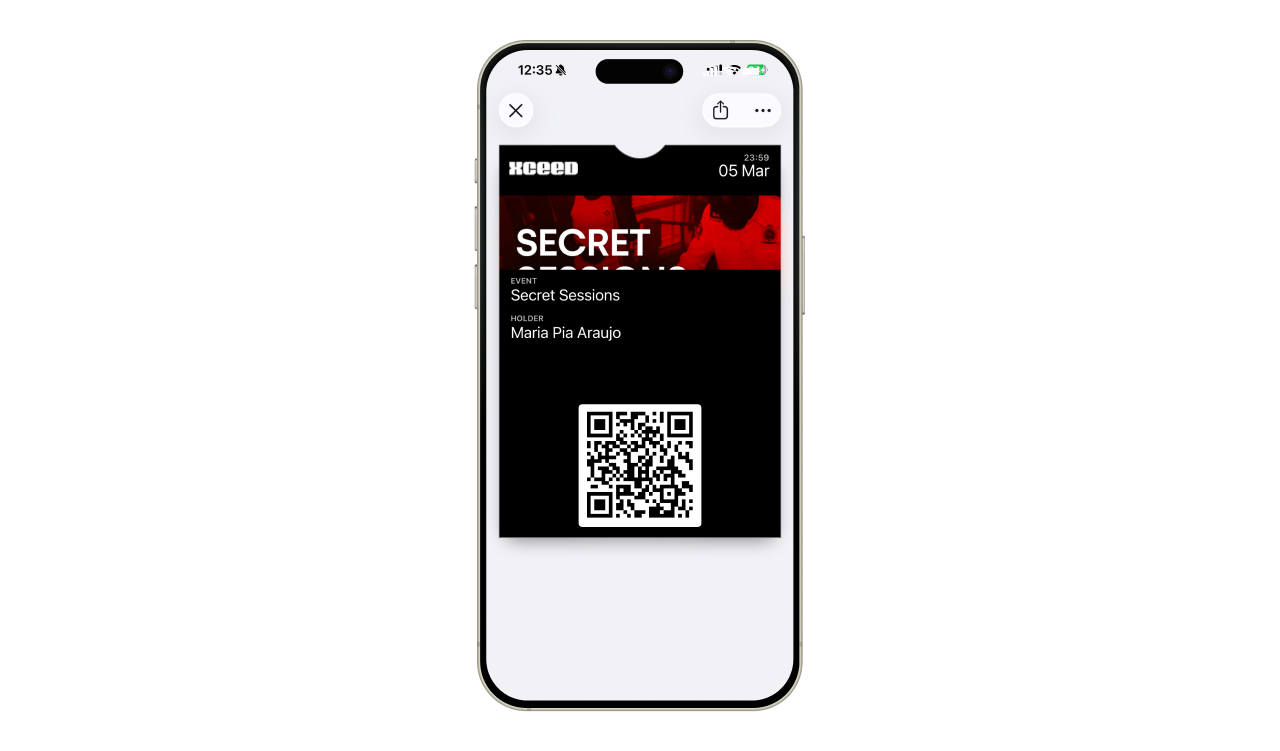
5. Check in clients at the door
Using XCEED Access, staff can scan tickets (Check how to use it here)
If you plan on using any other checking software you can also download all the QR codes in a CSV. format to import.
Your are all set up and ready for a successful event.
If you have any other questions check our FAQ page or contact support@xceed.me